<?xml version="1.0" encoding="utf-8"?><feed xmlns="http://www.w3.org/2005/Atom" ><generator uri="https://jekyllrb.com/" version="3.10.0">Jekyll</generator><link href="https://shahayush.com/feed.xml" rel="self" type="application/atom+xml" /><link href="https://shahayush.com/" rel="alternate" type="text/html" /><updated>2025-09-26T21:18:47-04:00</updated><id>https://shahayush.com/feed.xml</id><title type="html">Ayush Kumar Shah</title><subtitle>My personal website to share my academic profile and research contributions. I also share my ideas and a reflection of intereseting topics I learn mostly in the field of Artificial Intelligence and Python.</subtitle><author><name>Ayush Kumar Shah, PhD</name><email>ayush.kumar.shah@gmail.com</email></author><entry><title type="html">Common commands</title><link href="https://shahayush.com/2020/08/common-commands/" rel="alternate" type="text/html" title="Common commands" /><published>2020-08-12T13:00:00-04:00</published><updated>2020-08-12T13:00:00-04:00</updated><id>https://shahayush.com/2020/08/common-commands</id><content type="html" xml:base="https://shahayush.com/2020/08/common-commands/"><![CDATA[<ul>
  <li><a href="#general-shell-commands">General Shell Commands</a></li>
  <li><a href="#ssh-commands">SSH Commands</a></li>
  <li><a href="#tmux-commands">tmux commands</a></li>
  <li><a href="#vim-commands">Vim Commands</a></li>
  <li><a href="#git-commands">Git Commands</a></li>
  <li><a href="#i3wm-commands">i3wm commands</a></li>
  <li><a href="#brew-bundle-for-osx">Brew bundle</a></li>
</ul>

<h1 id="general-shell-commands">General shell commands</h1>

<table>
  <thead>
    <tr>
      <th>Commands</th>
      <th>Description</th>
    </tr>
  </thead>
  <tbody>
    <tr>
      <td><code class="language-plaintext highlighter-rouge">echo $SHELL</code></td>
      <td>Display name of active shell (bash or zsh or others)</td>
    </tr>
    <tr>
      <td><code class="language-plaintext highlighter-rouge">man command-name</code> <br /> Eg: man bash | grep -C2 ‘$@’</td>
      <td>Get information about the command <br /> Here, return 2 leading and trailing lines around the matching text ‘$@’ in the information</td>
    </tr>
    <tr>
      <td><code class="language-plaintext highlighter-rouge">command-name --help</code></td>
      <td>Information about the command usage</td>
    </tr>
    <tr>
      <td><code class="language-plaintext highlighter-rouge">pwd</code></td>
      <td>get current path</td>
    </tr>
    <tr>
      <td>pwd | pbcopy</td>
      <td>copy current path to clipboard (Use xcopy or xsel for linux)</td>
    </tr>
    <tr>
      <td><code class="language-plaintext highlighter-rouge">cd -</code></td>
      <td>go back to previous location</td>
    </tr>
    <tr>
      <td><code class="language-plaintext highlighter-rouge">take new_dir</code></td>
      <td>create new_dir and cd into it i.e. <code class="language-plaintext highlighter-rouge">mkdir new_dir; cd new_dir</code></td>
    </tr>
    <tr>
      <td><code class="language-plaintext highlighter-rouge">ls -al</code></td>
      <td>List. a - all <br /> l - long listing format <br /> d means directory - means file</td>
    </tr>
    <tr>
      <td><code class="language-plaintext highlighter-rouge">ls -ls</code></td>
      <td>list files with detailed info (permission, date, symoblic links)</td>
    </tr>
    <tr>
      <td>ls -1 | wc -l</td>
      <td>count number of files in a directory</td>
    </tr>
    <tr>
      <td><code class="language-plaintext highlighter-rouge">cat filename</code></td>
      <td>show the contents of the file filename</td>
    </tr>
    <tr>
      <td>tee <br /> Eg: df -h | tee usage.txt</td>
      <td>display stdout of a command and write it in a file</td>
    </tr>
    <tr>
      <td><code class="language-plaintext highlighter-rouge">free -h</code></td>
      <td>Show RAM - space used and free</td>
    </tr>
    <tr>
      <td><code class="language-plaintext highlighter-rouge">df -h</code></td>
      <td>Show disk information - space used and free</td>
    </tr>
    <tr>
      <td><code class="language-plaintext highlighter-rouge">du -sh .</code></td>
      <td>Show total size occupied by current directory</td>
    </tr>
    <tr>
      <td><code class="language-plaintext highlighter-rouge">du -sh *</code></td>
      <td>Show size of each file or folder in current directory</td>
    </tr>
    <tr>
      <td>du -sh * | tail -1</td>
      <td>Show total size occupied by the last file in the current directory</td>
    </tr>
    <tr>
      <td>ps ax[c] [| less]</td>
      <td>List currently running programs. <br />c - easier to read<br />less - easier to navigate</td>
    </tr>
    <tr>
      <td><code class="language-plaintext highlighter-rouge">pidof process-name</code></td>
      <td>Get the process id of a running process.</td>
    </tr>
    <tr>
      <td><code class="language-plaintext highlighter-rouge">kill process-id</code></td>
      <td>Kill the process</td>
    </tr>
    <tr>
      <td><code class="language-plaintext highlighter-rouge">uname [-[s][a]]</code></td>
      <td>Display name of OS Distribution. a - Detailed info.</td>
    </tr>
    <tr>
      <td><code class="language-plaintext highlighter-rouge">stat filename</code></td>
      <td>Display file status</td>
    </tr>
    <tr>
      <td><code class="language-plaintext highlighter-rouge">alias alias-name</code></td>
      <td>Shows the alias actual command</td>
    </tr>
    <tr>
      <td><code class="language-plaintext highlighter-rouge">date +format</code> E.g. <code class="language-plaintext highlighter-rouge">date +%d/%m/%Y</code></td>
      <td>Date command</td>
    </tr>
    <tr>
      <td><code class="language-plaintext highlighter-rouge">cal [-3] [[month] year]</code> <br /> E.g. <code class="language-plaintext highlighter-rouge">cal -3 june 1996</code> or <code class="language-plaintext highlighter-rouge">cal 1997</code> or <code class="language-plaintext highlighter-rouge">cal</code></td>
      <td>Calendar command. -3 means show previous and the next month as well.</td>
    </tr>
    <tr>
      <td><code class="language-plaintext highlighter-rouge">less file.txt</code></td>
      <td>Show file contents (similar to cat but allows to move up and down)</td>
    </tr>
    <tr>
      <td><code class="language-plaintext highlighter-rouge">more file.txt</code></td>
      <td>Show file contents (similar to cat but allows to move up and down)</td>
    </tr>
    <tr>
      <td><code class="language-plaintext highlighter-rouge">rm -ir</code></td>
      <td>Remove. i - prompt to ask permission for each file. r - recursively delete</td>
    </tr>
    <tr>
      <td><code class="language-plaintext highlighter-rouge">grep [-i] text_to_search /path/to/file</code></td>
      <td>Search for contents in a file , i - case insensitive</td>
    </tr>
    <tr>
      <td><code class="language-plaintext highlighter-rouge">grep -v text_to_search /path/to/file</code></td>
      <td>Search for contents not matching the pattern in a file</td>
    </tr>
    <tr>
      <td><code class="language-plaintext highlighter-rouge">command &gt; file.txt</code></td>
      <td>adds output of command to file.txt. Creates a new file if does not exist. If exists, overwrites the contents of the file.</td>
    </tr>
    <tr>
      <td><code class="language-plaintext highlighter-rouge">command &gt;&gt; file.txt</code></td>
      <td>adds output of command to file.txt. Creates a new file if does not exist. If exists, appends the outputs to the contents of the file.</td>
    </tr>
    <tr>
      <td><code class="language-plaintext highlighter-rouge">find / -name "file_name" [2&gt;/dev/null]</code> <br /> Eg: <code class="language-plaintext highlighter-rouge">find \ -name "*backup*" 2/dev/null</code></td>
      <td>Find file from the root directory <br /> 2/dev/null: 2 takes error output and redirects to dev/null where it is deleted</td>
    </tr>
    <tr>
      <td><code class="language-plaintext highlighter-rouge">find . -not -name "file_name"</code></td>
      <td>Find files not matching the filename</td>
    </tr>
    <tr>
      <td>find . -name “file_name” | xargs -I % rm %</td>
      <td>Find and delete files matching the filename</td>
    </tr>
    <tr>
      <td><code class="language-plaintext highlighter-rouge">find . -name "file_name" -exec rm -i {} \;</code></td>
      <td>Find and delete files matching the filename</td>
    </tr>
    <tr>
      <td><code class="language-plaintext highlighter-rouge">find . -type d -name "input_features" -print | tee /dev/tty | xargs -P 16 -I {} rm -rf "{}"</code></td>
      <td>Find and delete directories matching the directory name or filename in parallel with specified number of cores</td>
    </tr>
    <tr>
      <td><code class="language-plaintext highlighter-rouge">find . -name "file_name" -exec grep "Hello" -i {} \;</code></td>
      <td>Find and search “Hello” in files matching the filename</td>
    </tr>
    <tr>
      <td><code class="language-plaintext highlighter-rouge">find -E . -regex ".*/file_name[0-9].sh"</code></td>
      <td>Find files matching the regular expression (this syntax works only in osx)</td>
    </tr>
    <tr>
      <td><code class="language-plaintext highlighter-rouge">find -E . -not -regex ".*/file_name[0-9].sh"</code></td>
      <td>Find files not matching the regular expression (this syntax works only in osx)</td>
    </tr>
    <tr>
      <td>command | grep text_to_search <br /> Eg: find / -name “<em>backup</em>” 2&gt;/dev/null | grep $USER</td>
      <td>Using pipe to combine grep with other commands</td>
    </tr>
    <tr>
      <td><code class="language-plaintext highlighter-rouge">awk</code></td>
      <td>very powerful command for pattern scanning and processing</td>
    </tr>
    <tr>
      <td><code class="language-plaintext highlighter-rouge">&lt;C-T&gt;</code></td>
      <td>fzf: fuzzy finding files or directories <br /> You need to install fzf</td>
    </tr>
    <tr>
      <td><code class="language-plaintext highlighter-rouge">&lt;C-R&gt;</code></td>
      <td>fzf: fuzzy finding commands in history</td>
    </tr>
    <tr>
      <td><code class="language-plaintext highlighter-rouge">&lt;Esc-C&gt;</code></td>
      <td>fzf: fuzzy finding files or directories from current path</td>
    </tr>
    <tr>
      <td><code class="language-plaintext highlighter-rouge">top</code> or <code class="language-plaintext highlighter-rouge">htop</code> or <code class="language-plaintext highlighter-rouge">ytop</code> or <code class="language-plaintext highlighter-rouge">gotop</code></td>
      <td>Process info and CPU Usage  (You need to install htop or ytop)</td>
    </tr>
    <tr>
      <td><code class="language-plaintext highlighter-rouge">tree [-aldf][-L level][-P pattern][-I pattern][-o filename] </code></td>
      <td>display directory’s contents in a  tree <br /> a - all files <br /> l - symbolic links <br /> d - directories only <br /> L - limit number of levels of directory <br /> I - files not matching pattern <br /> P - files matching pattern <br /> o - output to filename <br /> You need to install tree</td>
    </tr>
    <tr>
      <td><code class="language-plaintext highlighter-rouge">lsof /dev/nvidia* | awk '{print $2}'</code></td>
      <td>Display ids of processes utilizing CUDA/GPU</td>
    </tr>
  </tbody>
</table>

<h1 id="ssh-commands">SSH Commands</h1>

<h2 id="ssh-tunnelling">SSH Tunnelling</h2>

<p>To access servers hosted on the remote machine from the local machine</p>

<div class="language-console highlighter-rouge"><div class="highlight"><pre class="highlight"><code><span class="gp">$</span><span class="w"> </span>ssh <span class="nt">-NL</span> port1_server:localhost:port1_local <span class="o">[</span><span class="nt">-NL</span> port2_server:localhost:port2_local]<span class="o">{</span>multiple ports possible<span class="o">}</span> username@remote-ip-address
</code></pre></div></div>

<p>Example:</p>

<div class="language-console highlighter-rouge"><div class="highlight"><pre class="highlight"><code><span class="gp">$</span><span class="w"> </span>ssh <span class="nt">-NL</span> 8888:localhost:8888 ayush@192.168.100.7
</code></pre></div></div>

<h2 id="copy-multiple-files-from-remote-to-local">Copy multiple files from remote to local:</h2>

<div class="language-console highlighter-rouge"><div class="highlight"><pre class="highlight"><code><span class="gp">$</span><span class="w"> </span>scp username@remote-ip:/some/remote/directory/<span class="se">\{</span>file1,file2,file3<span class="se">\}</span> /localpath
<span class="gp">$</span><span class="w"> </span>scp username@remote-ip:<span class="s1">'/path1/file1 /path2/file2 /path3/file3'</span> /localPath
</code></pre></div></div>

<h2 id="other-ssh-commands">Other ssh commands</h2>

<p><strong>Generate ssh key:</strong></p>

<p>Using ed25519 (more secure: Recommended)</p>
<div class="language-console highlighter-rouge"><div class="highlight"><pre class="highlight"><code><span class="gp">$</span><span class="w"> </span>ssh-keygen <span class="nt">-t</span> ed25519
</code></pre></div></div>

<p>Using RSA</p>
<div class="language-console highlighter-rouge"><div class="highlight"><pre class="highlight"><code><span class="gp">$</span><span class="w"> </span>ssh-keygen <span class="nt">-t</span> rsa <span class="nt">-b</span> 3072
</code></pre></div></div>

<p><strong>Save ssh host info</strong>
Modify this file: <code class="language-plaintext highlighter-rouge">~/.ssh/config</code></p>

<div class="language-config highlighter-rouge"><div class="highlight"><pre class="highlight"><code><span class="n">Host</span> *
    <span class="n">AddKeysToAgent</span> <span class="n">yes</span>
    <span class="n">UseKeychain</span> <span class="n">yes</span>
    <span class="n">IdentityFile</span> ~/.<span class="n">ssh</span>/<span class="n">id_rsa</span> (<span class="n">path</span>/<span class="n">to</span>/<span class="n">key</span>)

<span class="n">Host</span> <span class="n">targaryen</span>
    <span class="n">HostName</span> <span class="m">192</span>.<span class="m">168</span>.<span class="m">1</span>.<span class="m">10</span>
    <span class="n">User</span> <span class="n">daenerys</span>
    <span class="n">Port</span> <span class="m">7654</span>

<span class="n">Host</span> <span class="n">tyrell</span>
    <span class="n">HostName</span> <span class="m">192</span>.<span class="m">168</span>.<span class="m">10</span>.<span class="m">20</span>

<span class="n">Host</span> <span class="n">martell</span>
    <span class="n">HostName</span> <span class="m">192</span>.<span class="m">168</span>.<span class="m">10</span>.<span class="m">50</span>

<span class="n">Host</span> *<span class="n">ell</span>
    <span class="n">User</span> <span class="n">oberyn</span>

<span class="n">Host</span> * !<span class="n">martell</span>
    <span class="n">LogLevel</span> <span class="n">INFO</span>

<span class="n">Host</span> *
    <span class="n">User</span> <span class="n">root</span>
    <span class="n">Compression</span> <span class="n">yes</span>

</code></pre></div></div>

<p><strong>Save ssh password so that no need to re-enter every time</strong></p>

<p>Run this in client (not server)</p>

<div class="language-console highlighter-rouge"><div class="highlight"><pre class="highlight"><code><span class="go">ssh-copy-id -i path/to/key.pub username@server-ip-address
</span></code></pre></div></div>

<p>Example:</p>

<div class="language-console highlighter-rouge"><div class="highlight"><pre class="highlight"><code><span class="go">ssh-copy-id -i ~/.ssh/id_rsa.pub ayush@192.168.1.107
</span></code></pre></div></div>

<p><strong>Open server in nautilus / file explorer in linux</strong></p>

<div class="language-markdown highlighter-rouge"><div class="highlight"><pre class="highlight"><code>File explorer: Other locations &gt; Connect to server &gt; sftp://username@ip/
</code></pre></div></div>

<h1 id="tmux-commands">tmux commands</h1>

<table>
  <thead>
    <tr>
      <th> </th>
      <th> </th>
    </tr>
  </thead>
  <tbody>
    <tr>
      <td>tmux</td>
      <td>Create a tmux session with default window name 0</td>
    </tr>
    <tr>
      <td>tmux new -As name</td>
      <td>Create a tmux session with a name or attach to an existing session (if it exists)</td>
    </tr>
    <tr>
      <td>tmux ls</td>
      <td>List the active tmux sessions</td>
    </tr>
    <tr>
      <td>tmux a -t name</td>
      <td>Attach to an existing tmux session</td>
    </tr>
    <tr>
      <td>tmux kill-session- t name</td>
      <td>Kill an existing tmux session</td>
    </tr>
    <tr>
      <td><code class="language-plaintext highlighter-rouge">&lt;prefix&gt;</code> = <code class="language-plaintext highlighter-rouge">&lt;c-B&gt;</code> (default), can be changed to <code class="language-plaintext highlighter-rouge">&lt;c-A&gt;</code></td>
      <td> </td>
    </tr>
    <tr>
      <td><code class="language-plaintext highlighter-rouge">&lt;prefix&gt;</code> [%”]</td>
      <td>(Splitting panes)</td>
    </tr>
    <tr>
      <td>[c-D]</td>
      <td>(exit)</td>
    </tr>
    <tr>
      <td><code class="language-plaintext highlighter-rouge">&lt;prefix&gt;</code> D</td>
      <td>(get out )</td>
    </tr>
    <tr>
      <td><code class="language-plaintext highlighter-rouge">&lt;prefix&gt;</code> c</td>
      <td>Create a new window (appears in status bar)</td>
    </tr>
    <tr>
      <td><code class="language-plaintext highlighter-rouge">&lt;prefix&gt;</code> 0</td>
      <td>Switch to window 0</td>
    </tr>
    <tr>
      <td><code class="language-plaintext highlighter-rouge">&lt;prefix&gt;</code> 1</td>
      <td>Switch to window 1</td>
    </tr>
    <tr>
      <td><code class="language-plaintext highlighter-rouge">&lt;prefix&gt;</code> x</td>
      <td>Kill current window</td>
    </tr>
    <tr>
      <td><code class="language-plaintext highlighter-rouge">&lt;prefix&gt;</code> d</td>
      <td>Detach tmux (exit back to normal terminal)</td>
    </tr>
    <tr>
      <td><code class="language-plaintext highlighter-rouge">&lt;prefix&gt;</code> z</td>
      <td>the active pane is toggled between zoomed and unzoomed</td>
    </tr>
    <tr>
      <td><code class="language-plaintext highlighter-rouge">&lt;prefix&gt;</code> space</td>
      <td>switch between split orientations</td>
    </tr>
    <tr>
      <td><code class="language-plaintext highlighter-rouge">&lt;prefix&gt;</code> !</td>
      <td>Break current pane to a new window</td>
    </tr>
    <tr>
      <td><code class="language-plaintext highlighter-rouge">&lt;prefix&gt;</code> | Swap pane within a window</td>
      <td> </td>
    </tr>
    <tr>
      <td><code class="language-plaintext highlighter-rouge">&lt;prefix&gt;</code> ()</td>
      <td>Switch between tmux sessions</td>
    </tr>
    <tr>
      <td><code class="language-plaintext highlighter-rouge">&lt;prefix&gt;</code> <code class="language-plaintext highlighter-rouge">&lt;C-o&gt;</code></td>
      <td>Swap pane within a window</td>
    </tr>
    <tr>
      <td><code class="language-plaintext highlighter-rouge">&lt;prefix&gt;</code> :move-window -t 2</td>
      <td>rename current window to 2 if 2 does not exist</td>
    </tr>
    <tr>
      <td><code class="language-plaintext highlighter-rouge">&lt;prefix&gt;</code> :resize-pane -D n</td>
      <td>Resizes the current pane down by n cells</td>
    </tr>
    <tr>
      <td><code class="language-plaintext highlighter-rouge">&lt;prefix&gt;</code> :resize-pane -U n</td>
      <td>Resizes the current pane upward by n cells</td>
    </tr>
    <tr>
      <td><code class="language-plaintext highlighter-rouge">&lt;prefix&gt;</code> :resize-pane -L n</td>
      <td>Resizes the current pane left by n cells</td>
    </tr>
    <tr>
      <td><code class="language-plaintext highlighter-rouge">&lt;prefix&gt;</code> :resize-pane -R n</td>
      <td>Resizes the current pane right by n cells</td>
    </tr>
    <tr>
      <td><code class="language-plaintext highlighter-rouge">&lt;prefix&gt;</code> :join-pane [-dhv] [-l size <code class="language-plaintext highlighter-rouge">|</code> -p percentage] [-s src-pane] [-t dst-pane] <br /> Eg: <code class="language-plaintext highlighter-rouge">&lt;prefix&gt;</code> :join-pane -v -s 4 -t :1</td>
      <td>Join one pane to another</td>
    </tr>
    <tr>
      <td><code class="language-plaintext highlighter-rouge">&lt;prefix&gt;</code> <code class="language-plaintext highlighter-rouge">&lt;c-S&gt;</code></td>
      <td>save current state <br /> You need to install tmux-resurrect</td>
    </tr>
    <tr>
      <td><code class="language-plaintext highlighter-rouge">&lt;prefix&gt;</code> <code class="language-plaintext highlighter-rouge">&lt;c-R&gt;</code></td>
      <td>reload saved state</td>
    </tr>
  </tbody>
</table>

<h1 id="vim-commands">Vim commands</h1>

<h2 id="i-pure-vim">I. Pure Vim</h2>

<h3 id="syntax">Syntax:</h3>

<p>Verbs (operations) + Noun (text on which operation is performed)</p>

<div class="language-plaintext highlighter-rouge"><div class="highlight"><pre class="highlight"><code>[count] [operation] [text object / motion]
</code></pre></div></div>

<h3 id="run-bash-commands-in-vim">Run bash commands in vim</h3>

<div class="language-vim highlighter-rouge"><div class="highlight"><pre class="highlight"><code><span class="p">:[.]!</span>command
</code></pre></div></div>

<p><code class="language-plaintext highlighter-rouge">. (dot)</code> - outputs the command into the current buffer</p>

<h3 id="1-vim-verbs-operations">1. VIM Verbs (operations)</h3>

<table>
  <thead>
    <tr>
      <th> </th>
      <th> </th>
    </tr>
  </thead>
  <tbody>
    <tr>
      <td>c</td>
      <td>change</td>
    </tr>
    <tr>
      <td>d</td>
      <td>delete</td>
    </tr>
    <tr>
      <td>C</td>
      <td>change everything from where your cursor is to the end of the line</td>
    </tr>
    <tr>
      <td>D</td>
      <td>delete everything from where your cursor is to the end of the line</td>
    </tr>
    <tr>
      <td>dd</td>
      <td>delete a line</td>
    </tr>
    <tr>
      <td>x</td>
      <td>delete a sigle character</td>
    </tr>
    <tr>
      <td>y</td>
      <td>yank text into the copy buffer.</td>
    </tr>
    <tr>
      <td>yy or Y</td>
      <td>yank line into the copy buffer.</td>
    </tr>
    <tr>
      <td>v</td>
      <td>highlight one character at a time.</td>
    </tr>
    <tr>
      <td>V</td>
      <td>highlight one line at a time.</td>
    </tr>
    <tr>
      <td><code class="language-plaintext highlighter-rouge">&lt;c-v&gt;</code></td>
      <td>highlight by columns.</td>
    </tr>
    <tr>
      <td>p</td>
      <td>paste text after the current line.</td>
    </tr>
    <tr>
      <td>P</td>
      <td>paste text on the current line.</td>
    </tr>
    <tr>
      <td>&gt;</td>
      <td>Shift Right</td>
    </tr>
    <tr>
      <td>&lt;</td>
      <td>Shift Left</td>
    </tr>
    <tr>
      <td>=</td>
      <td>Indent</td>
    </tr>
    <tr>
      <td>gU</td>
      <td>make uppercase</td>
    </tr>
    <tr>
      <td>gu</td>
      <td>make lowercase</td>
    </tr>
    <tr>
      <td>~</td>
      <td>swap case</td>
    </tr>
  </tbody>
</table>

<h3 id="2-vim-nouns-text">2. VIM Nouns (text)</h3>

<h4 id="i-text-objects">i. Text Objects</h4>

<p>Must be combined with verbs</p>

<table>
  <thead>
    <tr>
      <th> </th>
      <th> </th>
    </tr>
  </thead>
  <tbody>
    <tr>
      <td>iw</td>
      <td>inner word (non whitespace) (works from anywhere in a word)</td>
    </tr>
    <tr>
      <td>aw</td>
      <td>word with surrounding white space (works from anywhere in a word) <br /> aw ~ W. Difference in position. E.g. For dw, cursor must be at beginning, whereas daw works from any position.</td>
    </tr>
    <tr>
      <td>ib</td>
      <td>inner bracket (the contents of an HTML tag)</td>
    </tr>
    <tr>
      <td>ab</td>
      <td>a bracket</td>
    </tr>
    <tr>
      <td>it</td>
      <td>inner tag (the contents of an HTML tag)</td>
    </tr>
    <tr>
      <td>at</td>
      <td>a tag block</td>
    </tr>
    <tr>
      <td>i”</td>
      <td>inner quotes</td>
    </tr>
    <tr>
      <td>a”</td>
      <td>a quote</td>
    </tr>
    <tr>
      <td>ip</td>
      <td>inner paragraph</td>
    </tr>
    <tr>
      <td>ap</td>
      <td>a paragraph</td>
    </tr>
    <tr>
      <td>is</td>
      <td>inner sentence</td>
    </tr>
    <tr>
      <td>as</td>
      <td>a sentence</td>
    </tr>
  </tbody>
</table>

<p>Combination examples:</p>

<table>
  <thead>
    <tr>
      <th> </th>
      <th> </th>
    </tr>
  </thead>
  <tbody>
    <tr>
      <td>gUiw</td>
      <td>capitalize a word</td>
    </tr>
    <tr>
      <td>ci(</td>
      <td>change inner bracket</td>
    </tr>
    <tr>
      <td>6dW</td>
      <td>delete 6 words</td>
    </tr>
    <tr>
      <td>yis</td>
      <td>copy inner sentence</td>
    </tr>
    <tr>
      <td>di”</td>
      <td>delete inner quotes</td>
    </tr>
  </tbody>
</table>

<h4 id="ii-motions">ii. Motions</h4>

<p>Can be combined with verbs or used independently</p>

<table>
  <thead>
    <tr>
      <th> </th>
      <th> </th>
    </tr>
  </thead>
  <tbody>
    <tr>
      <td>[count] w/W</td>
      <td>go a (word / word with whitespace) to right</td>
    </tr>
    <tr>
      <td>[count] b/B</td>
      <td>go a (word / word with whitespace) to left</td>
    </tr>
    <tr>
      <td>[count] e/E</td>
      <td>go to the end of (word / word with whitespace)</td>
    </tr>
    <tr>
      <td>[count] ]m</td>
      <td>go to the beginning of next method</td>
    </tr>
    <tr>
      <td>[count] h / j / k / l</td>
      <td>left / down / up / right</td>
    </tr>
    <tr>
      <td>[count] f/F [char] [;,]+</td>
      <td>go to the next occurence of character</td>
    </tr>
    <tr>
      <td>[count] t/T [char] [;,]+</td>
      <td>go to just before the next occurence of character</td>
    </tr>
    <tr>
      <td>%</td>
      <td>move to matching parenthesis pair</td>
    </tr>
    <tr>
      <td>[count] +</td>
      <td>down to first non blank char of the line.</td>
    </tr>
    <tr>
      <td>[count]$</td>
      <td>moves the cursor to the end of the line.</td>
    </tr>
    <tr>
      <td>0</td>
      <td>moves the cursor to the beginning of the line.</td>
    </tr>
    <tr>
      <td>G</td>
      <td>move to the end of the file.</td>
    </tr>
    <tr>
      <td>gg</td>
      <td>move to the beginning of the file.</td>
    </tr>
    <tr>
      <td>]m or [m</td>
      <td>Mode between methods.</td>
    </tr>
  </tbody>
</table>

<p>Combination examples:</p>

<table>
  <thead>
    <tr>
      <th> </th>
      <th> </th>
    </tr>
  </thead>
  <tbody>
    <tr>
      <td>3ce</td>
      <td>Change 3 words to end</td>
    </tr>
    <tr>
      <td>d]m</td>
      <td>delete start of next method</td>
    </tr>
    <tr>
      <td>ctL</td>
      <td>change upto before the next occurence of L</td>
    </tr>
    <tr>
      <td>d]m</td>
      <td>delete start of next method</td>
    </tr>
  </tbody>
</table>

<h3 id="3-other-important-vim-commands">3. Other important vim commands</h3>

<table>
  <thead>
    <tr>
      <th> </th>
      <th> </th>
    </tr>
  </thead>
  <tbody>
    <tr>
      <td>i</td>
      <td>Insert to left of cursor</td>
    </tr>
    <tr>
      <td>a</td>
      <td>Insert to right of cursor</td>
    </tr>
    <tr>
      <td>A</td>
      <td>insert at end of line</td>
    </tr>
    <tr>
      <td>I</td>
      <td>insert at beginning of line</td>
    </tr>
    <tr>
      <td>o</td>
      <td>insert at beginning of next line</td>
    </tr>
    <tr>
      <td>O</td>
      <td>insert at beginning of previous line</td>
    </tr>
    <tr>
      <td>u</td>
      <td>undo</td>
    </tr>
    <tr>
      <td><code class="language-plaintext highlighter-rouge">&lt;c-r&gt;</code></td>
      <td>will redo the last undo.</td>
    </tr>
    <tr>
      <td>/text</td>
      <td>search for text</td>
    </tr>
    <tr>
      <td>:%s/text/replacement text/g</td>
      <td>search through the entire document for text and replace it with replacement text.</td>
    </tr>
    <tr>
      <td>:%s/text/replacement text/gc</td>
      <td>search through the entire document and confirm before replacing text.</td>
    </tr>
    <tr>
      <td>*</td>
      <td>search forward for word under cursor</td>
    </tr>
    <tr>
      <td>#</td>
      <td>search backward for word under cursor</td>
    </tr>
    <tr>
      <td>:vsplit</td>
      <td>vertical split windows</td>
    </tr>
    <tr>
      <td>m[a-zA-Z]</td>
      <td>sets a custom mark whose location can be accessed using `[mark] and line accessed using ‘[mark]</td>
    </tr>
    <tr>
      <td>g;</td>
      <td>goto last cursor position</td>
    </tr>
    <tr>
      <td>’.</td>
      <td>move to the last edit</td>
    </tr>
    <tr>
      <td>:marks</td>
      <td>show all current marks that are being used</td>
    </tr>
    <tr>
      <td>:w</td>
      <td>write</td>
    </tr>
    <tr>
      <td>:w file_name</td>
      <td>write the changes to a new file</td>
    </tr>
    <tr>
      <td>:q</td>
      <td>quit</td>
    </tr>
    <tr>
      <td>:q! or ZQ</td>
      <td>force quit</td>
    </tr>
    <tr>
      <td>:wq or ZZ</td>
      <td>write and quit</td>
    </tr>
    <tr>
      <td>:w !sudo tee %</td>
      <td>Write with sudo permissions if permission not available</td>
    </tr>
    <tr>
      <td>:bd</td>
      <td>remove buffer</td>
    </tr>
    <tr>
      <td>[:vert] :sf filename</td>
      <td>find file and open in split mode</td>
    </tr>
    <tr>
      <td><code class="language-plaintext highlighter-rouge">&lt;c-v&gt;</code> select multiple lines then I or A and type the required text</td>
      <td>insert text at multiple lines at the beginning or the end</td>
    </tr>
    <tr>
      <td>q <code class="language-plaintext highlighter-rouge">&lt;char</code>&gt; commands q <br /> [count] @<code class="language-plaintext highlighter-rouge">&lt;char</code>&gt;</td>
      <td>record command macros <br /> apply recorded commands</td>
    </tr>
    <tr>
      <td>:ab ipho International Physics Olympiad</td>
      <td>Set abbreviation for long terms for easy typing <br /> Use <code class="language-plaintext highlighter-rouge">&lt;C-v&gt;</code> to prevent expansion</td>
    </tr>
    <tr>
      <td>norm command. Eg <br /> <code class="language-plaintext highlighter-rouge">vip</code> then <code class="language-plaintext highlighter-rouge">:norm Ithis comes to the left</code></td>
      <td>Applies sequence of button presses / commands to each line selected <br /> Select a paragraph and add the text to the left of each line in the paragraph</td>
    </tr>
    <tr>
      <td>Global commands. Eg <br /> <code class="language-plaintext highlighter-rouge">:g/^@/m$</code></td>
      <td>Apply commands to lines matching particular pattern <br /> Move all lines starting with @ to the end of the document</td>
    </tr>
    <tr>
      <td>Timetravel Eg <br /> <code class="language-plaintext highlighter-rouge">:earlier 10m</code> <br /> <code class="language-plaintext highlighter-rouge">:earlier 5h</code> <br /> <code class="language-plaintext highlighter-rouge">:later 2h</code></td>
      <td>Move to the file state in the past or future as specified</td>
    </tr>
  </tbody>
</table>

<h3 id="4-useful-key-remappings">4. Useful key remappings</h3>

<table>
  <thead>
    <tr>
      <th> </th>
      <th> </th>
    </tr>
  </thead>
  <tbody>
    <tr>
      <td>jk (Custom- <code class="language-plaintext highlighter-rouge">inoremap jk &lt;Esc&gt;</code> )</td>
      <td><code class="language-plaintext highlighter-rouge">&lt;Esc&gt;</code></td>
    </tr>
    <tr>
      <td>kj (Custom)<code class="language-plaintext highlighter-rouge">inoremap kj &lt;Esc&gt;</code></td>
      <td><code class="language-plaintext highlighter-rouge">&lt;Esc&gt;</code></td>
    </tr>
    <tr>
      <td>nnoremap <code class="language-plaintext highlighter-rouge">&lt;C-c&gt;| &lt;Esc&gt;</code></td>
      <td> </td>
    </tr>
    <tr>
      <td>nnoremap <code class="language-plaintext highlighter-rouge">&lt;C-s&gt;</code></td>
      <td>:w<code class="language-plaintext highlighter-rouge">&lt;CR&gt;</code></td>
    </tr>
    <tr>
      <td>nnoremap <code class="language-plaintext highlighter-rouge">&lt;C-Q&gt;</code></td>
      <td>:wq!<code class="language-plaintext highlighter-rouge">&lt;CR&gt;</code></td>
    </tr>
    <tr>
      <td>Better window navigation</td>
      <td> </td>
    </tr>
    <tr>
      <td>nnoremap <code class="language-plaintext highlighter-rouge">&lt;C-h&gt;</code></td>
      <td><code class="language-plaintext highlighter-rouge">&lt;C-w&gt;h</code></td>
    </tr>
    <tr>
      <td>nnoremap <code class="language-plaintext highlighter-rouge">&lt;C-j&gt;</code></td>
      <td><code class="language-plaintext highlighter-rouge">&lt;C-w&gt;j</code></td>
    </tr>
    <tr>
      <td>nnoremap <code class="language-plaintext highlighter-rouge">&lt;C-k&gt;</code></td>
      <td><code class="language-plaintext highlighter-rouge">&lt;C-w&gt;k</code></td>
    </tr>
    <tr>
      <td>nnoremap <code class="language-plaintext highlighter-rouge">&lt;C-l&gt;</code></td>
      <td><code class="language-plaintext highlighter-rouge">&lt;C-w&gt;l</code></td>
    </tr>
  </tbody>
</table>

<h3 id="5-using-args">5. Using Args</h3>

<p>Args are list of files initially opened. So, it’s a subset of buffers.</p>

<table>
  <thead>
    <tr>
      <th> </th>
      <th> </th>
    </tr>
  </thead>
  <tbody>
    <tr>
      <td>:args</td>
      <td>display args files</td>
    </tr>
    <tr>
      <td>:args <em>*/</em>.yaml</td>
      <td>add files to args</td>
    </tr>
    <tr>
      <td>:sall</td>
      <td>open all args files in split mode</td>
    </tr>
    <tr>
      <td>:vert sall</td>
      <td>open all args files in vertical split mode</td>
    </tr>
    <tr>
      <td>:windo difft</td>
      <td>show differences in all args files</td>
    </tr>
    <tr>
      <td>c-x, c-l</td>
      <td>autocomplete</td>
    </tr>
    <tr>
      <td>:vim TODO/ ##</td>
      <td>search in all args files</td>
    </tr>
    <tr>
      <td>:cdo s/TODO/DONE/g</td>
      <td>replace in all args files</td>
    </tr>
  </tbody>
</table>

<h3 id="6-scrolling-and-motions">6. Scrolling and motions</h3>

<table>
  <thead>
    <tr>
      <th> </th>
      <th> </th>
    </tr>
  </thead>
  <tbody>
    <tr>
      <td><code class="language-plaintext highlighter-rouge">&lt;c-u</code>&gt; , <code class="language-plaintext highlighter-rouge">&lt;c-d</code>&gt;</td>
      <td>Up, down scroll</td>
    </tr>
    <tr>
      <td>{ }</td>
      <td>Up, down scroll between spaces</td>
    </tr>
    <tr>
      <td><code class="language-plaintext highlighter-rouge">&lt;c-b</code>&gt; , <code class="language-plaintext highlighter-rouge">&lt;c-f</code>&gt;</td>
      <td>Up, down full screen scroll</td>
    </tr>
    <tr>
      <td><code class="language-plaintext highlighter-rouge">&lt;c-y</code>&gt; , <code class="language-plaintext highlighter-rouge">&lt;c-e</code>&gt;</td>
      <td>Up, down scroll by lines</td>
    </tr>
    <tr>
      <td>H / M / L</td>
      <td>Navigations to top / middle / bottom</td>
    </tr>
    <tr>
      <td>zt</td>
      <td>Put current cursor position to top</td>
    </tr>
    <tr>
      <td>zz</td>
      <td>Put current cursor position to middle</td>
    </tr>
    <tr>
      <td>zb</td>
      <td>Put current cursor position to bottom</td>
    </tr>
  </tbody>
</table>

<h2 id="ii-vim-plugins-commands">II. Vim Plugins commands</h2>

<p>Install any vim plugin manager like vim-plug.</p>

<p>To apply latest settings:</p>

<div class="language-vim highlighter-rouge"><div class="highlight"><pre class="highlight"><code><span class="p">:</span><span class="k">source</span> $MYVIMRC
</code></pre></div></div>

<h3 id="ranger">Ranger</h3>

<p>First, instll ranger</p>

<p>Mac</p>
<div class="language-zsh highlighter-rouge"><div class="highlight"><pre class="highlight"><code>brew <span class="nb">install </span>ranger
</code></pre></div></div>

<p>Linux</p>
<div class="language-zsh highlighter-rouge"><div class="highlight"><pre class="highlight"><code><span class="nb">sudo </span>apt <span class="nb">install </span>ranger
</code></pre></div></div>

<p>Install ranger plugin for vim</p>

<div class="language-vim highlighter-rouge"><div class="highlight"><pre class="highlight"><code><span class="c">" Ranger in vim</span>
Plug <span class="s1">'francoiscabrol/ranger.vim'</span>
<span class="c">" Dependency for ranger in neovim</span>
Plug <span class="s1">'rbgrouleff/bclose.vim'</span>
</code></pre></div></div>

<p>When ranger is open in vim or externally</p>

<table>
  <thead>
    <tr>
      <th> </th>
      <th> </th>
    </tr>
  </thead>
  <tbody>
    <tr>
      <td><code class="language-plaintext highlighter-rouge">cw</code></td>
      <td>Rename file/dir : change word</td>
    </tr>
    <tr>
      <td><code class="language-plaintext highlighter-rouge">A</code></td>
      <td>Rename file: add at the end of extension</td>
    </tr>
    <tr>
      <td><code class="language-plaintext highlighter-rouge">a</code></td>
      <td>Rename file: add just before the extension</td>
    </tr>
    <tr>
      <td><code class="language-plaintext highlighter-rouge">I</code></td>
      <td>Rename file/dir: add at the front of the filename/directory</td>
    </tr>
    <tr>
      <td><code class="language-plaintext highlighter-rouge">:bulkrename</code></td>
      <td>Rename a list of files/directories</td>
    </tr>
    <tr>
      <td><code class="language-plaintext highlighter-rouge">:mkdir newdir</code></td>
      <td>Create new directory</td>
    </tr>
    <tr>
      <td><code class="language-plaintext highlighter-rouge">Space</code></td>
      <td>Highlight/Select files / directories</td>
    </tr>
    <tr>
      <td><code class="language-plaintext highlighter-rouge">V</code></td>
      <td>Highlight/Select files / directories similar to visual mode</td>
    </tr>
    <tr>
      <td><code class="language-plaintext highlighter-rouge">uv</code></td>
      <td>Undo highlight/select</td>
    </tr>
    <tr>
      <td><code class="language-plaintext highlighter-rouge">yy</code></td>
      <td>Copy/yank file/dir</td>
    </tr>
    <tr>
      <td><code class="language-plaintext highlighter-rouge">dd</code></td>
      <td>Cut file/dir</td>
    </tr>
    <tr>
      <td><code class="language-plaintext highlighter-rouge">pp</code></td>
      <td>Paste file/dir. If file exists, new file created with _ at the end of the name</td>
    </tr>
    <tr>
      <td><code class="language-plaintext highlighter-rouge">po</code></td>
      <td>Paste but overwrite file/dir</td>
    </tr>
    <tr>
      <td><code class="language-plaintext highlighter-rouge">uy</code></td>
      <td>Undo Copy/yank</td>
    </tr>
    <tr>
      <td><code class="language-plaintext highlighter-rouge">dD</code></td>
      <td>Delete</td>
    </tr>
    <tr>
      <td><code class="language-plaintext highlighter-rouge">Z</code> (Custom mapping)</td>
      <td>Compress using an external script mapped to ranger</td>
    </tr>
    <tr>
      <td><code class="language-plaintext highlighter-rouge">x</code> (Custom mapping)</td>
      <td>Extract using an external script mapped to ranger</td>
    </tr>
  </tbody>
</table>

<h3 id="1-vim-surround-commands">1. vim-surround commands</h3>

<p>Install Plug <code class="language-plaintext highlighter-rouge">tpope/vim-surround</code></p>

<table>
  <thead>
    <tr>
      <th> </th>
      <th> </th>
    </tr>
  </thead>
  <tbody>
    <tr>
      <td>ds[‘“bB<a href=""></a>{}t]</td>
      <td>delete surrounding quotes</td>
    </tr>
    <tr>
      <td>cs[‘“bB<a href=""></a>{}t] [‘“bB<a href=""></a>{}t]</td>
      <td>change surrounding quotes</td>
    </tr>
    <tr>
      <td>ysiw[‘“bB<a href=""></a>{}t]</td>
      <td>add surrounding quotes “</td>
    </tr>
    <tr>
      <td>v-select, S[‘“bB<a href=""></a>{}t]</td>
      <td>add surrounding</td>
    </tr>
  </tbody>
</table>

<p>Examples:</p>

<table>
  <thead>
    <tr>
      <th> </th>
      <th> </th>
      <th> </th>
    </tr>
  </thead>
  <tbody>
    <tr>
      <td><code class="language-plaintext highlighter-rouge">&lt;p&gt;</code> Hello <code class="language-plaintext highlighter-rouge">&lt;/p&gt;</code></td>
      <td>cst<code class="language-plaintext highlighter-rouge">&lt;h2&gt;</code></td>
      <td><code class="language-plaintext highlighter-rouge">&lt;h2&gt;</code> Hello <code class="language-plaintext highlighter-rouge">&lt;/h2&gt;</code></td>
    </tr>
    <tr>
      <td>if *x&gt;3{</td>
      <td>ysW(</td>
      <td>if ( x&gt;3 ) {</td>
    </tr>
    <tr>
      <td>*“hello”</td>
      <td>ysWf print&lt;cr(Enter)&gt;</td>
      <td>print(“hello”)</td>
    </tr>
  </tbody>
</table>

<h3 id="2-git-plugins-commands">2. Git plugins commands</h3>

<p>Install these plugins first</p>

<div class="language-vim highlighter-rouge"><div class="highlight"><pre class="highlight"><code><span class="c">" Show differences with style</span>
Plug <span class="s1">'mhinz/vim-signify'</span>
<span class="c">" Main GIT PLugin :Git</span>
Plug <span class="s1">'tpope/vim-fugitive'</span>
<span class="c">" Git Hub plugin, enables :Gbrowse</span>
Plug <span class="s1">'tpope/vim-rhubarb'</span>
<span class="c">" Git commit browser</span>
Plug <span class="s1">'junegunn/gv.vim'</span>
<span class="c">" Git commit history in each line</span>
</code></pre></div></div>

<table>
  <thead>
    <tr>
      <th> </th>
      <th> </th>
    </tr>
  </thead>
  <tbody>
    <tr>
      <td><code class="language-plaintext highlighter-rouge">&lt;c-o&gt;</code> <code class="language-plaintext highlighter-rouge">&lt;c-i&gt;</code></td>
      <td>Toggle between buffers</td>
    </tr>
    <tr>
      <td>:Git diff</td>
      <td>Show git differences</td>
    </tr>
    <tr>
      <td>:Gdiffsplit</td>
      <td>Show differences in split mode</td>
    </tr>
    <tr>
      <td>:GBrowse</td>
      <td>Open the repository in github</td>
    </tr>
    <tr>
      <td>:GV</td>
      <td>Show git commit history</td>
    </tr>
  </tbody>
</table>

<h3 id="3-coc-commands">3. Coc commands</h3>

<p>Install COC plugin first</p>

<div class="language-vim highlighter-rouge"><div class="highlight"><pre class="highlight"><code><span class="c">" Intellisense</span>
Plug <span class="s1">'neoclide/coc.nvim'</span><span class="p">,</span> <span class="p">{</span><span class="s1">'branch'</span><span class="p">:</span> <span class="s1">'release'</span><span class="p">}</span>
</code></pre></div></div>

<table>
  <thead>
    <tr>
      <th> </th>
      <th> </th>
    </tr>
  </thead>
  <tbody>
    <tr>
      <td>gd</td>
      <td>Goto Definitions of variable under cursor</td>
    </tr>
    <tr>
      <td>gr</td>
      <td>Goto References of variable under cursor</td>
    </tr>
    <tr>
      <td>:CocInstall tool_name E.g. :CocInstall coc-python</td>
      <td>Installing coc tools</td>
    </tr>
    <tr>
      <td>:CocUninstall tool_name</td>
      <td>Uninstalling coc tools</td>
    </tr>
    <tr>
      <td>:CocList extensions (Tab for autocompletion)</td>
      <td>Show extensions</td>
    </tr>
    <tr>
      <td>:CocCommand</td>
      <td>execute a COC command</td>
    </tr>
    <tr>
      <td>o</td>
      <td>expand/collapse in Coc explorer (First run :CocInstall coc-explorer)</td>
    </tr>
  </tbody>
</table>

<h3 id="4-coc-python">4. coc-python</h3>

<p>Install coc-python first</p>

<div class="language-vim highlighter-rouge"><div class="highlight"><pre class="highlight"><code><span class="p">:</span>CocInstall coc<span class="p">-</span><span class="k">python</span>
</code></pre></div></div>

<table>
  <thead>
    <tr>
      <th> </th>
      <th> </th>
    </tr>
  </thead>
  <tbody>
    <tr>
      <td>Shift K</td>
      <td>doc hint</td>
    </tr>
    <tr>
      <td>:Format</td>
      <td>autopep8 formatting</td>
    </tr>
    <tr>
      <td><code class="language-plaintext highlighter-rouge">&lt;C-w&gt;</code>w</td>
      <td>Switch cursors between sidebar and code</td>
    </tr>
    <tr>
      <td><code class="language-plaintext highlighter-rouge">&lt;C-n&gt;</code> <code class="language-plaintext highlighter-rouge">&lt;C-n&gt;</code> <code class="language-plaintext highlighter-rouge">&lt;C-n&gt;</code><br /> c <br /> I <br /> A</td>
      <td>multiple cursors: <br /> change <br /> Insert at first <br /> Insert at end</td>
    </tr>
  </tbody>
</table>

<h3 id="5-fzf">5. FZF</h3>

<p>Install fzf in system and fzf plugin</p>

<p>OSx</p>

<div class="language-console highlighter-rouge"><div class="highlight"><pre class="highlight"><code><span class="go">brew install fzf

</span><span class="gp">#</span><span class="w"> </span>To <span class="nb">install </span>useful key bindings and fuzzy completion:
<span class="gp">$</span><span class="o">(</span>brew <span class="nt">--prefix</span><span class="o">)</span>/opt/fzf/install
<span class="go">
brew install ripgrep
</span></code></pre></div></div>

<p>Linux</p>

<div class="language-console highlighter-rouge"><div class="highlight"><pre class="highlight"><code><span class="go">sudo apt install fzf
sudo apt install ripgrep
</span></code></pre></div></div>

<p>FZF Plugin</p>

<div class="language-vim highlighter-rouge"><div class="highlight"><pre class="highlight"><code>Plug <span class="s1">'junegunn/fzf'</span><span class="p">,</span> <span class="p">{</span> <span class="s1">'do'</span><span class="p">:</span> <span class="p">{</span> <span class="p">-&gt;</span> fzf#install<span class="p">()</span> <span class="p">}</span> <span class="p">}</span>
Plug <span class="s1">'junegunn/fzf.vim'</span>
Plug <span class="s1">'airblade/vim-rooter'</span>
</code></pre></div></div>

<table>
  <thead>
    <tr>
      <th> </th>
      <th> </th>
    </tr>
  </thead>
  <tbody>
    <tr>
      <td>:Rg</td>
      <td>Find word inside file</td>
    </tr>
    <tr>
      <td>:BLines</td>
      <td>Find all occurrences of word in a giant file</td>
    </tr>
    <tr>
      <td>:Lines</td>
      <td>Same as above but search in all buffers</td>
    </tr>
    <tr>
      <td>:History:</td>
      <td>History of commands ran in vim</td>
    </tr>
    <tr>
      <td>:Ag</td>
      <td>similar to Rg but</td>
    </tr>
    <tr>
      <td>:Buffers</td>
      <td>Search through buffers</td>
    </tr>
    <tr>
      <td>&gt;</td>
      <td>Tab</td>
    </tr>
    <tr>
      <td>gf</td>
      <td>Goto file: open file directly from path written in vim</td>
    </tr>
  </tbody>
</table>

<h3 id="6-startify">6. Startify</h3>

<p>Install Startify Plugin for Project management</p>

<div class="language-vim highlighter-rouge"><div class="highlight"><pre class="highlight"><code><span class="c">" Start Screen</span>
Plug <span class="s1">'mhinz/vim-startify'</span>
</code></pre></div></div>

<table>
  <thead>
    <tr>
      <th> </th>
      <th> </th>
    </tr>
  </thead>
  <tbody>
    <tr>
      <td>:SSave</td>
      <td>Save session</td>
    </tr>
    <tr>
      <td>:SLoad</td>
      <td>Load session</td>
    </tr>
  </tbody>
</table>

<h3 id="7-vim-commentary">7. vim-commentary</h3>

<div class="language-vim highlighter-rouge"><div class="highlight"><pre class="highlight"><code><span class="c">" Better Comments</span>
Plug <span class="s1">'tpope/vim-commentary'</span>
</code></pre></div></div>

<table>
  <thead>
    <tr>
      <th> </th>
      <th> </th>
    </tr>
  </thead>
  <tbody>
    <tr>
      <td>gc<code class="language-plaintext highlighter-rouge">[&lt;count&gt;] &lt;Text object&gt;</code> (Examples below)</td>
      <td>Comment out the target of a motion</td>
    </tr>
    <tr>
      <td>gcap</td>
      <td>Comment out a paragraph</td>
    </tr>
    <tr>
      <td>gcw</td>
      <td>Comment out the current line</td>
    </tr>
    <tr>
      <td>gc2j</td>
      <td>Comment out the current line and 2 lines below it</td>
    </tr>
  </tbody>
</table>

<p>Easy remapping
|nnoremap <code class="language-plaintext highlighter-rouge">&lt;leader&gt;</code>/| :Commentary<code class="language-plaintext highlighter-rouge">&lt;CR&gt;</code>
|vnoremap <code class="language-plaintext highlighter-rouge">&lt;leader&gt;</code>/| :Commentary<code class="language-plaintext highlighter-rouge">&lt;CR&gt;</code></p>

<h1 id="git-commands">Git commands</h1>

<table>
  <thead>
    <tr>
      <th> </th>
      <th> </th>
    </tr>
  </thead>
  <tbody>
    <tr>
      <td>git commit –amend</td>
      <td>add to previous commits</td>
    </tr>
    <tr>
      <td>git commit -m $’Heading commit\n\nCommit description\nLine 2 of description’</td>
      <td>Commit and commit description in 1 line</td>
    </tr>
    <tr>
      <td>git push origin -f branchname</td>
      <td>forced push</td>
    </tr>
    <tr>
      <td>git rebase master</td>
      <td>merge changes of master onto the current branch (first pull from master before rebase)</td>
    </tr>
    <tr>
      <td>git log</td>
      <td> </td>
    </tr>
    <tr>
      <td>git diff</td>
      <td> </td>
    </tr>
    <tr>
      <td>git remote -v</td>
      <td>show repo information</td>
    </tr>
    <tr>
      <td>git reset –hard <SOME-COMMIT> eg git reset --hard HEAD@1</SOME-COMMIT></td>
      <td> </td>
    </tr>
    <tr>
      <td>git show</td>
      <td> </td>
    </tr>
    <tr>
      <td>git config –global user.name</td>
      <td> </td>
    </tr>
    <tr>
      <td>git config –global user.email</td>
      <td> </td>
    </tr>
    <tr>
      <td>git reset <file></file></td>
      <td>remove file from the current index (the “about to be committed” list) without changing anything else.</td>
    </tr>
    <tr>
      <td>git checkout filename</td>
      <td>Undo local changes to latest commit</td>
    </tr>
    <tr>
      <td>git stash</td>
      <td>Stash local changes temporarily</td>
    </tr>
    <tr>
      <td>git stash list</td>
      <td>Show stashed branches</td>
    </tr>
    <tr>
      <td>git stash show</td>
      <td>Show the latest stashed file changes</td>
    </tr>
    <tr>
      <td>git stash show -p N</td>
      <td>Show the Nth (see number in git stash list) stashed file changes</td>
    </tr>
    <tr>
      <td>git stash drop stash@{index}</td>
      <td>Remove the given stash</td>
    </tr>
    <tr>
      <td>git stash clear</td>
      <td>Remove all stashes</td>
    </tr>
    <tr>
      <td><code class="language-plaintext highlighter-rouge">git stash list | awk -F: '{ print "\n\n\n\n"; print $0; print "\n\n"; system("git stash show -p " $1); }'</code></td>
      <td>Show the changes in the stash in detail</td>
    </tr>
  </tbody>
</table>

<h2 id="ignore-files-that-have-already-been-committed-to-the-repo">Ignore files that have already been committed to the repo</h2>

<div class="language-console highlighter-rouge"><div class="highlight"><pre class="highlight"><code><span class="gp">$</span><span class="w"> </span>git <span class="nb">rm</span> <span class="nt">-r</span> <span class="nt">--cached</span> <span class="nb">.</span>
<span class="gp">$</span><span class="w"> </span>git add <span class="nb">.</span>
<span class="gp">$</span><span class="w"> </span>git commit <span class="nt">-m</span> <span class="s2">"Clean up ignored files"</span>
</code></pre></div></div>

<h2 id="hard-delete-unpublished-commits">Hard delete unpublished commits</h2>

<div class="language-console highlighter-rouge"><div class="highlight"><pre class="highlight"><code><span class="go">git reset --hard commit_id (reset to the particular commit. It will destroy any local modifications.)
</span></code></pre></div></div>

<h2 id="alternatively-if-theres-work-to-keep">Alternatively, if there’s work to keep</h2>

<div class="language-console highlighter-rouge"><div class="highlight"><pre class="highlight"><code><span class="go">git stash
git reset --hard commit_id
git stash pop
</span></code></pre></div></div>

<blockquote>
  <p>This saves the modifications, then reapplies that patch after resetting. You could get merge conflicts, if you’ve modified things which were changed since the commit you reset to.</p>
</blockquote>

<h2 id="undo-published-commits-with-new-commits">Undo published commits with new commits</h2>

<blockquote>
  <p>This will create three separate revert commits:</p>
</blockquote>

<div class="language-console highlighter-rouge"><div class="highlight"><pre class="highlight"><code><span class="go">git revert a867b4af 25eee4ca 0766c053
</span></code></pre></div></div>

<blockquote>
  <p>It also takes ranges. This will revert the last two commits:</p>
</blockquote>

<div class="language-console highlighter-rouge"><div class="highlight"><pre class="highlight"><code><span class="go">git revert HEAD~2..HEAD
</span></code></pre></div></div>

<blockquote>
  <p>Similarly, you can revert a range of commits using commit hashes:</p>
</blockquote>

<div class="language-console highlighter-rouge"><div class="highlight"><pre class="highlight"><code><span class="go">git revert a867b4af..0766c053
</span></code></pre></div></div>

<blockquote>
  <p>Reverting a merge commit</p>
</blockquote>

<div class="language-console highlighter-rouge"><div class="highlight"><pre class="highlight"><code><span class="gp">git revert -m 1 &lt;merge_commit_sha&gt;</span><span class="w">
</span></code></pre></div></div>

<blockquote>
  <p>To get just one, you could use <code class="language-plaintext highlighter-rouge">rebase -i</code> to squash them afterwards Or, you
could do it manually (be sure to do this at top level of the repo)
get your index and work tree into the desired state, without changing HEAD:</p>
</blockquote>

<div class="language-console highlighter-rouge"><div class="highlight"><pre class="highlight"><code><span class="go">git checkout 0d1d7fc32 .
</span></code></pre></div></div>

<blockquote>
  <p>Then commit. Be sure and write a good message describing what you just did</p>
</blockquote>

<div class="language-console highlighter-rouge"><div class="highlight"><pre class="highlight"><code><span class="go">git commit
</span></code></pre></div></div>

<h2 id="git-reset">Git reset</h2>

<p>git reset does know five “modes”: soft, mixed, hard, merge and keep. I will start with the first three, since these are the modes you’ll usually encounter. After that you’ll find a nice little a bonus, so stay tuned.</p>

<ul>
  <li>
    <p>soft</p>

    <p>When using</p>

    <div class="language-console highlighter-rouge"><div class="highlight"><pre class="highlight"><code><span class="go">  git reset --soft HEAD~1
</span></code></pre></div>    </div>

    <p>you will remove the last commit from the current branch, but the file changes
  will stay in your working tree. Also the changes will stay on your index, so following with a git commit will create a commit with the exact same changes as the commit you “removed” before.</p>
  </li>
  <li>
    <p>mixed</p>

    <p>This is the default mode and quite similar to soft. When “removing” a commit
  with</p>

    <div class="language-console highlighter-rouge"><div class="highlight"><pre class="highlight"><code><span class="go">  git reset HEAD~1
</span></code></pre></div>    </div>

    <p>you will still keep the changes in your working tree but not on the index; so if you want to “redo” the commit, you will have to add the changes (git add) before commiting.</p>
  </li>
  <li>
    <p>hard</p>

    <p>When using</p>

    <div class="language-console highlighter-rouge"><div class="highlight"><pre class="highlight"><code><span class="go">  git reset --hard HEAD~1
</span></code></pre></div>    </div>

    <p>you will lose all uncommited changes in addition to the changes introduced in the last commit. The changes won’t stay in your working tree so doing a git status command will tell you that you don’t have any changes in your repository.</p>

    <blockquote>
      <p>Tread carefully with this one. If you accidentally remove uncommited changes which were never tracked by git (speak: committed or at least added to the index), you have no way of getting them back using git.</p>
    </blockquote>
  </li>
  <li>
    <p>Bonus (keep)</p>

    <div class="language-console highlighter-rouge"><div class="highlight"><pre class="highlight"><code><span class="go">  git reset --keep HEAD~1
</span></code></pre></div>    </div>

    <p>is an interesting and useful one. It only resets the files which are different between the current HEAD and the given commit. It aborts the reset if anyone of these files has uncommited changes. It’s basically acts as a safer version of hard.</p>

    <blockquote>
      <p>This mode is particularly useful when you have a bunch of changes and want to switch to a different branch without losing these changes - for example when you started to work on the wrong branch.</p>
    </blockquote>
  </li>
</ul>

<h2 id="remove-sensitive-file-from-github-repo-history">Remove sensitive file from github repo history</h2>
<div class="language-console highlighter-rouge"><div class="highlight"><pre class="highlight"><code><span class="go">git filter-branch --index-filter "git rm -rf --cached --ignore-unmatch path_to_file" HEAD
git push -f origin master
</span></code></pre></div></div>

<h2 id="other-git-commands">Other git commands</h2>

<div class="language-console highlighter-rouge"><div class="highlight"><pre class="highlight"><code><span class="go">git rm | rm plus git add combined
git rm --cached | file removed from the index (staging it for deletion on the next commit), but keep your  copy in the local file system.
</span></code></pre></div></div>

<h1 id="i3wm-commands">i3wm commands</h1>

<ul>
  <li>pavucontrol</li>
  <li>alsamixer</li>
</ul>

<table>
  <thead>
    <tr>
      <th> </th>
      <th> </th>
    </tr>
  </thead>
  <tbody>
    <tr>
      <td>mod + r - resize mode , then arrow keys or vim keys</td>
      <td> </td>
    </tr>
    <tr>
      <td>mod + Shift + e - exit</td>
      <td> </td>
    </tr>
    <tr>
      <td>mod + d - dmenu</td>
      <td> </td>
    </tr>
    <tr>
      <td>mod+Shift+c reload</td>
      <td> </td>
    </tr>
    <tr>
      <td>mod+Shift+r restart</td>
      <td> </td>
    </tr>
  </tbody>
</table>

<p>Alt+Shift- Change keyboard language</p>

<h1 id="brew-bundle-for-osx">Brew bundle for OSx</h1>

<h2 id="usage">Usage</h2>

<p>Create a <code class="language-plaintext highlighter-rouge">Brewfile</code> in the root of your project with:</p>

<div class="language-bash highlighter-rouge"><div class="highlight"><pre class="highlight"><code><span class="nb">touch </span>Brewfile
</code></pre></div></div>

<p>Add your dependencies in your <code class="language-plaintext highlighter-rouge">Brewfile</code>:</p>

<div class="language-ruby highlighter-rouge"><div class="highlight"><pre class="highlight"><code><span class="n">tap</span> <span class="s2">"homebrew/cask"</span>
<span class="n">tap</span> <span class="s2">"user/tap-repo"</span><span class="p">,</span> <span class="s2">"https://user@bitbucket.org/user/homebrew-tap-repo.git"</span>
<span class="n">cask_args</span> <span class="ss">appdir: </span><span class="s2">"/Applications"</span>

<span class="n">brew</span> <span class="s2">"imagemagick"</span>
<span class="n">brew</span> <span class="s2">"denji/nginx/nginx-full"</span><span class="p">,</span> <span class="ss">args: </span><span class="p">[</span><span class="s2">"with-rmtp-module"</span><span class="p">]</span>
<span class="n">brew</span> <span class="s2">"mysql@5.6"</span><span class="p">,</span> <span class="ss">restart_service: </span><span class="kp">true</span><span class="p">,</span> <span class="ss">link: </span><span class="kp">true</span><span class="p">,</span> <span class="ss">conflicts_with: </span><span class="p">[</span><span class="s2">"mysql"</span><span class="p">]</span>

<span class="n">cask</span> <span class="s2">"firefox"</span><span class="p">,</span> <span class="ss">args: </span><span class="p">{</span> <span class="ss">appdir: </span><span class="s2">"~/my-apps/Applications"</span> <span class="p">}</span>
<span class="n">cask</span> <span class="s2">"google-chrome"</span>
<span class="n">cask</span> <span class="s2">"java"</span> <span class="k">unless</span> <span class="nb">system</span> <span class="s2">"/usr/libexec/java_home --failfast"</span>

<span class="n">mas</span> <span class="s2">"1Password"</span><span class="p">,</span> <span class="ss">id: </span><span class="mi">443987910</span>

<span class="n">whalebrew</span> <span class="s2">"whalebrew/wget"</span>
</code></pre></div></div>

<p><code class="language-plaintext highlighter-rouge">cask</code> and <code class="language-plaintext highlighter-rouge">mas</code> entries are automatically skipped on Linux.
Other entries can be run only on (or not on) Linux with <code class="language-plaintext highlighter-rouge">if OS.mac?</code> or <code class="language-plaintext highlighter-rouge">if OS.linux?</code>.</p>

<h2 id="install">Install</h2>

<p>You can then easily install all dependencies with:</p>

<div class="language-bash highlighter-rouge"><div class="highlight"><pre class="highlight"><code>brew bundle
</code></pre></div></div>

<p>Any previously-installed dependencies which have upgrades available will be upgraded.</p>

<p><code class="language-plaintext highlighter-rouge">brew bundle</code> will look for a <code class="language-plaintext highlighter-rouge">Brewfile</code> in the current directory. Use <code class="language-plaintext highlighter-rouge">--file</code> to specify a path to a different <code class="language-plaintext highlighter-rouge">Brewfile</code>, or set the <code class="language-plaintext highlighter-rouge">HOMEBREW_BUNDLE_FILE</code> environment variable; <code class="language-plaintext highlighter-rouge">--file</code> takes precedence if both are provided.</p>

<p>My <code class="language-plaintext highlighter-rouge">.Brewfile</code> is stored in the home directory and the <code class="language-plaintext highlighter-rouge">HOMEBREW_BUNDLE_FILE</code> environment variable is set to <code class="language-plaintext highlighter-rouge">~/.Brewfile</code></p>

<p>You can skip the installation of dependencies by adding space-separated values to one or more of the following environment variables:</p>

<ul>
  <li><code class="language-plaintext highlighter-rouge">HOMEBREW_BUNDLE_BREW_SKIP</code></li>
  <li><code class="language-plaintext highlighter-rouge">HOMEBREW_BUNDLE_CASK_SKIP</code></li>
  <li><code class="language-plaintext highlighter-rouge">HOMEBREW_BUNDLE_MAS_SKIP</code></li>
  <li><code class="language-plaintext highlighter-rouge">HOMEBREW_BUNDLE_WHALEBREW_SKIP</code></li>
  <li><code class="language-plaintext highlighter-rouge">HOMEBREW_BUNDLE_TAP_SKIP</code></li>
</ul>

<p><code class="language-plaintext highlighter-rouge">brew bundle</code> will output a <code class="language-plaintext highlighter-rouge">Brewfile.lock.json</code> in the same directory as the <code class="language-plaintext highlighter-rouge">Brewfile</code> if all dependencies are installed successfully. This contains dependency and system status information which can be useful in debugging <code class="language-plaintext highlighter-rouge">brew bundle</code> failures and replicating a “last known good build” state.</p>

<p>You can opt-out of this behaviour by setting the <code class="language-plaintext highlighter-rouge">HOMEBREW_BUNDLE_NO_LOCK</code> environment variable or passing the <code class="language-plaintext highlighter-rouge">--no-lock</code> option.</p>

<p>You may wish to check this file into the same version control system as your <code class="language-plaintext highlighter-rouge">Brewfile</code> (or ensure your version control system ignores it if you’d prefer to rely on debugging information from a local machine).</p>

<h2 id="dump">Dump</h2>

<p>You can create a <code class="language-plaintext highlighter-rouge">Brewfile</code> from all the existing Homebrew packages you have installed with:</p>

<div class="language-bash highlighter-rouge"><div class="highlight"><pre class="highlight"><code>brew bundle dump
</code></pre></div></div>

<p>The <code class="language-plaintext highlighter-rouge">--force</code> option will allow an existing <code class="language-plaintext highlighter-rouge">Brewfile</code> to be overwritten as well.
The <code class="language-plaintext highlighter-rouge">--describe</code> option will output a description comment above each line.
The <code class="language-plaintext highlighter-rouge">--no-restart</code> option will prevent <code class="language-plaintext highlighter-rouge">restart_service</code> from being added to <code class="language-plaintext highlighter-rouge">brew</code> lines with running services.</p>

<h2 id="cleanup">Cleanup</h2>

<p>You can also use a <code class="language-plaintext highlighter-rouge">Brewfile</code> to list the only packages that should be installed, removing any package not present or dependent. This workflow is useful for maintainers or testers who regularly install lots of formulae. To uninstall all Homebrew formulae not listed in the <code class="language-plaintext highlighter-rouge">Brewfile</code>:</p>

<div class="language-bash highlighter-rouge"><div class="highlight"><pre class="highlight"><code>brew bundle cleanup
</code></pre></div></div>

<p>Unless the <code class="language-plaintext highlighter-rouge">--force</code> option is passed, formulae that would be uninstalled will be listed rather than actually be uninstalled.</p>

<h2 id="check">Check</h2>

<p>You can check there’s anything to install/upgrade in the <code class="language-plaintext highlighter-rouge">Brewfile</code> by running:</p>

<div class="language-bash highlighter-rouge"><div class="highlight"><pre class="highlight"><code>brew bundle check
</code></pre></div></div>

<p>This provides a successful exit code if everything is up-to-date, making it useful for scripting.</p>

<p>For a list of dependencies that are missing, pass <code class="language-plaintext highlighter-rouge">--verbose</code>. This will also check <em>all</em> dependencies by not exiting on the first missing dependency category.</p>

<h2 id="list">List</h2>

<p>Outputs a list of all of the entries in the Brewfile.</p>

<div class="language-bash highlighter-rouge"><div class="highlight"><pre class="highlight"><code>brew bundle list
</code></pre></div></div>

<p>Pass one of <code class="language-plaintext highlighter-rouge">--casks</code>, <code class="language-plaintext highlighter-rouge">--taps</code>, <code class="language-plaintext highlighter-rouge">--mas</code>, <code class="language-plaintext highlighter-rouge">--whalebrew</code> or <code class="language-plaintext highlighter-rouge">--brews</code> to limit output to that type. Defaults to <code class="language-plaintext highlighter-rouge">--brews</code>. Pass <code class="language-plaintext highlighter-rouge">--all</code> to see everything.</p>

<p>Note that the <em>type</em> of the package is <strong>not</strong> included in this output.</p>

<h2 id="exec">Exec</h2>

<p>Runs an external command within Homebrew’s superenv build environment.</p>

<div class="language-bash highlighter-rouge"><div class="highlight"><pre class="highlight"><code>brew bundle <span class="nb">exec</span> <span class="nt">--</span> bundle <span class="nb">install</span>
</code></pre></div></div>

<p>This sanitized build environment ignores unrequested dependencies, which makes sure that things you didn’t specify in your <code class="language-plaintext highlighter-rouge">Brewfile</code> won’t get picked up by commands like <code class="language-plaintext highlighter-rouge">bundle install</code>, <code class="language-plaintext highlighter-rouge">npm install</code>, etc. It will also add compiler flags which will help find keg-only dependencies like <code class="language-plaintext highlighter-rouge">openssl</code>, <code class="language-plaintext highlighter-rouge">icu4c</code>, etc.</p>

<h2 id="restarting-services">Restarting services</h2>

<p>You can choose whether <code class="language-plaintext highlighter-rouge">brew bundle</code> restarts a service every time it’s run, or
only when the formula is installed or upgraded in your <code class="language-plaintext highlighter-rouge">Brewfile</code>:</p>

<div class="language-ruby highlighter-rouge"><div class="highlight"><pre class="highlight"><code><span class="c1"># Always restart myservice</span>
<span class="n">brew</span> <span class="s1">'myservice'</span><span class="p">,</span> <span class="ss">restart_service: </span><span class="kp">true</span>

<span class="c1"># Only restart when installing or upgrading myservice</span>
<span class="n">brew</span> <span class="s1">'myservice'</span><span class="p">,</span> <span class="ss">restart_service: :changed</span>
</code></pre></div></div>

<h1 id="references">References</h1>

<ul>
  <li><a href="https://youtu.be/E-ZbrtoSuzw">Vim: Tutorial on Editing, Navigation, and File Management (2018)</a></li>
  <li><a href="https://youtu.be/wlR5gYd6um0">Mastering the Vim Language</a></li>
  <li><a href="https://stackoverflow.com/a/4114122">Stack Overflow: Git commits</a></li>
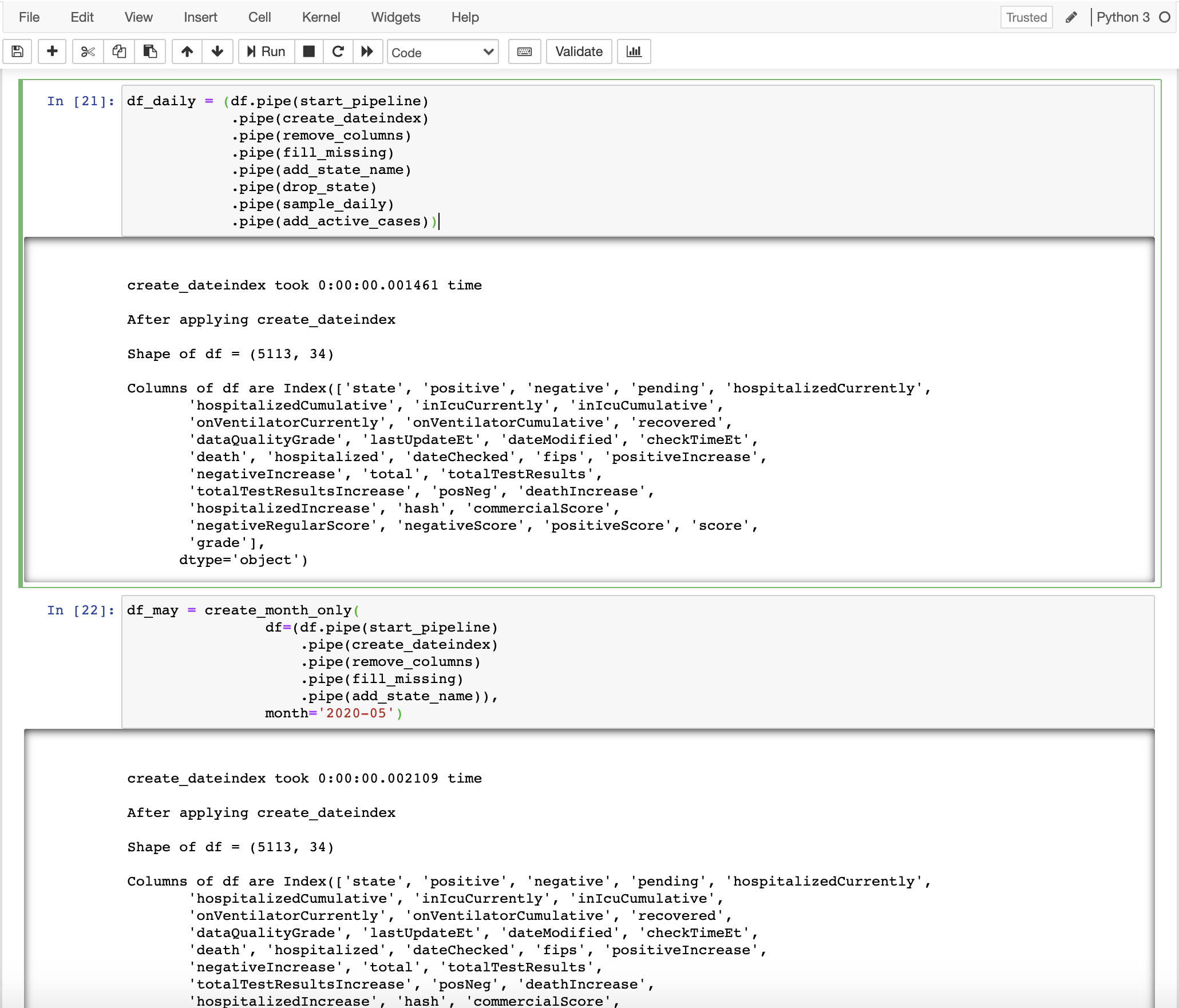
</ul>]]></content><author><name>Ayush Kumar Shah, PhD</name><email>ayush.kumar.shah@gmail.com</email></author><category term="commands" /><category term="linux" /><category term="mac" /><category term="vim" /><category term="tmux" /><category term="neovim" /><category term="ssh" /><category term="i32m" /><category term="brew" /><category term="shell" /><summary type="html"><![CDATA[General Shell Commands SSH Commands tmux commands Vim Commands Git Commands i3wm commands Brew bundle]]></summary></entry><entry><title type="html">Organize pandas notebook with cool hacks</title><link href="https://shahayush.com/2020/06/pandas-pipe-plotly/" rel="alternate" type="text/html" title="Organize pandas notebook with cool hacks" /><published>2020-06-06T11:00:00-04:00</published><updated>2020-06-06T11:00:00-04:00</updated><id>https://shahayush.com/2020/06/pandas-pipe-plotly</id><content type="html" xml:base="https://shahayush.com/2020/06/pandas-pipe-plotly/"><![CDATA[<p><img src="/assets/img/sample/messy_nb.png" alt="messy-notebook" /></p>

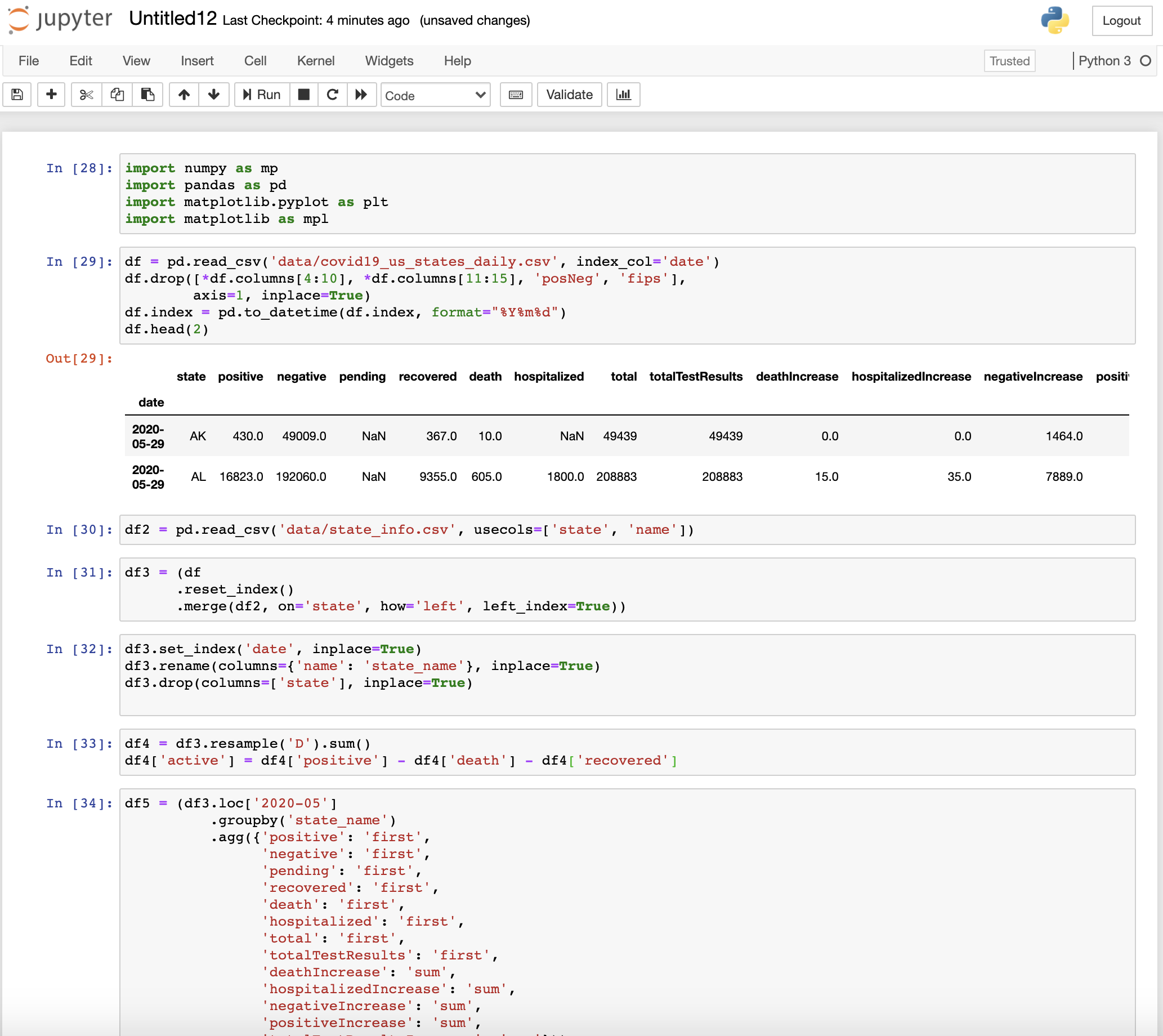
<p>Does it ring a bell looking at this messy notebook? I am sure you must have created or encountered a similar kind of notebook while performing data analysis tasks in pandas.</p>

<p>Pandas is widely used by data scientists and ML Engineers all around the world to perform all kinds of data related tasks like data cleaning and preprocessing, data analysis, data manipulation, data conversion, etc. However, most of us are not using it right, as seen in the above example, which has decreased our productivity a lot.</p>

<p>You might wonder then what is the correct way to use pandas. Is there any particular way that we can make the notebook clean and modular so that we can increase our productivity?</p>

<p>Luckily, there is a type of quick hack or technique, whatever you may call it, which can be used to greatly improve the workflow and make notebooks not only clean and well organized but highly productive and efficient. The good thing is that you don’t need to install any extra packages or libraries. In the end, your notebook will look something like this.</p>

<p><img src="/assets/img/sample/clean_nb.png" alt="Clean notebook" /></p>

<blockquote>
  <p>Note: Dark mode is available on this website. You can switch between the modes by clicking the leftmost button at the bottom of the left sidebar.</p>
</blockquote>

<p><img src="/assets/img/sample/dark_mode.png" alt="dark_mode" /></p>

<h1 id="untitled12ipynb">Untitled12.ipynb</h1>

<p>The way to achieve clean and well-organized pandas notebooks was explored in the presentation <a href="https://pydata.org/eindhoven2019/schedule/presentation/19/untitled12ipynb/">Untitled12.ipynb</a> by <a href="https://twitter.com/fishnets88?ref_src=twsrc%5Egoogle%7Ctwcamp%5Eserp%7Ctwgr%5Eauthor">Vincent D. Warmerdam</a> at <a href="https://pydata.org/eindhoven2019/">PyData Eindhoven 2019</a></p>

<p>The presentation <a href="https://www.youtube.com/watch?v=MpFZUshKypk&amp;t=1292s">Untitled12.ipynb: Prevent Miles of Scrolling, Reduce the Spaghetti Code from the Copy Pasta</a> has been uploaded in youtube as well. You can watch the video below if you want:</p>

<div class="video-holder" style="padding-bottom: 56.25%">
  <iframe width="560" height="315" src="https://www.youtube.com/embed/MpFZUshKypk" frameborder="0" scrolling="no" allowfullscreen=""></iframe>
</div>

<p><br /></p>

<p>In this article, I will briefly summarize the presentation by <a href="https://twitter.com/fishnets88?ref_src=twsrc%5Egoogle%7Ctwcamp%5Eserp%7Ctwgr%5Eauthor">Vincent D. Warmerdam</a> and then move on to the code implementation (solution) and a few code examples based on the methods used in his presentation.</p>

<p><strong>The Untitled phenomena</strong></p>

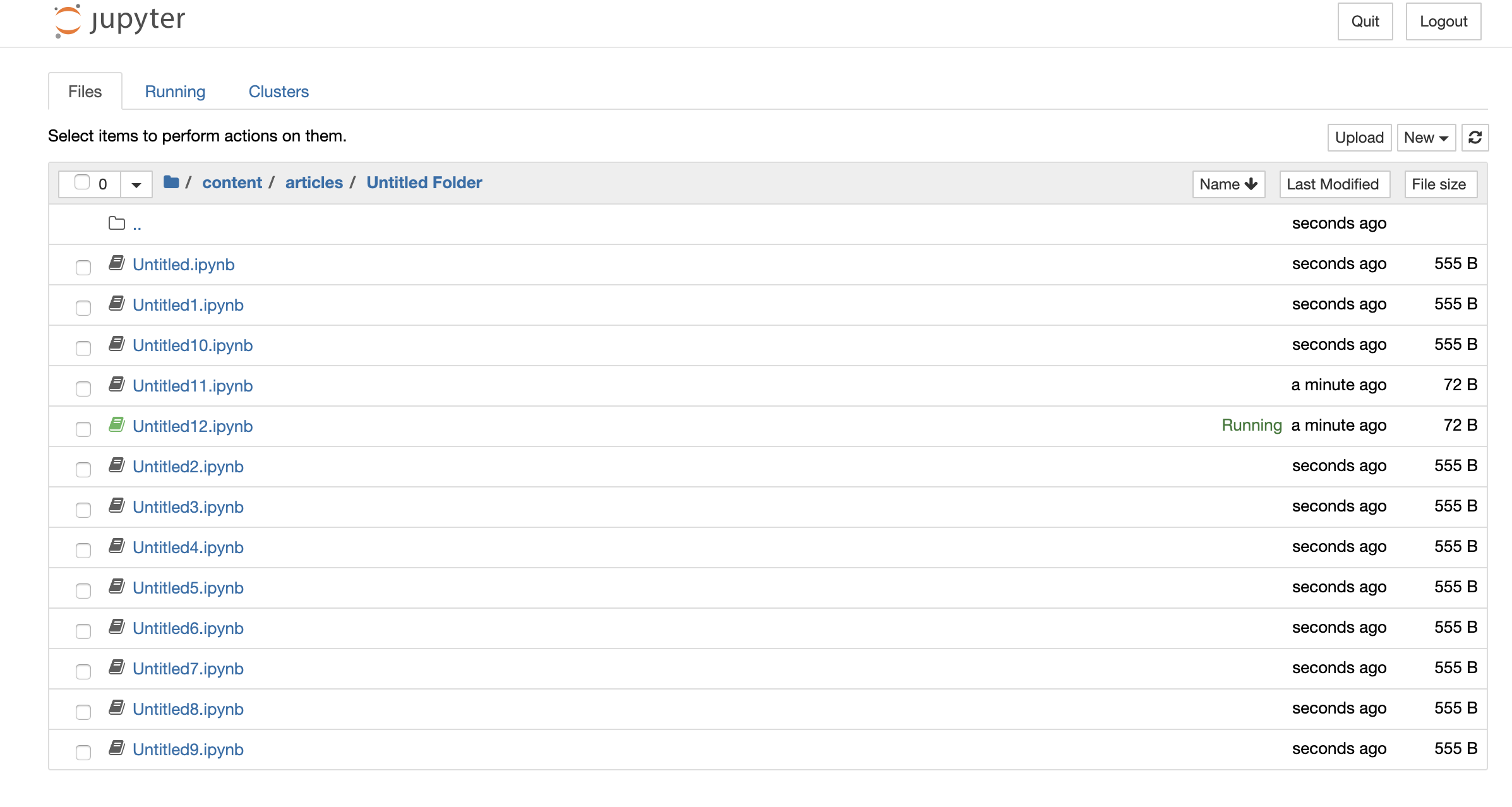
<p><img src="/assets/img/sample/Untitled12.png" alt="Untitled12.ipynb" /></p>

<p>He began his talk by introducing a term called <strong><code class="language-plaintext highlighter-rouge">Untitled phenomena</code></strong>. The term simply refers to the bad practice of not naming the notebook files which eventually creates an unorganized bunch of Untitled notebooks. As a result, he also named the presentation <strong><code class="language-plaintext highlighter-rouge">Untitled12.ipynb</code></strong>.</p>

<p>Moreover, not only the bad practice of naming that we follow but also the bad organization of code inside the notebook needs to be improved. Copying and pasting code multiple times creates spaghetti code. This is especially true for a lot of data science based Jupyter notebooks. The goal of his talk was to uncover a great pattern for pandas that would prevent loads of scrolling such that the code behaves like lego. He also gave some useful tricks and tips on how to prevent miles of scrolling and reduce the spaghetti code when creating Jupyter notebooks.</p>

<h2 id="-skip-to-coding-solution">&gt; <a href="#solution"><strong>Skip to coding solution</strong></a></h2>

<p>I have initially written a summary of the talk Untitled12.ipynb and explored some common problems in the usual coding style before moving to the solution. If you want to directly jump to the coding solution to create a clean pandas notebook using a pipeline, then click the link above. However, I recommend you to read the common problems I have mentioned before going to the solution.</p>

<h1 id="contents">Contents</h1>

<p>I will be talking about the following topics which will more or less revolve around his talk.</p>

<ul>
  <li><a href="#importance">Importance of Workflow</a></li>
  <li><a href="#current">The Usual coding style</a></li>
  <li><a href="#problems">Problems in the usual coding style</a></li>
  <li><a href="#solution">Coding Solution</a></li>
  <li><a href="#advantages">Advantages</a></li>
</ul>

<p><a name="importance"></a></p>

<h2 id="importance-of-workflow">Importance of Workflow</h2>

<p>At the beginning of the presentation, he began by discussing the following points that highlight the importance of workflows and the need of jupyter-notebook and pandas over excel:</p>

<ul>
  <li>
    <p>We want to separate the data from the analysis: Tha analysis portion should not modify the raw data. The raw data should be safe from these modifications so that it can be reused later as well. However, this is not possible in excel.</p>
  </li>
  <li>
    <p>We want to be able to automate our analysis. The main aim of programming and workflow is automation. Our tasks become a lot easier if we can automate the analysis using a pandas script rather than performing the analysis every time using Excel.</p>
  </li>
  <li>
    <p>We want our analysis to be reproducible i.e. we must be able to reproduce the same analysis results on the data at a later time in the future.</p>
  </li>
  <li>
    <p>We should not pay a third part obscene amounts of money for something as basic as arithmetic. This budget is better allocated towards innovation and education of staff.</p>
  </li>
</ul>

<p>However, the current style of coding in pandas and jupyter notebook has solved only the last point.</p>

<p><a name="current"></a></p>

<h2 id="the-usual-coding-style">The usual coding style</h2>

<p>Let’s explore the common practice of writing pandas code and try to point out the major problems in such approaches.</p>

<p>Initially, I will show the general workflow that most of us follow while using pandas. I will be performing some analysis on the real COVID 19 dataset of the U.S. states obtained from
<a href="https://covidtracking.com/">The COVID Tracking Project</a> which is available under the <a href="https://creativecommons.org/licenses/by-nc/4.0/">Creative Commons CC BY-NC-4.0 license</a>. The dataset is updated each day between 4 pm and 5 pm EDT.</p>

<p>After showing the common approach, I will point out the major pitfalls and then move on to the solution.</p>

<p>First, I will download the U.S. COVID-19 dataset using the API provided by <a href="https://covidtracking.com/">The COVID Tracking Project</a></p>

<div class="language-python highlighter-rouge"><div class="highlight"><pre class="highlight"><code><span class="err">!</span><span class="n">mkdir</span> <span class="n">data</span>
<span class="err">!</span><span class="n">wget</span> <span class="o">-</span><span class="n">O</span> <span class="n">data</span><span class="o">/</span><span class="n">covid19_us_states_daily</span><span class="p">.</span><span class="n">csv</span> <span class="n">https</span><span class="p">:</span><span class="o">//</span><span class="n">covidtracking</span><span class="p">.</span><span class="n">com</span><span class="o">/</span><span class="n">api</span><span class="o">/</span><span class="n">v1</span><span class="o">/</span><span class="n">states</span><span class="o">/</span><span class="n">daily</span><span class="p">.</span><span class="n">csv</span>
<span class="err">!</span><span class="n">wget</span>  <span class="o">-</span><span class="n">O</span> <span class="n">data</span><span class="o">/</span><span class="n">state_info</span><span class="p">.</span><span class="n">csv</span> <span class="n">https</span><span class="p">:</span><span class="o">//</span><span class="n">covidtracking</span><span class="p">.</span><span class="n">com</span><span class="o">/</span><span class="n">api</span><span class="o">/</span><span class="n">v1</span><span class="o">/</span><span class="n">states</span><span class="o">/</span><span class="n">info</span><span class="p">.</span><span class="n">csv</span>
</code></pre></div></div>

<div class="language-plaintext highlighter-rouge"><div class="highlight"><pre class="highlight"><code>--2020-06-05 16:34:10--  https://covidtracking.com/api/v1/states/daily.csv
Resolving covidtracking.com (covidtracking.com)... 104.248.63.231, 2604:a880:400:d1::888:7001
Connecting to covidtracking.com (covidtracking.com)|104.248.63.231|:443... connected.
HTTP request sent, awaiting response... 200 OK
Length: unspecified [text/csv]
Saving to: ‘data/covid19_us_states_daily.csv’

data/covid19_us_sta     [  &lt;=&gt;               ] 987.40K  3.11MB/s    in 0.3s    

2020-06-05 16:34:11 (3.11 MB/s) - ‘data/covid19_us_states_daily.csv’ saved [1011093]

--2020-06-05 16:34:12--  https://covidtracking.com/api/v1/states/info.csv
Resolving covidtracking.com (covidtracking.com)... 104.248.50.87, 2604:a880:400:d1::888:7001
Connecting to covidtracking.com (covidtracking.com)|104.248.50.87|:443... connected.
HTTP request sent, awaiting response... 200 OK
Length: unspecified [text/csv]
Saving to: ‘data/state_info.csv’

data/state_info.csv     [ &lt;=&gt;                ]  27.67K  --.-KB/s    in 0.02s   

2020-06-05 16:34:13 (1.43 MB/s) - ‘data/state_info.csv’ saved [28329]
</code></pre></div></div>

<div class="language-python highlighter-rouge"><div class="highlight"><pre class="highlight"><code><span class="kn">import</span> <span class="nn">pandas</span> <span class="k">as</span> <span class="n">pd</span> 
<span class="c1"># Importing plotly library for plotting interactive graphs
</span><span class="kn">import</span> <span class="nn">plotly.graph_objects</span> <span class="k">as</span> <span class="n">go</span>
<span class="kn">from</span> <span class="nn">plotly.subplots</span> <span class="kn">import</span> <span class="n">make_subplots</span>
<span class="kn">import</span> <span class="nn">plotly.express</span> <span class="k">as</span> <span class="n">px</span>
<span class="kn">import</span> <span class="nn">chart_studio</span>
<span class="kn">import</span> <span class="nn">chart_studio.plotly</span> <span class="k">as</span> <span class="n">py</span>
</code></pre></div></div>

<p>The first step is generally to read or import the data</p>

<div class="language-python highlighter-rouge"><div class="highlight"><pre class="highlight"><code><span class="n">df</span> <span class="o">=</span> <span class="n">pd</span><span class="p">.</span><span class="n">read_csv</span><span class="p">(</span><span class="s">'data/covid19_us_states_daily.csv'</span><span class="p">,</span> <span class="n">index_col</span><span class="o">=</span><span class="s">'date'</span><span class="p">)</span>
<span class="n">df</span><span class="p">.</span><span class="n">head</span><span class="p">()</span>
</code></pre></div></div>

<div>
<style scoped="">
    .dataframe tbody tr th:only-of-type {
        vertical-align: middle;
    }

    .dataframe tbody tr th {
        vertical-align: top;
    }

    .dataframe thead th {
        text-align: right;
    }
</style>
<table border="1" class="dataframe">
  <thead>
    <tr style="text-align: right;">
      <th></th>
      <th>state</th>
      <th>positive</th>
      <th>negative</th>
      <th>pending</th>
      <th>hospitalizedCurrently</th>
      <th>hospitalizedCumulative</th>
      <th>inIcuCurrently</th>
      <th>inIcuCumulative</th>
      <th>onVentilatorCurrently</th>
      <th>onVentilatorCumulative</th>
      <th>recovered</th>
      <th>dataQualityGrade</th>
      <th>lastUpdateEt</th>
      <th>dateModified</th>
      <th>checkTimeEt</th>
      <th>death</th>
      <th>hospitalized</th>
      <th>dateChecked</th>
      <th>fips</th>
      <th>positiveIncrease</th>
      <th>negativeIncrease</th>
      <th>total</th>
      <th>totalTestResults</th>
      <th>totalTestResultsIncrease</th>
      <th>posNeg</th>
      <th>deathIncrease</th>
      <th>hospitalizedIncrease</th>
      <th>hash</th>
      <th>commercialScore</th>
      <th>negativeRegularScore</th>
      <th>negativeScore</th>
      <th>positiveScore</th>
      <th>score</th>
      <th>grade</th>
    </tr>
    <tr>
      <th>date</th>
      <th></th>
      <th></th>
      <th></th>
      <th></th>
      <th></th>
      <th></th>
      <th></th>
      <th></th>
      <th></th>
      <th></th>
      <th></th>
      <th></th>
      <th></th>
      <th></th>
      <th></th>
      <th></th>
      <th></th>
      <th></th>
      <th></th>
      <th></th>
      <th></th>
      <th></th>
      <th></th>
      <th></th>
      <th></th>
      <th></th>
      <th></th>
      <th></th>
      <th></th>
      <th></th>
      <th></th>
      <th></th>
      <th></th>
      <th></th>
    </tr>
  </thead>
  <tbody>
    <tr>
      <th>20200604</th>
      <td>AK</td>
      <td>513.0</td>
      <td>59584.0</td>
      <td>NaN</td>
      <td>13.0</td>
      <td>NaN</td>
      <td>NaN</td>
      <td>NaN</td>
      <td>1.0</td>
      <td>NaN</td>
      <td>376.0</td>
      <td>A</td>
      <td>6/4/2020 00:00</td>
      <td>2020-06-04T00:00:00Z</td>
      <td>06/03 20:00</td>
      <td>10.0</td>
      <td>NaN</td>
      <td>2020-06-04T00:00:00Z</td>
      <td>2</td>
      <td>8</td>
      <td>1907</td>
      <td>60097</td>
      <td>60097</td>
      <td>1915</td>
      <td>60097</td>
      <td>0</td>
      <td>0</td>
      <td>c1046011af7271cbe2e6698526714c6cb5b92748</td>
      <td>0</td>
      <td>0</td>
      <td>0</td>
      <td>0</td>
      <td>0</td>
      <td>NaN</td>
    </tr>
    <tr>
      <th>20200604</th>
      <td>AL</td>
      <td>19072.0</td>
      <td>216227.0</td>
      <td>NaN</td>
      <td>NaN</td>
      <td>1929.0</td>
      <td>NaN</td>
      <td>601.0</td>
      <td>NaN</td>
      <td>357.0</td>
      <td>11395.0</td>
      <td>B</td>
      <td>6/4/2020 00:00</td>
      <td>2020-06-04T00:00:00Z</td>
      <td>06/03 20:00</td>
      <td>653.0</td>
      <td>1929.0</td>
      <td>2020-06-04T00:00:00Z</td>
      <td>1</td>
      <td>221</td>
      <td>3484</td>
      <td>235299</td>
      <td>235299</td>
      <td>3705</td>
      <td>235299</td>
      <td>0</td>
      <td>29</td>
      <td>bcbefdb36212ba2b97b5a354f4e45bf16648ee23</td>
      <td>0</td>
      <td>0</td>
      <td>0</td>
      <td>0</td>
      <td>0</td>
      <td>NaN</td>
    </tr>
    <tr>
      <th>20200604</th>
      <td>AR</td>
      <td>8067.0</td>
      <td>134413.0</td>
      <td>NaN</td>
      <td>138.0</td>
      <td>757.0</td>
      <td>NaN</td>
      <td>NaN</td>
      <td>30.0</td>
      <td>127.0</td>
      <td>5717.0</td>
      <td>A</td>
      <td>6/4/2020 00:00</td>
      <td>2020-06-04T00:00:00Z</td>
      <td>06/03 20:00</td>
      <td>142.0</td>
      <td>757.0</td>
      <td>2020-06-04T00:00:00Z</td>
      <td>5</td>
      <td>0</td>
      <td>0</td>
      <td>142480</td>
      <td>142480</td>
      <td>0</td>
      <td>142480</td>
      <td>0</td>
      <td>26</td>
      <td>acd3a4fbbc3dbb32138725f91e3261d683e7052a</td>
      <td>0</td>
      <td>0</td>
      <td>0</td>
      <td>0</td>
      <td>0</td>
      <td>NaN</td>
    </tr>
    <tr>
      <th>20200604</th>
      <td>AS</td>
      <td>0.0</td>
      <td>174.0</td>
      <td>NaN</td>
      <td>NaN</td>
      <td>NaN</td>
      <td>NaN</td>
      <td>NaN</td>
      <td>NaN</td>
      <td>NaN</td>
      <td>NaN</td>
      <td>C</td>
      <td>6/1/2020 00:00</td>
      <td>2020-06-01T00:00:00Z</td>
      <td>05/31 20:00</td>
      <td>0.0</td>
      <td>NaN</td>
      <td>2020-06-01T00:00:00Z</td>
      <td>60</td>
      <td>0</td>
      <td>0</td>
      <td>174</td>
      <td>174</td>
      <td>0</td>
      <td>174</td>
      <td>0</td>
      <td>0</td>
      <td>8bbc72fa42781e0549e2e4f9f4c3e7cbef14ab32</td>
      <td>0</td>
      <td>0</td>
      <td>0</td>
      <td>0</td>
      <td>0</td>
      <td>NaN</td>
    </tr>
    <tr>
      <th>20200604</th>
      <td>AZ</td>
      <td>22753.0</td>
      <td>227002.0</td>
      <td>NaN</td>
      <td>1079.0</td>
      <td>3195.0</td>
      <td>375.0</td>
      <td>NaN</td>
      <td>223.0</td>
      <td>NaN</td>
      <td>5172.0</td>
      <td>A+</td>
      <td>6/4/2020 00:00</td>
      <td>2020-06-04T00:00:00Z</td>
      <td>06/03 20:00</td>
      <td>996.0</td>
      <td>3195.0</td>
      <td>2020-06-04T00:00:00Z</td>
      <td>4</td>
      <td>520</td>
      <td>4710</td>
      <td>249755</td>
      <td>249755</td>
      <td>5230</td>
      <td>249755</td>
      <td>15</td>
      <td>66</td>
      <td>1fa237b8204cd23701577aef6338d339daa4452e</td>
      <td>0</td>
      <td>0</td>
      <td>0</td>
      <td>0</td>
      <td>0</td>
      <td>NaN</td>
    </tr>
  </tbody>
</table>
</div>

<p>After taking a glance at the data, I realize that the date is not formatted well, so I format it.</p>

<div class="language-python highlighter-rouge"><div class="highlight"><pre class="highlight"><code><span class="n">df</span><span class="p">.</span><span class="n">index</span> <span class="o">=</span> <span class="n">pd</span><span class="p">.</span><span class="n">to_datetime</span><span class="p">(</span><span class="n">df</span><span class="p">.</span><span class="n">index</span><span class="p">,</span> <span class="nb">format</span><span class="o">=</span><span class="s">"%Y%m%d"</span><span class="p">)</span>
<span class="n">df</span><span class="p">.</span><span class="n">head</span><span class="p">()</span>
</code></pre></div></div>

<div>
<style scoped="">
    .dataframe tbody tr th:only-of-type {
        vertical-align: middle;
    }

    .dataframe tbody tr th {
        vertical-align: top;
    }

    .dataframe thead th {
        text-align: right;
    }
</style>
<table border="1" class="dataframe">
  <thead>
    <tr style="text-align: right;">
      <th></th>
      <th>state</th>
      <th>positive</th>
      <th>negative</th>
      <th>pending</th>
      <th>hospitalizedCurrently</th>
      <th>hospitalizedCumulative</th>
      <th>inIcuCurrently</th>
      <th>inIcuCumulative</th>
      <th>onVentilatorCurrently</th>
      <th>onVentilatorCumulative</th>
      <th>recovered</th>
      <th>dataQualityGrade</th>
      <th>lastUpdateEt</th>
      <th>dateModified</th>
      <th>checkTimeEt</th>
      <th>death</th>
      <th>hospitalized</th>
      <th>dateChecked</th>
      <th>fips</th>
      <th>positiveIncrease</th>
      <th>negativeIncrease</th>
      <th>total</th>
      <th>totalTestResults</th>
      <th>totalTestResultsIncrease</th>
      <th>posNeg</th>
      <th>deathIncrease</th>
      <th>hospitalizedIncrease</th>
      <th>hash</th>
      <th>commercialScore</th>
      <th>negativeRegularScore</th>
      <th>negativeScore</th>
      <th>positiveScore</th>
      <th>score</th>
      <th>grade</th>
    </tr>
    <tr>
      <th>date</th>
      <th></th>
      <th></th>
      <th></th>
      <th></th>
      <th></th>
      <th></th>
      <th></th>
      <th></th>
      <th></th>
      <th></th>
      <th></th>
      <th></th>
      <th></th>
      <th></th>
      <th></th>
      <th></th>
      <th></th>
      <th></th>
      <th></th>
      <th></th>
      <th></th>
      <th></th>
      <th></th>
      <th></th>
      <th></th>
      <th></th>
      <th></th>
      <th></th>
      <th></th>
      <th></th>
      <th></th>
      <th></th>
      <th></th>
      <th></th>
    </tr>
  </thead>
  <tbody>
    <tr>
      <th>2020-06-04</th>
      <td>AK</td>
      <td>513.0</td>
      <td>59584.0</td>
      <td>NaN</td>
      <td>13.0</td>
      <td>NaN</td>
      <td>NaN</td>
      <td>NaN</td>
      <td>1.0</td>
      <td>NaN</td>
      <td>376.0</td>
      <td>A</td>
      <td>6/4/2020 00:00</td>
      <td>2020-06-04T00:00:00Z</td>
      <td>06/03 20:00</td>
      <td>10.0</td>
      <td>NaN</td>
      <td>2020-06-04T00:00:00Z</td>
      <td>2</td>
      <td>8</td>
      <td>1907</td>
      <td>60097</td>
      <td>60097</td>
      <td>1915</td>
      <td>60097</td>
      <td>0</td>
      <td>0</td>
      <td>c1046011af7271cbe2e6698526714c6cb5b92748</td>
      <td>0</td>
      <td>0</td>
      <td>0</td>
      <td>0</td>
      <td>0</td>
      <td>NaN</td>
    </tr>
    <tr>
      <th>2020-06-04</th>
      <td>AL</td>
      <td>19072.0</td>
      <td>216227.0</td>
      <td>NaN</td>
      <td>NaN</td>
      <td>1929.0</td>
      <td>NaN</td>
      <td>601.0</td>
      <td>NaN</td>
      <td>357.0</td>
      <td>11395.0</td>
      <td>B</td>
      <td>6/4/2020 00:00</td>
      <td>2020-06-04T00:00:00Z</td>
      <td>06/03 20:00</td>
      <td>653.0</td>
      <td>1929.0</td>
      <td>2020-06-04T00:00:00Z</td>
      <td>1</td>
      <td>221</td>
      <td>3484</td>
      <td>235299</td>
      <td>235299</td>
      <td>3705</td>
      <td>235299</td>
      <td>0</td>
      <td>29</td>
      <td>bcbefdb36212ba2b97b5a354f4e45bf16648ee23</td>
      <td>0</td>
      <td>0</td>
      <td>0</td>
      <td>0</td>
      <td>0</td>
      <td>NaN</td>
    </tr>
    <tr>
      <th>2020-06-04</th>
      <td>AR</td>
      <td>8067.0</td>
      <td>134413.0</td>
      <td>NaN</td>
      <td>138.0</td>
      <td>757.0</td>
      <td>NaN</td>
      <td>NaN</td>
      <td>30.0</td>
      <td>127.0</td>
      <td>5717.0</td>
      <td>A</td>
      <td>6/4/2020 00:00</td>
      <td>2020-06-04T00:00:00Z</td>
      <td>06/03 20:00</td>
      <td>142.0</td>
      <td>757.0</td>
      <td>2020-06-04T00:00:00Z</td>
      <td>5</td>
      <td>0</td>
      <td>0</td>
      <td>142480</td>
      <td>142480</td>
      <td>0</td>
      <td>142480</td>
      <td>0</td>
      <td>26</td>
      <td>acd3a4fbbc3dbb32138725f91e3261d683e7052a</td>
      <td>0</td>
      <td>0</td>
      <td>0</td>
      <td>0</td>
      <td>0</td>
      <td>NaN</td>
    </tr>
    <tr>
      <th>2020-06-04</th>
      <td>AS</td>
      <td>0.0</td>
      <td>174.0</td>
      <td>NaN</td>
      <td>NaN</td>
      <td>NaN</td>
      <td>NaN</td>
      <td>NaN</td>
      <td>NaN</td>
      <td>NaN</td>
      <td>NaN</td>
      <td>C</td>
      <td>6/1/2020 00:00</td>
      <td>2020-06-01T00:00:00Z</td>
      <td>05/31 20:00</td>
      <td>0.0</td>
      <td>NaN</td>
      <td>2020-06-01T00:00:00Z</td>
      <td>60</td>
      <td>0</td>
      <td>0</td>
      <td>174</td>
      <td>174</td>
      <td>0</td>
      <td>174</td>
      <td>0</td>
      <td>0</td>
      <td>8bbc72fa42781e0549e2e4f9f4c3e7cbef14ab32</td>
      <td>0</td>
      <td>0</td>
      <td>0</td>
      <td>0</td>
      <td>0</td>
      <td>NaN</td>
    </tr>
    <tr>
      <th>2020-06-04</th>
      <td>AZ</td>
      <td>22753.0</td>
      <td>227002.0</td>
      <td>NaN</td>
      <td>1079.0</td>
      <td>3195.0</td>
      <td>375.0</td>
      <td>NaN</td>
      <td>223.0</td>
      <td>NaN</td>
      <td>5172.0</td>
      <td>A+</td>
      <td>6/4/2020 00:00</td>
      <td>2020-06-04T00:00:00Z</td>
      <td>06/03 20:00</td>
      <td>996.0</td>
      <td>3195.0</td>
      <td>2020-06-04T00:00:00Z</td>
      <td>4</td>
      <td>520</td>
      <td>4710</td>
      <td>249755</td>
      <td>249755</td>
      <td>5230</td>
      <td>249755</td>
      <td>15</td>
      <td>66</td>
      <td>1fa237b8204cd23701577aef6338d339daa4452e</td>
      <td>0</td>
      <td>0</td>
      <td>0</td>
      <td>0</td>
      <td>0</td>
      <td>NaN</td>
    </tr>
  </tbody>
</table>
</div>

<p>Then, I try to view some additional information about the dataset</p>

<div class="language-python highlighter-rouge"><div class="highlight"><pre class="highlight"><code><span class="n">df</span><span class="p">.</span><span class="n">info</span><span class="p">()</span>
</code></pre></div></div>

<div class="language-plaintext highlighter-rouge"><div class="highlight"><pre class="highlight"><code>&lt;class 'pandas.core.frame.DataFrame'&gt;
DatetimeIndex: 5113 entries, 2020-06-04 to 2020-01-22
Data columns (total 34 columns):
 #   Column                    Non-Null Count  Dtype  
---  ------                    --------------  -----  
 0   state                     5113 non-null   object 
 1   positive                  5098 non-null   float64
 2   negative                  4902 non-null   float64
 3   pending                   842 non-null    float64
 4   hospitalizedCurrently     2591 non-null   float64
 5   hospitalizedCumulative    2318 non-null   float64
 6   inIcuCurrently            1362 non-null   float64
 7   inIcuCumulative           576 non-null    float64
 8   onVentilatorCurrently     1157 non-null   float64
 9   onVentilatorCumulative    198 non-null    float64
 10  recovered                 2409 non-null   float64
 11  dataQualityGrade          4012 non-null   object 
 12  lastUpdateEt              4758 non-null   object 
 13  dateModified              4758 non-null   object 
 14  checkTimeEt               4758 non-null   object 
 15  death                     4388 non-null   float64
 16  hospitalized              2318 non-null   float64
 17  dateChecked               4758 non-null   object 
 18  fips                      5113 non-null   int64  
 19  positiveIncrease          5113 non-null   int64  
 20  negativeIncrease          5113 non-null   int64  
 21  total                     5113 non-null   int64  
 22  totalTestResults          5113 non-null   int64  
 23  totalTestResultsIncrease  5113 non-null   int64  
 24  posNeg                    5113 non-null   int64  
 25  deathIncrease             5113 non-null   int64  
 26  hospitalizedIncrease      5113 non-null   int64  
 27  hash                      5113 non-null   object 
 28  commercialScore           5113 non-null   int64  
 29  negativeRegularScore      5113 non-null   int64  
 30  negativeScore             5113 non-null   int64  
 31  positiveScore             5113 non-null   int64  
 32  score                     5113 non-null   int64  
 33  grade                     0 non-null      float64
dtypes: float64(13), int64(14), object(7)
memory usage: 1.4+ MB
</code></pre></div></div>

<p>You can see that various columns are not of use. So, I decide to remove such columns.</p>

<div class="language-python highlighter-rouge"><div class="highlight"><pre class="highlight"><code><span class="n">df</span><span class="p">.</span><span class="n">drop</span><span class="p">([</span><span class="o">*</span><span class="n">df</span><span class="p">.</span><span class="n">columns</span><span class="p">[</span><span class="mi">4</span><span class="p">:</span><span class="mi">10</span><span class="p">],</span> <span class="o">*</span><span class="n">df</span><span class="p">.</span><span class="n">columns</span><span class="p">[</span><span class="mi">11</span><span class="p">:</span><span class="mi">15</span><span class="p">],</span> <span class="s">'posNeg'</span><span class="p">,</span> <span class="s">'fips'</span><span class="p">],</span> 
        <span class="n">axis</span><span class="o">=</span><span class="mi">1</span><span class="p">,</span> <span class="n">inplace</span><span class="o">=</span><span class="bp">True</span><span class="p">)</span>
<span class="n">df</span><span class="p">.</span><span class="n">info</span><span class="p">()</span>
</code></pre></div></div>

<div class="language-plaintext highlighter-rouge"><div class="highlight"><pre class="highlight"><code>&lt;class 'pandas.core.frame.DataFrame'&gt;
DatetimeIndex: 5113 entries, 2020-06-04 to 2020-01-22
Data columns (total 22 columns):
 #   Column                    Non-Null Count  Dtype  
---  ------                    --------------  -----  
 0   state                     5113 non-null   object 
 1   positive                  5098 non-null   float64
 2   negative                  4902 non-null   float64
 3   pending                   842 non-null    float64
 4   recovered                 2409 non-null   float64
 5   death                     4388 non-null   float64
 6   hospitalized              2318 non-null   float64
 7   dateChecked               4758 non-null   object 
 8   positiveIncrease          5113 non-null   int64  
 9   negativeIncrease          5113 non-null   int64  
 10  total                     5113 non-null   int64  
 11  totalTestResults          5113 non-null   int64  
 12  totalTestResultsIncrease  5113 non-null   int64  
 13  deathIncrease             5113 non-null   int64  
 14  hospitalizedIncrease      5113 non-null   int64  
 15  hash                      5113 non-null   object 
 16  commercialScore           5113 non-null   int64  
 17  negativeRegularScore      5113 non-null   int64  
 18  negativeScore             5113 non-null   int64  
 19  positiveScore             5113 non-null   int64  
 20  score                     5113 non-null   int64  
 21  grade                     0 non-null      float64
dtypes: float64(7), int64(12), object(3)
memory usage: 918.7+ KB
</code></pre></div></div>

<p>I also realize that there are a lot of missing (nan or null) values. So, I replace the missing values by 0.</p>

<div class="language-python highlighter-rouge"><div class="highlight"><pre class="highlight"><code><span class="n">df</span><span class="p">.</span><span class="n">fillna</span><span class="p">(</span><span class="n">value</span><span class="o">=</span><span class="mi">0</span><span class="p">,</span> <span class="n">inplace</span><span class="o">=</span><span class="bp">True</span><span class="p">)</span>
<span class="n">df</span><span class="p">.</span><span class="n">head</span><span class="p">()</span>
</code></pre></div></div>

<div>
<style scoped="">
    .dataframe tbody tr th:only-of-type {
        vertical-align: middle;
    }

    .dataframe tbody tr th {
        vertical-align: top;
    }

    .dataframe thead th {
        text-align: right;
    }
</style>
<table border="1" class="dataframe">
  <thead>
    <tr style="text-align: right;">
      <th></th>
      <th>state</th>
      <th>positive</th>
      <th>negative</th>
      <th>pending</th>
      <th>recovered</th>
      <th>death</th>
      <th>hospitalized</th>
      <th>dateChecked</th>
      <th>positiveIncrease</th>
      <th>negativeIncrease</th>
      <th>total</th>
      <th>totalTestResults</th>
      <th>totalTestResultsIncrease</th>
      <th>deathIncrease</th>
      <th>hospitalizedIncrease</th>
      <th>hash</th>
      <th>commercialScore</th>
      <th>negativeRegularScore</th>
      <th>negativeScore</th>
      <th>positiveScore</th>
      <th>score</th>
      <th>grade</th>
    </tr>
    <tr>
      <th>date</th>
      <th></th>
      <th></th>
      <th></th>
      <th></th>
      <th></th>
      <th></th>
      <th></th>
      <th></th>
      <th></th>
      <th></th>
      <th></th>
      <th></th>
      <th></th>
      <th></th>
      <th></th>
      <th></th>
      <th></th>
      <th></th>
      <th></th>
      <th></th>
      <th></th>
      <th></th>
    </tr>
  </thead>
  <tbody>
    <tr>
      <th>2020-06-04</th>
      <td>AK</td>
      <td>513.0</td>
      <td>59584.0</td>
      <td>0.0</td>
      <td>376.0</td>
      <td>10.0</td>
      <td>0.0</td>
      <td>2020-06-04T00:00:00Z</td>
      <td>8</td>
      <td>1907</td>
      <td>60097</td>
      <td>60097</td>
      <td>1915</td>
      <td>0</td>
      <td>0</td>
      <td>c1046011af7271cbe2e6698526714c6cb5b92748</td>
      <td>0</td>
      <td>0</td>
      <td>0</td>
      <td>0</td>
      <td>0</td>
      <td>0.0</td>
    </tr>
    <tr>
      <th>2020-06-04</th>
      <td>AL</td>
      <td>19072.0</td>
      <td>216227.0</td>
      <td>0.0</td>
      <td>11395.0</td>
      <td>653.0</td>
      <td>1929.0</td>
      <td>2020-06-04T00:00:00Z</td>
      <td>221</td>
      <td>3484</td>
      <td>235299</td>
      <td>235299</td>
      <td>3705</td>
      <td>0</td>
      <td>29</td>
      <td>bcbefdb36212ba2b97b5a354f4e45bf16648ee23</td>
      <td>0</td>
      <td>0</td>
      <td>0</td>
      <td>0</td>
      <td>0</td>
      <td>0.0</td>
    </tr>
    <tr>
      <th>2020-06-04</th>
      <td>AR</td>
      <td>8067.0</td>
      <td>134413.0</td>
      <td>0.0</td>
      <td>5717.0</td>
      <td>142.0</td>
      <td>757.0</td>
      <td>2020-06-04T00:00:00Z</td>
      <td>0</td>
      <td>0</td>
      <td>142480</td>
      <td>142480</td>
      <td>0</td>
      <td>0</td>
      <td>26</td>
      <td>acd3a4fbbc3dbb32138725f91e3261d683e7052a</td>
      <td>0</td>
      <td>0</td>
      <td>0</td>
      <td>0</td>
      <td>0</td>
      <td>0.0</td>
    </tr>
    <tr>
      <th>2020-06-04</th>
      <td>AS</td>
      <td>0.0</td>
      <td>174.0</td>
      <td>0.0</td>
      <td>0.0</td>
      <td>0.0</td>
      <td>0.0</td>
      <td>2020-06-01T00:00:00Z</td>
      <td>0</td>
      <td>0</td>
      <td>174</td>
      <td>174</td>
      <td>0</td>
      <td>0</td>
      <td>0</td>
      <td>8bbc72fa42781e0549e2e4f9f4c3e7cbef14ab32</td>
      <td>0</td>
      <td>0</td>
      <td>0</td>
      <td>0</td>
      <td>0</td>
      <td>0.0</td>
    </tr>
    <tr>
      <th>2020-06-04</th>
      <td>AZ</td>
      <td>22753.0</td>
      <td>227002.0</td>
      <td>0.0</td>
      <td>5172.0</td>
      <td>996.0</td>
      <td>3195.0</td>
      <td>2020-06-04T00:00:00Z</td>
      <td>520</td>
      <td>4710</td>
      <td>249755</td>
      <td>249755</td>
      <td>5230</td>
      <td>15</td>
      <td>66</td>
      <td>1fa237b8204cd23701577aef6338d339daa4452e</td>
      <td>0</td>
      <td>0</td>
      <td>0</td>
      <td>0</td>
      <td>0</td>
      <td>0.0</td>
    </tr>
  </tbody>
</table>
</div>

<p>I also want to add a column corresponding to the state name instead of the abbreviation. So, I merge state_info with the current dataframe.</p>

<div class="language-python highlighter-rouge"><div class="highlight"><pre class="highlight"><code><span class="n">df2</span> <span class="o">=</span> <span class="n">pd</span><span class="p">.</span><span class="n">read_csv</span><span class="p">(</span><span class="s">'data/state_info.csv'</span><span class="p">,</span> <span class="n">usecols</span><span class="o">=</span><span class="p">[</span><span class="s">'state'</span><span class="p">,</span> <span class="s">'name'</span><span class="p">])</span>
<span class="n">df3</span> <span class="o">=</span> <span class="p">(</span><span class="n">df</span>
      <span class="p">.</span><span class="n">reset_index</span><span class="p">()</span>
      <span class="p">.</span><span class="n">merge</span><span class="p">(</span><span class="n">df2</span><span class="p">,</span> <span class="n">on</span><span class="o">=</span><span class="s">'state'</span><span class="p">,</span> <span class="n">how</span><span class="o">=</span><span class="s">'left'</span><span class="p">,</span> <span class="n">left_index</span><span class="o">=</span><span class="bp">True</span><span class="p">))</span>
<span class="n">df3</span><span class="p">.</span><span class="n">head</span><span class="p">()</span>
</code></pre></div></div>

<div>
<style scoped="">
    .dataframe tbody tr th:only-of-type {
        vertical-align: middle;
    }

    .dataframe tbody tr th {
        vertical-align: top;
    }

    .dataframe thead th {
        text-align: right;
    }
</style>
<table border="1" class="dataframe">
  <thead>
    <tr style="text-align: right;">
      <th></th>
      <th>date</th>
      <th>state</th>
      <th>positive</th>
      <th>negative</th>
      <th>pending</th>
      <th>recovered</th>
      <th>death</th>
      <th>hospitalized</th>
      <th>dateChecked</th>
      <th>positiveIncrease</th>
      <th>negativeIncrease</th>
      <th>total</th>
      <th>totalTestResults</th>
      <th>totalTestResultsIncrease</th>
      <th>deathIncrease</th>
      <th>hospitalizedIncrease</th>
      <th>hash</th>
      <th>commercialScore</th>
      <th>negativeRegularScore</th>
      <th>negativeScore</th>
      <th>positiveScore</th>
      <th>score</th>
      <th>grade</th>
      <th>name</th>
    </tr>
  </thead>
  <tbody>
    <tr>
      <th>0</th>
      <td>2020-06-04</td>
      <td>AK</td>
      <td>513.0</td>
      <td>59584.0</td>
      <td>0.0</td>
      <td>376.0</td>
      <td>10.0</td>
      <td>0.0</td>
      <td>2020-06-04T00:00:00Z</td>
      <td>8</td>
      <td>1907</td>
      <td>60097</td>
      <td>60097</td>
      <td>1915</td>
      <td>0</td>
      <td>0</td>
      <td>c1046011af7271cbe2e6698526714c6cb5b92748</td>
      <td>0</td>
      <td>0</td>
      <td>0</td>
      <td>0</td>
      <td>0</td>
      <td>0.0</td>
      <td>Alaska</td>
    </tr>
    <tr>
      <th>1</th>
      <td>2020-06-04</td>
      <td>AL</td>
      <td>19072.0</td>
      <td>216227.0</td>
      <td>0.0</td>
      <td>11395.0</td>
      <td>653.0</td>
      <td>1929.0</td>
      <td>2020-06-04T00:00:00Z</td>
      <td>221</td>
      <td>3484</td>
      <td>235299</td>
      <td>235299</td>
      <td>3705</td>
      <td>0</td>
      <td>29</td>
      <td>bcbefdb36212ba2b97b5a354f4e45bf16648ee23</td>
      <td>0</td>
      <td>0</td>
      <td>0</td>
      <td>0</td>
      <td>0</td>
      <td>0.0</td>
      <td>Alabama</td>
    </tr>
    <tr>
      <th>2</th>
      <td>2020-06-04</td>
      <td>AR</td>
      <td>8067.0</td>
      <td>134413.0</td>
      <td>0.0</td>
      <td>5717.0</td>
      <td>142.0</td>
      <td>757.0</td>
      <td>2020-06-04T00:00:00Z</td>
      <td>0</td>
      <td>0</td>
      <td>142480</td>
      <td>142480</td>
      <td>0</td>
      <td>0</td>
      <td>26</td>
      <td>acd3a4fbbc3dbb32138725f91e3261d683e7052a</td>
      <td>0</td>
      <td>0</td>
      <td>0</td>
      <td>0</td>
      <td>0</td>
      <td>0.0</td>
      <td>Arkansas</td>
    </tr>
    <tr>
      <th>3</th>
      <td>2020-06-04</td>
      <td>AS</td>
      <td>0.0</td>
      <td>174.0</td>
      <td>0.0</td>
      <td>0.0</td>
      <td>0.0</td>
      <td>0.0</td>
      <td>2020-06-01T00:00:00Z</td>
      <td>0</td>
      <td>0</td>
      <td>174</td>
      <td>174</td>
      <td>0</td>
      <td>0</td>
      <td>0</td>
      <td>8bbc72fa42781e0549e2e4f9f4c3e7cbef14ab32</td>
      <td>0</td>
      <td>0</td>
      <td>0</td>
      <td>0</td>
      <td>0</td>
      <td>0.0</td>
      <td>American Samoa</td>
    </tr>
    <tr>
      <th>4</th>
      <td>2020-06-04</td>
      <td>AZ</td>
      <td>22753.0</td>
      <td>227002.0</td>
      <td>0.0</td>
      <td>5172.0</td>
      <td>996.0</td>
      <td>3195.0</td>
      <td>2020-06-04T00:00:00Z</td>
      <td>520</td>
      <td>4710</td>
      <td>249755</td>
      <td>249755</td>
      <td>5230</td>
      <td>15</td>
      <td>66</td>
      <td>1fa237b8204cd23701577aef6338d339daa4452e</td>
      <td>0</td>
      <td>0</td>
      <td>0</td>
      <td>0</td>
      <td>0</td>
      <td>0.0</td>
      <td>Arizona</td>
    </tr>
  </tbody>
</table>
</div>

<p>I realize that the date index is lost. So, I reset the date index. Also, it is better to rename the column name as state_name.</p>

<div class="language-python highlighter-rouge"><div class="highlight"><pre class="highlight"><code><span class="n">df3</span><span class="p">.</span><span class="n">set_index</span><span class="p">(</span><span class="s">'date'</span><span class="p">,</span> <span class="n">inplace</span><span class="o">=</span><span class="bp">True</span><span class="p">)</span>
<span class="n">df3</span><span class="p">.</span><span class="n">rename</span><span class="p">(</span><span class="n">columns</span><span class="o">=</span><span class="p">{</span><span class="s">'name'</span><span class="p">:</span> <span class="s">'state_name'</span><span class="p">},</span> <span class="n">inplace</span><span class="o">=</span><span class="bp">True</span><span class="p">)</span>
<span class="n">df3</span><span class="p">.</span><span class="n">head</span><span class="p">()</span>
</code></pre></div></div>

<div>
<style scoped="">
    .dataframe tbody tr th:only-of-type {
        vertical-align: middle;
    }

    .dataframe tbody tr th {
        vertical-align: top;
    }

    .dataframe thead th {
        text-align: right;
    }
</style>
<table border="1" class="dataframe">
  <thead>
    <tr style="text-align: right;">
      <th></th>
      <th>state</th>
      <th>positive</th>
      <th>negative</th>
      <th>pending</th>
      <th>recovered</th>
      <th>death</th>
      <th>hospitalized</th>
      <th>dateChecked</th>
      <th>positiveIncrease</th>
      <th>negativeIncrease</th>
      <th>total</th>
      <th>totalTestResults</th>
      <th>totalTestResultsIncrease</th>
      <th>deathIncrease</th>
      <th>hospitalizedIncrease</th>
      <th>hash</th>
      <th>commercialScore</th>
      <th>negativeRegularScore</th>
      <th>negativeScore</th>
      <th>positiveScore</th>
      <th>score</th>
      <th>grade</th>
      <th>state_name</th>
    </tr>
    <tr>
      <th>date</th>
      <th></th>
      <th></th>
      <th></th>
      <th></th>
      <th></th>
      <th></th>
      <th></th>
      <th></th>
      <th></th>
      <th></th>
      <th></th>
      <th></th>
      <th></th>
      <th></th>
      <th></th>
      <th></th>
      <th></th>
      <th></th>
      <th></th>
      <th></th>
      <th></th>
      <th></th>
      <th></th>
    </tr>
  </thead>
  <tbody>
    <tr>
      <th>2020-06-04</th>
      <td>AK</td>
      <td>513.0</td>
      <td>59584.0</td>
      <td>0.0</td>
      <td>376.0</td>
      <td>10.0</td>
      <td>0.0</td>
      <td>2020-06-04T00:00:00Z</td>
      <td>8</td>
      <td>1907</td>
      <td>60097</td>
      <td>60097</td>
      <td>1915</td>
      <td>0</td>
      <td>0</td>
      <td>c1046011af7271cbe2e6698526714c6cb5b92748</td>
      <td>0</td>
      <td>0</td>
      <td>0</td>
      <td>0</td>
      <td>0</td>
      <td>0.0</td>
      <td>Alaska</td>
    </tr>
    <tr>
      <th>2020-06-04</th>
      <td>AL</td>
      <td>19072.0</td>
      <td>216227.0</td>
      <td>0.0</td>
      <td>11395.0</td>
      <td>653.0</td>
      <td>1929.0</td>
      <td>2020-06-04T00:00:00Z</td>
      <td>221</td>
      <td>3484</td>
      <td>235299</td>
      <td>235299</td>
      <td>3705</td>
      <td>0</td>
      <td>29</td>
      <td>bcbefdb36212ba2b97b5a354f4e45bf16648ee23</td>
      <td>0</td>
      <td>0</td>
      <td>0</td>
      <td>0</td>
      <td>0</td>
      <td>0.0</td>
      <td>Alabama</td>
    </tr>
    <tr>
      <th>2020-06-04</th>
      <td>AR</td>
      <td>8067.0</td>
      <td>134413.0</td>
      <td>0.0</td>
      <td>5717.0</td>
      <td>142.0</td>
      <td>757.0</td>
      <td>2020-06-04T00:00:00Z</td>
      <td>0</td>
      <td>0</td>
      <td>142480</td>
      <td>142480</td>
      <td>0</td>
      <td>0</td>
      <td>26</td>
      <td>acd3a4fbbc3dbb32138725f91e3261d683e7052a</td>
      <td>0</td>
      <td>0</td>
      <td>0</td>
      <td>0</td>
      <td>0</td>
      <td>0.0</td>
      <td>Arkansas</td>
    </tr>
    <tr>
      <th>2020-06-04</th>
      <td>AS</td>
      <td>0.0</td>
      <td>174.0</td>
      <td>0.0</td>
      <td>0.0</td>
      <td>0.0</td>
      <td>0.0</td>
      <td>2020-06-01T00:00:00Z</td>
      <td>0</td>
      <td>0</td>
      <td>174</td>
      <td>174</td>
      <td>0</td>
      <td>0</td>
      <td>0</td>
      <td>8bbc72fa42781e0549e2e4f9f4c3e7cbef14ab32</td>
      <td>0</td>
      <td>0</td>
      <td>0</td>
      <td>0</td>
      <td>0</td>
      <td>0.0</td>
      <td>American Samoa</td>
    </tr>
    <tr>
      <th>2020-06-04</th>
      <td>AZ</td>
      <td>22753.0</td>
      <td>227002.0</td>
      <td>0.0</td>
      <td>5172.0</td>
      <td>996.0</td>
      <td>3195.0</td>
      <td>2020-06-04T00:00:00Z</td>
      <td>520</td>
      <td>4710</td>
      <td>249755</td>
      <td>249755</td>
      <td>5230</td>
      <td>15</td>
      <td>66</td>
      <td>1fa237b8204cd23701577aef6338d339daa4452e</td>
      <td>0</td>
      <td>0</td>
      <td>0</td>
      <td>0</td>
      <td>0</td>
      <td>0.0</td>
      <td>Arizona</td>
    </tr>
  </tbody>
</table>
</div>

<p>Now that the data is ready for some analysis, I decide to plot deaths count in each state indexed by date using the interactive <a href="https://plotly.com/">plotly library</a>.</p>

<div class="language-python highlighter-rouge"><div class="highlight"><pre class="highlight"><code><span class="n">fig1</span> <span class="o">=</span> <span class="n">px</span><span class="p">.</span><span class="n">line</span><span class="p">(</span><span class="n">df3</span><span class="p">,</span> <span class="n">x</span><span class="o">=</span><span class="n">df3</span><span class="p">.</span><span class="n">index</span><span class="p">,</span> <span class="n">y</span><span class="o">=</span><span class="s">'death'</span><span class="p">,</span> <span class="n">color</span><span class="o">=</span><span class="s">'state'</span><span class="p">)</span>
<span class="n">fig1</span><span class="p">.</span><span class="n">update_layout</span><span class="p">(</span><span class="n">xaxis_title</span><span class="o">=</span><span class="s">'date'</span><span class="p">,</span> <span class="n">title</span><span class="o">=</span><span class="s">'Total deaths in each state (Cumulative)'</span><span class="p">)</span>
<span class="n">py</span><span class="p">.</span><span class="n">plot</span><span class="p">(</span><span class="n">fig1</span><span class="p">,</span> <span class="n">filename</span> <span class="o">=</span> <span class="s">'daily_deaths'</span><span class="p">,</span> <span class="n">auto_open</span><span class="o">=</span><span class="bp">True</span><span class="p">)</span>
</code></pre></div></div>

<div class="language-plaintext highlighter-rouge"><div class="highlight"><pre class="highlight"><code>'https://plotly.com/~ayush.kumar.shah/1/'
</code></pre></div></div>

<div class="video-holder" style="padding-bottom: 88.88888888888889%">
  <iframe width="900" height="800" src="//plotly.com/~ayush.kumar.shah/1.embed" frameborder="0" scrolling="no" allowfullscreen=""></iframe>
</div>

<blockquote>
  <p>Note: These plots are interactive, so you can zoom in or out, pinch, hover over the graph, download it, and so on.</p>
</blockquote>

<p>Now, I decide to calculate the total deaths in the US across all states and plot it.</p>

<div class="language-python highlighter-rouge"><div class="highlight"><pre class="highlight"><code><span class="n">df4</span> <span class="o">=</span> <span class="n">df3</span><span class="p">.</span><span class="n">resample</span><span class="p">(</span><span class="s">'D'</span><span class="p">).</span><span class="nb">sum</span><span class="p">()</span>
<span class="n">df4</span><span class="p">.</span><span class="n">head</span><span class="p">()</span>
</code></pre></div></div>

<div>
<style scoped="">
    .dataframe tbody tr th:only-of-type {
        vertical-align: middle;
    }

    .dataframe tbody tr th {
        vertical-align: top;
    }

    .dataframe thead th {
        text-align: right;
    }
</style>
<table border="1" class="dataframe">
  <thead>
    <tr style="text-align: right;">
      <th></th>
      <th>positive</th>
      <th>negative</th>
      <th>pending</th>
      <th>recovered</th>
      <th>death</th>
      <th>hospitalized</th>
      <th>positiveIncrease</th>
      <th>negativeIncrease</th>
      <th>total</th>
      <th>totalTestResults</th>
      <th>totalTestResultsIncrease</th>
      <th>deathIncrease</th>
      <th>hospitalizedIncrease</th>
      <th>commercialScore</th>
      <th>negativeRegularScore</th>
      <th>negativeScore</th>
      <th>positiveScore</th>
      <th>score</th>
      <th>grade</th>
    </tr>
    <tr>
      <th>date</th>
      <th></th>
      <th></th>
      <th></th>
      <th></th>
      <th></th>
      <th></th>
      <th></th>
      <th></th>
      <th></th>
      <th></th>
      <th></th>
      <th></th>
      <th></th>
      <th></th>
      <th></th>
      <th></th>
      <th></th>
      <th></th>
      <th></th>
    </tr>
  </thead>
  <tbody>
    <tr>
      <th>2020-01-22</th>
      <td>1.0</td>
      <td>0.0</td>
      <td>0.0</td>
      <td>0.0</td>
      <td>0.0</td>
      <td>0.0</td>
      <td>0</td>
      <td>0</td>
      <td>1</td>
      <td>1</td>
      <td>0</td>
      <td>0</td>
      <td>0</td>
      <td>0</td>
      <td>0</td>
      <td>0</td>
      <td>0</td>
      <td>0</td>
      <td>0.0</td>
    </tr>
    <tr>
      <th>2020-01-23</th>
      <td>1.0</td>
      <td>0.0</td>
      <td>0.0</td>
      <td>0.0</td>
      <td>0.0</td>
      <td>0.0</td>
      <td>0</td>
      <td>0</td>
      <td>1</td>
      <td>1</td>
      <td>0</td>
      <td>0</td>
      <td>0</td>
      <td>0</td>
      <td>0</td>
      <td>0</td>
      <td>0</td>
      <td>0</td>
      <td>0.0</td>
    </tr>
    <tr>
      <th>2020-01-24</th>
      <td>1.0</td>
      <td>0.0</td>
      <td>0.0</td>
      <td>0.0</td>
      <td>0.0</td>
      <td>0.0</td>
      <td>0</td>
      <td>0</td>
      <td>1</td>
      <td>1</td>
      <td>0</td>
      <td>0</td>
      <td>0</td>
      <td>0</td>
      <td>0</td>
      <td>0</td>
      <td>0</td>
      <td>0</td>
      <td>0.0</td>
    </tr>
    <tr>
      <th>2020-01-25</th>
      <td>1.0</td>
      <td>0.0</td>
      <td>0.0</td>
      <td>0.0</td>
      <td>0.0</td>
      <td>0.0</td>
      <td>0</td>
      <td>0</td>
      <td>1</td>
      <td>1</td>
      <td>0</td>
      <td>0</td>
      <td>0</td>
      <td>0</td>
      <td>0</td>
      <td>0</td>
      <td>0</td>
      <td>0</td>
      <td>0.0</td>
    </tr>
    <tr>
      <th>2020-01-26</th>
      <td>1.0</td>
      <td>0.0</td>
      <td>0.0</td>
      <td>0.0</td>
      <td>0.0</td>
      <td>0.0</td>
      <td>0</td>
      <td>0</td>
      <td>1</td>
      <td>1</td>
      <td>0</td>
      <td>0</td>
      <td>0</td>
      <td>0</td>
      <td>0</td>
      <td>0</td>
      <td>0</td>
      <td>0</td>
      <td>0.0</td>
    </tr>
  </tbody>
</table>
</div>

<div class="language-python highlighter-rouge"><div class="highlight"><pre class="highlight"><code><span class="n">fig2</span> <span class="o">=</span> <span class="n">px</span><span class="p">.</span><span class="n">line</span><span class="p">(</span><span class="n">df4</span><span class="p">,</span> <span class="n">x</span><span class="o">=</span><span class="n">df4</span><span class="p">.</span><span class="n">index</span><span class="p">,</span> <span class="n">y</span><span class="o">=</span><span class="s">'death'</span><span class="p">)</span>
<span class="n">fig2</span><span class="p">.</span><span class="n">update_layout</span><span class="p">(</span><span class="n">xaxis_title</span><span class="o">=</span><span class="s">'date'</span><span class="p">,</span> <span class="n">title</span><span class="o">=</span><span class="s">'Total deaths in the U.S. (Cumulative)'</span><span class="p">)</span>
<span class="n">py</span><span class="p">.</span><span class="n">plot</span><span class="p">(</span><span class="n">fig2</span><span class="p">,</span> <span class="n">filename</span> <span class="o">=</span> <span class="s">'total_daily_deaths'</span><span class="p">,</span> <span class="n">auto_open</span><span class="o">=</span><span class="bp">True</span><span class="p">)</span>
</code></pre></div></div>

<div class="language-plaintext highlighter-rouge"><div class="highlight"><pre class="highlight"><code>'https://plotly.com/~ayush.kumar.shah/4/'
</code></pre></div></div>

<div class="video-holder" style="padding-bottom: 88.88888888888889%">
  <iframe width="900" height="800" src="//plotly.com/~ayush.kumar.shah/4.embed" frameborder="0" scrolling="no" allowfullscreen=""></iframe>
</div>

<p>I also want to calculate the number of Active cases i.e.</p>
<blockquote>
  <p>Active = positive - deaths - recovered</p>
</blockquote>

<div class="language-python highlighter-rouge"><div class="highlight"><pre class="highlight"><code><span class="n">df4</span><span class="p">[</span><span class="s">'active'</span><span class="p">]</span> <span class="o">=</span> <span class="n">df4</span><span class="p">[</span><span class="s">'positive'</span><span class="p">]</span> <span class="o">-</span> <span class="n">df4</span><span class="p">[</span><span class="s">'death'</span><span class="p">]</span> <span class="o">-</span> <span class="n">df4</span><span class="p">[</span><span class="s">'recovered'</span><span class="p">]</span>
</code></pre></div></div>

<p>Now, after calculating the active column, I want to plot active cases instead of death. So, I go to the previous cell and replace <code class="language-plaintext highlighter-rouge">death</code> by <code class="language-plaintext highlighter-rouge">active</code> and generate the plot.</p>

<p>In [25]: df4[’<del>death</del>’].plot()</p>

<p>In [25]: df4[‘active’].plot()</p>

<div class="language-python highlighter-rouge"><div class="highlight"><pre class="highlight"><code><span class="n">fig3</span> <span class="o">=</span> <span class="n">px</span><span class="p">.</span><span class="n">line</span><span class="p">(</span><span class="n">df4</span><span class="p">,</span> <span class="n">x</span><span class="o">=</span><span class="n">df4</span><span class="p">.</span><span class="n">index</span><span class="p">,</span> <span class="n">y</span><span class="o">=</span><span class="s">'active'</span><span class="p">)</span>
<span class="n">fig3</span><span class="p">.</span><span class="n">update_layout</span><span class="p">(</span><span class="n">xaxis_title</span><span class="o">=</span><span class="s">'date'</span><span class="p">,</span> <span class="n">title</span><span class="o">=</span><span class="s">'Total active cases in the U.S. (Cumulative)'</span><span class="p">)</span>
<span class="n">py</span><span class="p">.</span><span class="n">plot</span><span class="p">(</span><span class="n">fig3</span><span class="p">,</span> <span class="n">filename</span> <span class="o">=</span> <span class="s">'total_daily_active'</span><span class="p">,</span> <span class="n">auto_open</span><span class="o">=</span><span class="bp">True</span><span class="p">)</span>
</code></pre></div></div>

<div class="language-plaintext highlighter-rouge"><div class="highlight"><pre class="highlight"><code>'https://plotly.com/~ayush.kumar.shah/6/'
</code></pre></div></div>

<div class="video-holder" style="padding-bottom: 88.88888888888889%">
  <iframe width="900" height="800" src="//plotly.com/~ayush.kumar.shah/6.embed" frameborder="0" scrolling="no" allowfullscreen=""></iframe>
</div>

<p>Then I decide to calculate the statistics of a single month of May only. Since the data is cumulative, I need to subtract the data of May from data of April to find the increase in various statistics in May after which I plot the results.</p>

<div class="language-python highlighter-rouge"><div class="highlight"><pre class="highlight"><code><span class="n">df5</span> <span class="o">=</span> <span class="p">(</span><span class="n">df3</span><span class="p">.</span><span class="n">loc</span><span class="p">[</span><span class="s">'2020-05'</span><span class="p">]</span>
          <span class="p">.</span><span class="n">groupby</span><span class="p">(</span><span class="s">'state_name'</span><span class="p">)</span>
          <span class="p">.</span><span class="n">agg</span><span class="p">({</span><span class="s">'positive'</span><span class="p">:</span> <span class="s">'first'</span><span class="p">,</span>
                <span class="s">'negative'</span><span class="p">:</span> <span class="s">'first'</span><span class="p">,</span>
                <span class="s">'pending'</span><span class="p">:</span> <span class="s">'first'</span><span class="p">,</span>
                <span class="s">'recovered'</span><span class="p">:</span> <span class="s">'first'</span><span class="p">,</span>
                <span class="s">'death'</span><span class="p">:</span> <span class="s">'first'</span><span class="p">,</span>
                <span class="s">'hospitalized'</span><span class="p">:</span> <span class="s">'first'</span><span class="p">,</span> 
                <span class="s">'total'</span><span class="p">:</span> <span class="s">'first'</span><span class="p">,</span> 
                <span class="s">'totalTestResults'</span><span class="p">:</span> <span class="s">'first'</span><span class="p">,</span>
                <span class="s">'deathIncrease'</span><span class="p">:</span> <span class="s">'sum'</span><span class="p">,</span>
                <span class="s">'hospitalizedIncrease'</span><span class="p">:</span> <span class="s">'sum'</span><span class="p">,</span> 
                <span class="s">'negativeIncrease'</span><span class="p">:</span> <span class="s">'sum'</span><span class="p">,</span> 
                <span class="s">'positiveIncrease'</span><span class="p">:</span> <span class="s">'sum'</span><span class="p">,</span>
                <span class="s">'totalTestResultsIncrease'</span><span class="p">:</span> <span class="s">'sum'</span><span class="p">}))</span>

<span class="n">df6</span> <span class="o">=</span> <span class="p">(</span><span class="n">df3</span><span class="p">.</span><span class="n">loc</span><span class="p">[</span><span class="s">'2020-04'</span><span class="p">]</span>
          <span class="p">.</span><span class="n">groupby</span><span class="p">(</span><span class="s">'state_name'</span><span class="p">)</span>
          <span class="p">.</span><span class="n">agg</span><span class="p">({</span><span class="s">'positive'</span><span class="p">:</span> <span class="s">'first'</span><span class="p">,</span>
                <span class="s">'negative'</span><span class="p">:</span> <span class="s">'first'</span><span class="p">,</span>
                <span class="s">'pending'</span><span class="p">:</span> <span class="s">'first'</span><span class="p">,</span>
                <span class="s">'recovered'</span><span class="p">:</span> <span class="s">'first'</span><span class="p">,</span>
                <span class="s">'death'</span><span class="p">:</span> <span class="s">'first'</span><span class="p">,</span>
                <span class="s">'hospitalized'</span><span class="p">:</span> <span class="s">'first'</span><span class="p">,</span> 
                <span class="s">'total'</span><span class="p">:</span> <span class="s">'first'</span><span class="p">,</span> 
                <span class="s">'totalTestResults'</span><span class="p">:</span> <span class="s">'first'</span><span class="p">,</span>
                <span class="s">'deathIncrease'</span><span class="p">:</span> <span class="s">'sum'</span><span class="p">,</span>
                <span class="s">'hospitalizedIncrease'</span><span class="p">:</span> <span class="s">'sum'</span><span class="p">,</span> 
                <span class="s">'negativeIncrease'</span><span class="p">:</span> <span class="s">'sum'</span><span class="p">,</span> 
                <span class="s">'positiveIncrease'</span><span class="p">:</span> <span class="s">'sum'</span><span class="p">,</span>
                <span class="s">'totalTestResultsIncrease'</span><span class="p">:</span> <span class="s">'sum'</span><span class="p">}))</span>

<span class="n">df7</span> <span class="o">=</span> <span class="n">df5</span><span class="p">.</span><span class="n">sub</span><span class="p">(</span><span class="n">df6</span><span class="p">)</span>
<span class="n">df7</span><span class="p">.</span><span class="n">head</span><span class="p">()</span>
</code></pre></div></div>

<div>
<style scoped="">
    .dataframe tbody tr th:only-of-type {
        vertical-align: middle;
    }

    .dataframe tbody tr th {
        vertical-align: top;
    }

    .dataframe thead th {
        text-align: right;
    }
</style>
<table border="1" class="dataframe">
  <thead>
    <tr style="text-align: right;">
      <th></th>
      <th>positive</th>
      <th>negative</th>
      <th>pending</th>
      <th>recovered</th>
      <th>death</th>
      <th>hospitalized</th>
      <th>total</th>
      <th>totalTestResults</th>
      <th>deathIncrease</th>
      <th>hospitalizedIncrease</th>
      <th>negativeIncrease</th>
      <th>positiveIncrease</th>
      <th>totalTestResultsIncrease</th>
    </tr>
    <tr>
      <th>state_name</th>
      <th></th>
      <th></th>
      <th></th>
      <th></th>
      <th></th>
      <th></th>
      <th></th>
      <th></th>
      <th></th>
      <th></th>
      <th></th>
      <th></th>
      <th></th>
    </tr>
  </thead>
  <tbody>
    <tr>
      <th>Alabama</th>
      <td>10884.0</td>
      <td>119473.0</td>
      <td>0.0</td>
      <td>9355.0</td>
      <td>362.0</td>
      <td>866.0</td>
      <td>130357</td>
      <td>130357</td>
      <td>106</td>
      <td>-112</td>
      <td>45594</td>
      <td>4846</td>
      <td>50440</td>
    </tr>
    <tr>
      <th>Alaska</th>
      <td>79.0</td>
      <td>32497.0</td>
      <td>0.0</td>
      <td>116.0</td>
      <td>1.0</td>
      <td>0.0</td>
      <td>32576</td>
      <td>32576</td>
      <td>-5</td>
      <td>7</td>
      <td>17327</td>
      <td>-157</td>
      <td>17170</td>
    </tr>
    <tr>
      <th>American Samoa</th>
      <td>0.0</td>
      <td>171.0</td>
      <td>-17.0</td>
      <td>0.0</td>
      <td>0.0</td>
      <td>0.0</td>
      <td>154</td>
      <td>171</td>
      <td>0</td>
      <td>0</td>
      <td>171</td>
      <td>0</td>
      <td>171</td>
    </tr>
    <tr>
      <th>Arizona</th>
      <td>12288.0</td>
      <td>141132.0</td>
      <td>0.0</td>
      <td>3262.0</td>
      <td>586.0</td>
      <td>1829.0</td>
      <td>153420</td>
      <td>153420</td>
      <td>290</td>
      <td>660</td>
      <td>95076</td>
      <td>5929</td>
      <td>101005</td>
    </tr>
    <tr>
      <th>Arkansas</th>
      <td>3998.0</td>
      <td>77138.0</td>
      <td>0.0</td>
      <td>3970.0</td>
      <td>72.0</td>
      <td>309.0</td>
      <td>81136</td>
      <td>81136</td>
      <td>19</td>
      <td>-93</td>
      <td>37973</td>
      <td>1266</td>
      <td>39239</td>
    </tr>
  </tbody>
</table>
</div>

<div class="language-python highlighter-rouge"><div class="highlight"><pre class="highlight"><code><span class="n">fig4</span> <span class="o">=</span> <span class="n">px</span><span class="p">.</span><span class="n">bar</span><span class="p">(</span><span class="n">df7</span><span class="p">,</span> <span class="n">x</span><span class="o">=</span><span class="n">df7</span><span class="p">.</span><span class="n">index</span><span class="p">,</span> <span class="n">y</span><span class="o">=</span><span class="s">'death'</span><span class="p">)</span>
<span class="n">fig4</span><span class="p">.</span><span class="n">update_layout</span><span class="p">(</span><span class="n">xaxis_title</span><span class="o">=</span><span class="s">'state_name'</span><span class="p">,</span> <span class="n">title</span><span class="o">=</span><span class="s">'Total Deaths in th US in May only'</span><span class="p">)</span>
<span class="n">py</span><span class="p">.</span><span class="n">plot</span><span class="p">(</span><span class="n">fig4</span><span class="p">,</span> <span class="n">filename</span> <span class="o">=</span> <span class="s">'total_deaths_May'</span><span class="p">,</span> <span class="n">auto_open</span><span class="o">=</span><span class="bp">True</span><span class="p">)</span>
</code></pre></div></div>

<div class="language-plaintext highlighter-rouge"><div class="highlight"><pre class="highlight"><code>'https://plotly.com/~ayush.kumar.shah/12/'
</code></pre></div></div>

<div class="video-holder" style="padding-bottom: 88.88888888888889%">
  <iframe width="900" height="800" src="//plotly.com/~ayush.kumar.shah/12.embed" frameborder="0" scrolling="no" allowfullscreen=""></iframe>
</div>

<p><a name="problems"></a></p>

<h2 id="problems-in-the-usual-coding-style">Problems in the usual coding style</h2>

<p>Now that I have demonstrated the usual approach followed in pandas notebook, let’s discuss the problems in this approach.</p>

<h3 id="1-flow-is-disrupted">1. Flow is disrupted:</h3>

<p>The flow of the notebook is very difficult to understand and also creates problems. For example, we may create a variable name under the plot that needs it. In the above code as well, we created <strong><code class="language-plaintext highlighter-rouge">df3['active']</code></strong> below the cell in which it is needed. So, it may cause errors when run by others. Also, you may have to scroll the notebook for miles and miles.</p>

<h3 id="2-no-reproducibility">2. No reproducibility:</h3>

<p>When the notebook is shared with others, the other person faces a lot of problems to execute or understand the notebook. For instance, the name of the dataframes doesn’t signify any information about the type of dataframe. It runs from <strong><code class="language-plaintext highlighter-rouge">df1</code></strong> to <strong><code class="language-plaintext highlighter-rouge">df7</code></strong> and creates a lot of confusion. But you want to create a notebook which is very easy to iterate on and the one you can share with your colleagues.</p>

<h3 id="3-difficult-to-move-the-code-to-production">3. Difficult to move the code to production:</h3>

<p>With this approach, your code is not ready to move into production. You end up having to rewrite the whole notebook before moving it to production which is not effective.</p>

<h3 id="4-unable-to-automate">4. Unable to automate:</h3>

<p>The notebook in the current condition cannot be automated for analysis since there may occur a lot of problems like an error in code execution, unavailability of filenames used.</p>

<p>Although the code may give an interesting conclusion or desired output, we are not quite sure that conclusion is at least correct.</p>

<p>Despite having so many problems associated with this approach, it is common for everyone to still use this type of flow while making a notebook since while coding, people enjoy when the code works when they check the outputs and hence keep on similarly continuing the coding.</p>

<p><a name="solution"></a></p>

<h2 id="coding-solution">Coding Solution</h2>

<h3 id="1-naming-convention">1. Naming convention</h3>

<p>Follow a naming convention for the notebook according to the task as suggested by <a href="https://drivendata.github.io/cookiecutter-data-science/#notebooks-are-for-exploration-and-communication">Cookiecutter Data Science</a> that shows the owner and the order the analysis was done in. You can use the format</p>

<p><strong><code class="language-plaintext highlighter-rouge">&lt;step&gt;-&lt;ghuser&gt;-&lt;description&gt;.ipynb</code></strong></p>

<p>(e.g., <strong><code class="language-plaintext highlighter-rouge">0.1-ayush-visualize-corona-us.ipynb</code></strong>).</p>

<h3 id="2-plan-your-steps-beforehand">2. Plan your steps beforehand</h3>

<p>Load the data and then think in advance about all the steps of analysis or tasks you could be doing in the notebook. You don’t need to think the logic right away but just keep in mind the steps.</p>

<div class="language-python highlighter-rouge"><div class="highlight"><pre class="highlight"><code><span class="n">df</span> <span class="o">=</span> <span class="n">pd</span><span class="p">.</span><span class="n">read_csv</span><span class="p">(</span><span class="s">'data/covid19_us_states_daily.csv'</span><span class="p">,</span> <span class="n">index_col</span><span class="o">=</span><span class="s">'date'</span><span class="p">)</span>
</code></pre></div></div>

<h3 id="3-create-functions">3. Create functions</h3>

<p>You know that initially, you want to clean the data and make sure the columns and indexes are in a proper usable format. So, why not create a function for that and name it according to the subtasks on the dataframe.</p>

<blockquote>
  <p>For example, initially you want to make the index a proper datetime object. Then you may want to do remove the duplicates, then add state name. Just add these functions without even thinking the logic and then later you can add the logic. This way, you will be on track and not lost.</p>
</blockquote>

<p>The functions are created after creating the decorator.</p>

<h3 id="4-create-proper-decorators">4. Create proper decorators</h3>

<p>Before adding functions, let’s also think about some additional utility that would be helpful. During the pandas analysis, you often check the shape, columns, and other information associated to the dataframe after performing an operation. However, a decorator can help automate this process.</p>

<p><strong><code class="language-plaintext highlighter-rouge">Decorator</code></strong> is simply a function that expects a function and returns a function. It’s really functional right, haha. Don’t get confused by the definition. It is not so difficult as it sounds. We will see how it works in the code below.</p>

<p>Also, if you are not familiar with decorators or want to learn more about it, you can visit the <a href="https://realpython.com/primer-on-python-decorators/#simple-decorators">article by Geir Arne Hjelle</a>.</p>

<div class="language-python highlighter-rouge"><div class="highlight"><pre class="highlight"><code><span class="kn">import</span> <span class="nn">datetime</span> <span class="k">as</span> <span class="n">dt</span>
<span class="k">def</span> <span class="nf">df_info</span><span class="p">(</span><span class="n">f</span><span class="p">):</span>
    <span class="k">def</span> <span class="nf">wrapper</span><span class="p">(</span><span class="n">df</span><span class="p">,</span> <span class="o">*</span><span class="n">args</span><span class="p">,</span> <span class="o">**</span><span class="n">kwargs</span><span class="p">):</span>
        <span class="n">tic</span> <span class="o">=</span> <span class="n">dt</span><span class="p">.</span><span class="n">datetime</span><span class="p">.</span><span class="n">now</span><span class="p">()</span>
        <span class="n">result</span> <span class="o">=</span> <span class="n">f</span><span class="p">(</span><span class="n">df</span><span class="p">,</span> <span class="o">*</span><span class="n">args</span><span class="p">,</span> <span class="o">**</span><span class="n">kwargs</span><span class="p">)</span>
        <span class="n">toc</span> <span class="o">=</span> <span class="n">dt</span><span class="p">.</span><span class="n">datetime</span><span class="p">.</span><span class="n">now</span><span class="p">()</span>
        <span class="k">print</span><span class="p">(</span><span class="s">"</span><span class="se">\n\n</span><span class="s">{} took {} time</span><span class="se">\n</span><span class="s">"</span><span class="p">.</span><span class="nb">format</span><span class="p">(</span><span class="n">f</span><span class="p">.</span><span class="n">__name__</span><span class="p">,</span> <span class="n">toc</span> <span class="o">-</span> <span class="n">tic</span><span class="p">))</span>
        <span class="k">print</span><span class="p">(</span><span class="s">"After applying {}</span><span class="se">\n</span><span class="s">"</span><span class="p">.</span><span class="nb">format</span><span class="p">(</span><span class="n">f</span><span class="p">.</span><span class="n">__name__</span><span class="p">))</span>
        <span class="k">print</span><span class="p">(</span><span class="s">"Shape of df = {}</span><span class="se">\n</span><span class="s">"</span><span class="p">.</span><span class="nb">format</span><span class="p">(</span><span class="n">result</span><span class="p">.</span><span class="n">shape</span><span class="p">))</span>
        <span class="k">print</span><span class="p">(</span><span class="s">"Columns of df are {}</span><span class="se">\n</span><span class="s">"</span><span class="p">.</span><span class="nb">format</span><span class="p">(</span><span class="n">result</span><span class="p">.</span><span class="n">columns</span><span class="p">))</span>
        <span class="k">print</span><span class="p">(</span><span class="s">"Index of df is {}</span><span class="se">\n</span><span class="s">"</span><span class="p">.</span><span class="nb">format</span><span class="p">(</span><span class="n">result</span><span class="p">.</span><span class="n">index</span><span class="p">))</span>
        <span class="k">for</span> <span class="n">i</span> <span class="ow">in</span> <span class="nb">range</span><span class="p">(</span><span class="mi">100</span><span class="p">):</span> <span class="k">print</span><span class="p">(</span><span class="s">"-"</span><span class="p">,</span> <span class="n">end</span><span class="o">=</span><span class="s">''</span><span class="p">)</span>
        <span class="k">return</span> <span class="n">result</span>
    <span class="k">return</span> <span class="n">wrapper</span>
</code></pre></div></div>

<p>We have created a decorator called <strong><code class="language-plaintext highlighter-rouge">df_info</code></strong> which displays information like time taken by the function, shape, and columns after applying any function <strong><code class="language-plaintext highlighter-rouge">f</code></strong>.</p>

<p>The advantage of using a deorator is that we get logging. You can modify the decorator according to the information that you want to log or display after performing an operation on the dataframe.</p>

<p>Now, we create functions as our plan and use these decorators on them by using <strong><code class="language-plaintext highlighter-rouge">@df_info</code></strong>. This will be equivalent to calling <strong><code class="language-plaintext highlighter-rouge">df_info(f(df, *args, **kwargs))</code></strong></p>

<div class="language-python highlighter-rouge"><div class="highlight"><pre class="highlight"><code><span class="o">@</span><span class="n">df_info</span>
<span class="k">def</span> <span class="nf">create_dateindex</span><span class="p">(</span><span class="n">df</span><span class="p">):</span>
    <span class="n">df</span><span class="p">.</span><span class="n">index</span> <span class="o">=</span> <span class="n">pd</span><span class="p">.</span><span class="n">to_datetime</span><span class="p">(</span><span class="n">df</span><span class="p">.</span><span class="n">index</span><span class="p">,</span> <span class="nb">format</span><span class="o">=</span><span class="s">"%Y%m%d"</span><span class="p">)</span>
    <span class="k">return</span> <span class="n">df</span>

<span class="o">@</span><span class="n">df_info</span>
<span class="k">def</span> <span class="nf">remove_columns</span><span class="p">(</span><span class="n">df</span><span class="p">):</span>
    <span class="n">df</span><span class="p">.</span><span class="n">drop</span><span class="p">([</span><span class="o">*</span><span class="n">df</span><span class="p">.</span><span class="n">columns</span><span class="p">[</span><span class="mi">4</span><span class="p">:</span><span class="mi">10</span><span class="p">],</span> <span class="o">*</span><span class="n">df</span><span class="p">.</span><span class="n">columns</span><span class="p">[</span><span class="mi">11</span><span class="p">:</span><span class="mi">15</span><span class="p">],</span> <span class="s">'posNeg'</span><span class="p">,</span> <span class="s">'fips'</span><span class="p">],</span> 
        <span class="n">axis</span><span class="o">=</span><span class="mi">1</span><span class="p">,</span> <span class="n">inplace</span><span class="o">=</span><span class="bp">True</span><span class="p">)</span>
    <span class="k">return</span> <span class="n">df</span>

<span class="o">@</span><span class="n">df_info</span>
<span class="k">def</span> <span class="nf">fill_missing</span><span class="p">(</span><span class="n">df</span><span class="p">):</span>
    <span class="n">df</span><span class="p">.</span><span class="n">fillna</span><span class="p">(</span><span class="n">value</span><span class="o">=</span><span class="mi">0</span><span class="p">,</span> <span class="n">inplace</span><span class="o">=</span><span class="bp">True</span><span class="p">)</span>
    <span class="k">return</span> <span class="n">df</span>

<span class="o">@</span><span class="n">df_info</span>
<span class="k">def</span> <span class="nf">add_state_name</span><span class="p">(</span><span class="n">df</span><span class="p">):</span>
    <span class="n">_df</span> <span class="o">=</span> <span class="n">pd</span><span class="p">.</span><span class="n">read_csv</span><span class="p">(</span><span class="s">'data/state_info.csv'</span><span class="p">,</span> <span class="n">usecols</span><span class="o">=</span><span class="p">[</span><span class="s">'state'</span><span class="p">,</span> <span class="s">'name'</span><span class="p">])</span>
    <span class="n">df</span> <span class="o">=</span> <span class="p">(</span><span class="n">df</span>
      <span class="p">.</span><span class="n">reset_index</span><span class="p">()</span>
      <span class="p">.</span><span class="n">merge</span><span class="p">(</span><span class="n">_df</span><span class="p">,</span> <span class="n">on</span><span class="o">=</span><span class="s">'state'</span><span class="p">,</span> <span class="n">how</span><span class="o">=</span><span class="s">'left'</span><span class="p">,</span> <span class="n">left_index</span><span class="o">=</span><span class="bp">True</span><span class="p">))</span>
    <span class="n">df</span><span class="p">.</span><span class="n">set_index</span><span class="p">(</span><span class="s">'date'</span><span class="p">,</span> <span class="n">inplace</span><span class="o">=</span><span class="bp">True</span><span class="p">)</span>
    <span class="n">df</span><span class="p">.</span><span class="n">rename</span><span class="p">(</span><span class="n">columns</span><span class="o">=</span><span class="p">{</span><span class="s">'name'</span><span class="p">:</span> <span class="s">'state_name'</span><span class="p">},</span> <span class="n">inplace</span><span class="o">=</span><span class="bp">True</span><span class="p">)</span>
    <span class="k">return</span> <span class="n">df</span>

<span class="o">@</span><span class="n">df_info</span>
<span class="k">def</span> <span class="nf">drop_state</span><span class="p">(</span><span class="n">df</span><span class="p">):</span>
    <span class="n">df</span><span class="p">.</span><span class="n">drop</span><span class="p">(</span><span class="n">columns</span><span class="o">=</span><span class="p">[</span><span class="s">'state'</span><span class="p">],</span> <span class="n">inplace</span><span class="o">=</span><span class="bp">True</span><span class="p">)</span>
    <span class="k">return</span> <span class="n">df</span>

<span class="o">@</span><span class="n">df_info</span>
<span class="k">def</span> <span class="nf">sample_daily</span><span class="p">(</span><span class="n">df</span><span class="p">):</span>
    <span class="n">df</span> <span class="o">=</span> <span class="n">df</span><span class="p">.</span><span class="n">resample</span><span class="p">(</span><span class="s">'D'</span><span class="p">).</span><span class="nb">sum</span><span class="p">()</span>
    <span class="k">return</span> <span class="n">df</span>

<span class="o">@</span><span class="n">df_info</span>
<span class="k">def</span> <span class="nf">add_active_cases</span><span class="p">(</span><span class="n">df</span><span class="p">):</span>
    <span class="n">df</span><span class="p">[</span><span class="s">'active'</span><span class="p">]</span> <span class="o">=</span> <span class="n">df</span><span class="p">[</span><span class="s">'positive'</span><span class="p">]</span> <span class="o">-</span> <span class="n">df</span><span class="p">[</span><span class="s">'death'</span><span class="p">]</span> <span class="o">-</span> <span class="n">df</span><span class="p">[</span><span class="s">'recovered'</span><span class="p">]</span>
    <span class="k">return</span> <span class="n">df</span>

<span class="k">def</span> <span class="nf">aggregate_monthly</span><span class="p">(</span><span class="n">df</span><span class="p">,</span> <span class="n">month</span><span class="p">):</span>
    <span class="n">df</span> <span class="o">=</span> <span class="p">(</span><span class="n">df</span><span class="p">.</span><span class="n">loc</span><span class="p">[</span><span class="n">month</span><span class="p">]</span>
        <span class="p">.</span><span class="n">groupby</span><span class="p">(</span><span class="s">'state_name'</span><span class="p">)</span>
        <span class="p">.</span><span class="n">agg</span><span class="p">({</span><span class="s">'positive'</span><span class="p">:</span> <span class="s">'first'</span><span class="p">,</span>
            <span class="s">'negative'</span><span class="p">:</span> <span class="s">'first'</span><span class="p">,</span>
            <span class="s">'pending'</span><span class="p">:</span> <span class="s">'first'</span><span class="p">,</span>
            <span class="s">'recovered'</span><span class="p">:</span> <span class="s">'first'</span><span class="p">,</span>
            <span class="s">'death'</span><span class="p">:</span> <span class="s">'first'</span><span class="p">,</span>
            <span class="s">'hospitalized'</span><span class="p">:</span> <span class="s">'first'</span><span class="p">,</span> 
            <span class="s">'total'</span><span class="p">:</span> <span class="s">'first'</span><span class="p">,</span> 
            <span class="s">'totalTestResults'</span><span class="p">:</span> <span class="s">'first'</span><span class="p">,</span>
            <span class="s">'deathIncrease'</span><span class="p">:</span> <span class="s">'sum'</span><span class="p">,</span>
            <span class="s">'hospitalizedIncrease'</span><span class="p">:</span> <span class="s">'sum'</span><span class="p">,</span> 
            <span class="s">'negativeIncrease'</span><span class="p">:</span> <span class="s">'sum'</span><span class="p">,</span> 
            <span class="s">'positiveIncrease'</span><span class="p">:</span> <span class="s">'sum'</span><span class="p">,</span>
            <span class="s">'totalTestResultsIncrease'</span><span class="p">:</span> <span class="s">'sum'</span><span class="p">}))</span>
    <span class="k">return</span> <span class="n">df</span>

<span class="o">@</span><span class="n">df_info</span>
<span class="k">def</span> <span class="nf">create_month_only</span><span class="p">(</span><span class="n">df</span><span class="p">,</span> <span class="n">month</span><span class="p">):</span>
    <span class="n">df_current</span> <span class="o">=</span> <span class="n">aggregate_monthly</span><span class="p">(</span><span class="n">df</span><span class="p">,</span> <span class="n">month</span><span class="p">)</span>
    <span class="k">if</span> <span class="nb">int</span><span class="p">(</span><span class="n">month</span><span class="p">[</span><span class="o">-</span><span class="mi">2</span><span class="p">:])</span> <span class="o">==</span> <span class="mi">0</span><span class="p">:</span>
        <span class="n">prev_month</span> <span class="o">=</span> <span class="nb">str</span><span class="p">(</span><span class="nb">int</span><span class="p">(</span><span class="n">month</span><span class="p">[:</span><span class="mi">4</span><span class="p">])</span> <span class="o">-</span> <span class="mi">1</span><span class="p">)</span> <span class="o">+</span> <span class="s">'-12'</span>
    <span class="k">else</span><span class="p">:</span>
        <span class="n">prev_month</span> <span class="o">=</span> <span class="n">month</span><span class="p">[:</span><span class="mi">5</span><span class="p">]</span> <span class="o">+</span> <span class="s">'{:02d}'</span><span class="p">.</span><span class="nb">format</span><span class="p">(</span><span class="nb">int</span><span class="p">(</span><span class="n">month</span><span class="p">[</span><span class="o">-</span><span class="mi">2</span><span class="p">:])</span><span class="o">-</span><span class="mi">1</span><span class="p">)</span>

    <span class="n">df_previous</span> <span class="o">=</span> <span class="n">aggregate_monthly</span><span class="p">(</span><span class="n">df</span><span class="p">,</span> <span class="n">prev_month</span><span class="p">)</span>
    <span class="n">df</span> <span class="o">=</span> <span class="n">df_current</span><span class="p">.</span><span class="n">sub</span><span class="p">(</span><span class="n">df_previous</span><span class="p">)</span>
    <span class="k">return</span> <span class="n">df</span>

    
</code></pre></div></div>

<h3 id="5-remove-side-effect">5. Remove side effect</h3>

<p>However, these functions make changes that are inplace (side effects) i.e. modifies the originally loaded dataframe. So, to solve this, we add a function called start pipeline, which returns a copy of dataframe.</p>

<div class="language-python highlighter-rouge"><div class="highlight"><pre class="highlight"><code><span class="k">def</span> <span class="nf">start_pipeline</span><span class="p">(</span><span class="n">df</span><span class="p">):</span>
    <span class="k">return</span> <span class="n">df</span><span class="p">.</span><span class="n">copy</span><span class="p">()</span>
</code></pre></div></div>

<h3 id="6-constructing-pandas-pipelines-main-step">6. Constructing pandas pipelines (Main step)</h3>

<p>Now, let’s use these functions to achieve the previous tasks using <strong><code class="language-plaintext highlighter-rouge">pipe</code></strong></p>

<div class="language-python highlighter-rouge"><div class="highlight"><pre class="highlight"><code><span class="n">df_daily</span> <span class="o">=</span> <span class="p">(</span><span class="n">df</span><span class="p">.</span><span class="n">pipe</span><span class="p">(</span><span class="n">start_pipeline</span><span class="p">)</span>
            <span class="p">.</span><span class="n">pipe</span><span class="p">(</span><span class="n">create_dateindex</span><span class="p">)</span>
            <span class="p">.</span><span class="n">pipe</span><span class="p">(</span><span class="n">remove_columns</span><span class="p">)</span>
            <span class="p">.</span><span class="n">pipe</span><span class="p">(</span><span class="n">fill_missing</span><span class="p">)</span>
            <span class="p">.</span><span class="n">pipe</span><span class="p">(</span><span class="n">add_state_name</span><span class="p">)</span>
            <span class="p">.</span><span class="n">pipe</span><span class="p">(</span><span class="n">sample_daily</span><span class="p">)</span>
            <span class="p">.</span><span class="n">pipe</span><span class="p">(</span><span class="n">add_active_cases</span><span class="p">))</span>

</code></pre></div></div>

<div class="language-plaintext highlighter-rouge"><div class="highlight"><pre class="highlight"><code>create_dateindex took 0:00:00.003388 time

After applying create_dateindex

Shape of df = (5113, 34)

Columns of df are Index(['state', 'positive', 'negative', 'pending', 'hospitalizedCurrently',
       'hospitalizedCumulative', 'inIcuCurrently', 'inIcuCumulative',
       'onVentilatorCurrently', 'onVentilatorCumulative', 'recovered',
       'dataQualityGrade', 'lastUpdateEt', 'dateModified', 'checkTimeEt',
       'death', 'hospitalized', 'dateChecked', 'fips', 'positiveIncrease',
       'negativeIncrease', 'total', 'totalTestResults',
       'totalTestResultsIncrease', 'posNeg', 'deathIncrease',
       'hospitalizedIncrease', 'hash', 'commercialScore',
       'negativeRegularScore', 'negativeScore', 'positiveScore', 'score',
       'grade'],
      dtype='object')

Index of df is DatetimeIndex(['2020-06-04', '2020-06-04', '2020-06-04', '2020-06-04',
               '2020-06-04', '2020-06-04', '2020-06-04', '2020-06-04',
               '2020-06-04', '2020-06-04',
               ...
               '2020-01-31', '2020-01-30', '2020-01-29', '2020-01-28',
               '2020-01-27', '2020-01-26', '2020-01-25', '2020-01-24',
               '2020-01-23', '2020-01-22'],
              dtype='datetime64[ns]', name='date', length=5113, freq=None)

----------------------------------------------------------------------------------------------------

remove_columns took 0:00:00.002087 time

After applying remove_columns

Shape of df = (5113, 22)

Columns of df are Index(['state', 'positive', 'negative', 'pending', 'recovered', 'death',
       'hospitalized', 'dateChecked', 'positiveIncrease', 'negativeIncrease',
       'total', 'totalTestResults', 'totalTestResultsIncrease',
       'deathIncrease', 'hospitalizedIncrease', 'hash', 'commercialScore',
       'negativeRegularScore', 'negativeScore', 'positiveScore', 'score',
       'grade'],
      dtype='object')

Index of df is DatetimeIndex(['2020-06-04', '2020-06-04', '2020-06-04', '2020-06-04',
               '2020-06-04', '2020-06-04', '2020-06-04', '2020-06-04',
               '2020-06-04', '2020-06-04',
               ...
               '2020-01-31', '2020-01-30', '2020-01-29', '2020-01-28',
               '2020-01-27', '2020-01-26', '2020-01-25', '2020-01-24',
               '2020-01-23', '2020-01-22'],
              dtype='datetime64[ns]', name='date', length=5113, freq=None)

----------------------------------------------------------------------------------------------------

fill_missing took 0:00:00.006381 time

After applying fill_missing

Shape of df = (5113, 22)

Columns of df are Index(['state', 'positive', 'negative', 'pending', 'recovered', 'death',
       'hospitalized', 'dateChecked', 'positiveIncrease', 'negativeIncrease',
       'total', 'totalTestResults', 'totalTestResultsIncrease',
       'deathIncrease', 'hospitalizedIncrease', 'hash', 'commercialScore',
       'negativeRegularScore', 'negativeScore', 'positiveScore', 'score',
       'grade'],
      dtype='object')

Index of df is DatetimeIndex(['2020-06-04', '2020-06-04', '2020-06-04', '2020-06-04',
               '2020-06-04', '2020-06-04', '2020-06-04', '2020-06-04',
               '2020-06-04', '2020-06-04',
               ...
               '2020-01-31', '2020-01-30', '2020-01-29', '2020-01-28',
               '2020-01-27', '2020-01-26', '2020-01-25', '2020-01-24',
               '2020-01-23', '2020-01-22'],
              dtype='datetime64[ns]', name='date', length=5113, freq=None)

----------------------------------------------------------------------------------------------------

add_state_name took 0:00:00.015122 time

After applying add_state_name

Shape of df = (5113, 23)

Columns of df are Index(['state', 'positive', 'negative', 'pending', 'recovered', 'death',
       'hospitalized', 'dateChecked', 'positiveIncrease', 'negativeIncrease',
       'total', 'totalTestResults', 'totalTestResultsIncrease',
       'deathIncrease', 'hospitalizedIncrease', 'hash', 'commercialScore',
       'negativeRegularScore', 'negativeScore', 'positiveScore', 'score',
       'grade', 'state_name'],
      dtype='object')

Index of df is DatetimeIndex(['2020-06-04', '2020-06-04', '2020-06-04', '2020-06-04',
               '2020-06-04', '2020-06-04', '2020-06-04', '2020-06-04',
               '2020-06-04', '2020-06-04',
               ...
               '2020-01-31', '2020-01-30', '2020-01-29', '2020-01-28',
               '2020-01-27', '2020-01-26', '2020-01-25', '2020-01-24',
               '2020-01-23', '2020-01-22'],
              dtype='datetime64[ns]', name='date', length=5113, freq=None)

----------------------------------------------------------------------------------------------------

sample_daily took 0:00:00.017170 time

After applying sample_daily

Shape of df = (135, 19)

Columns of df are Index(['positive', 'negative', 'pending', 'recovered', 'death', 'hospitalized',
       'positiveIncrease', 'negativeIncrease', 'total', 'totalTestResults',
       'totalTestResultsIncrease', 'deathIncrease', 'hospitalizedIncrease',
       'commercialScore', 'negativeRegularScore', 'negativeScore',
       'positiveScore', 'score', 'grade'],
      dtype='object')

Index of df is DatetimeIndex(['2020-01-22', '2020-01-23', '2020-01-24', '2020-01-25',
               '2020-01-26', '2020-01-27', '2020-01-28', '2020-01-29',
               '2020-01-30', '2020-01-31',
               ...
               '2020-05-26', '2020-05-27', '2020-05-28', '2020-05-29',
               '2020-05-30', '2020-05-31', '2020-06-01', '2020-06-02',
               '2020-06-03', '2020-06-04'],
              dtype='datetime64[ns]', name='date', length=135, freq='D')

----------------------------------------------------------------------------------------------------

add_active_cases took 0:00:00.002020 time

After applying add_active_cases

Shape of df = (135, 20)

Columns of df are Index(['positive', 'negative', 'pending', 'recovered', 'death', 'hospitalized',
       'positiveIncrease', 'negativeIncrease', 'total', 'totalTestResults',
       'totalTestResultsIncrease', 'deathIncrease', 'hospitalizedIncrease',
       'commercialScore', 'negativeRegularScore', 'negativeScore',
       'positiveScore', 'score', 'grade', 'active'],
      dtype='object')

Index of df is DatetimeIndex(['2020-01-22', '2020-01-23', '2020-01-24', '2020-01-25',
               '2020-01-26', '2020-01-27', '2020-01-28', '2020-01-29',
               '2020-01-30', '2020-01-31',
               ...
               '2020-05-26', '2020-05-27', '2020-05-28', '2020-05-29',
               '2020-05-30', '2020-05-31', '2020-06-01', '2020-06-02',
               '2020-06-03', '2020-06-04'],
              dtype='datetime64[ns]', name='date', length=135, freq='D')
</code></pre></div></div>

<p>Check out all the logs displayed above. We are able to view in detail how each operation changed the data without having to print the dataframe after each operation.</p>

<div class="language-python highlighter-rouge"><div class="highlight"><pre class="highlight"><code><span class="n">fig2</span> <span class="o">=</span> <span class="n">px</span><span class="p">.</span><span class="n">line</span><span class="p">(</span><span class="n">df_daily</span><span class="p">,</span> <span class="n">x</span><span class="o">=</span><span class="n">df_daily</span><span class="p">.</span><span class="n">index</span><span class="p">,</span> <span class="n">y</span><span class="o">=</span><span class="s">'death'</span><span class="p">)</span>
<span class="n">fig2</span><span class="p">.</span><span class="n">update_layout</span><span class="p">(</span><span class="n">xaxis_title</span><span class="o">=</span><span class="s">'date'</span><span class="p">,</span> <span class="n">title</span><span class="o">=</span><span class="s">'Total deaths in the U.S. (Cumulative)'</span><span class="p">)</span>
<span class="n">py</span><span class="p">.</span><span class="n">plot</span><span class="p">(</span><span class="n">fig2</span><span class="p">,</span> <span class="n">filename</span> <span class="o">=</span> <span class="s">'total_daily_deaths'</span><span class="p">,</span> <span class="n">auto_open</span><span class="o">=</span><span class="bp">True</span><span class="p">)</span>
</code></pre></div></div>

<div class="language-plaintext highlighter-rouge"><div class="highlight"><pre class="highlight"><code>'https://plotly.com/~ayush.kumar.shah/4/'
</code></pre></div></div>

<div class="video-holder" style="padding-bottom: 88.88888888888889%">
  <iframe width="900" height="800" src="//plotly.com/~ayush.kumar.shah/4.embed" frameborder="0" scrolling="no" allowfullscreen=""></iframe>
</div>

<div class="language-python highlighter-rouge"><div class="highlight"><pre class="highlight"><code><span class="n">fig3</span> <span class="o">=</span> <span class="n">px</span><span class="p">.</span><span class="n">line</span><span class="p">(</span><span class="n">df_daily</span><span class="p">,</span> <span class="n">x</span><span class="o">=</span><span class="n">df_daily</span><span class="p">.</span><span class="n">index</span><span class="p">,</span> <span class="n">y</span><span class="o">=</span><span class="s">'active'</span><span class="p">)</span>
<span class="n">fig3</span><span class="p">.</span><span class="n">update_layout</span><span class="p">(</span><span class="n">xaxis_title</span><span class="o">=</span><span class="s">'date'</span><span class="p">,</span> <span class="n">title</span><span class="o">=</span><span class="s">'Total active cases in the U.S. (Cumulative)'</span><span class="p">)</span>
<span class="n">py</span><span class="p">.</span><span class="n">plot</span><span class="p">(</span><span class="n">fig3</span><span class="p">,</span> <span class="n">filename</span> <span class="o">=</span> <span class="s">'total_daily_active'</span><span class="p">,</span> <span class="n">auto_open</span><span class="o">=</span><span class="bp">True</span><span class="p">)</span>
</code></pre></div></div>

<div class="language-plaintext highlighter-rouge"><div class="highlight"><pre class="highlight"><code>'https://plotly.com/~ayush.kumar.shah/6/'
</code></pre></div></div>

<div class="video-holder" style="padding-bottom: 88.88888888888889%">
  <iframe width="900" height="800" src="//plotly.com/~ayush.kumar.shah/6.embed" frameborder="0" scrolling="no" allowfullscreen=""></iframe>
</div>

<div class="language-python highlighter-rouge"><div class="highlight"><pre class="highlight"><code><span class="n">df_may</span> <span class="o">=</span> <span class="n">create_month_only</span><span class="p">(</span>
                <span class="n">df</span><span class="o">=</span><span class="p">(</span><span class="n">df</span><span class="p">.</span><span class="n">pipe</span><span class="p">(</span><span class="n">start_pipeline</span><span class="p">)</span>
                    <span class="p">.</span><span class="n">pipe</span><span class="p">(</span><span class="n">create_dateindex</span><span class="p">)</span>
                    <span class="p">.</span><span class="n">pipe</span><span class="p">(</span><span class="n">remove_columns</span><span class="p">)</span>
                    <span class="p">.</span><span class="n">pipe</span><span class="p">(</span><span class="n">fill_missing</span><span class="p">)</span>
                    <span class="p">.</span><span class="n">pipe</span><span class="p">(</span><span class="n">add_state_name</span><span class="p">)),</span> 
                <span class="n">month</span><span class="o">=</span><span class="s">'2020-05'</span><span class="p">)</span>
</code></pre></div></div>

<div class="language-plaintext highlighter-rouge"><div class="highlight"><pre class="highlight"><code>create_dateindex took 0:00:00.002492 time

After applying create_dateindex

Shape of df = (5113, 34)

Columns of df are Index(['state', 'positive', 'negative', 'pending', 'hospitalizedCurrently',
       'hospitalizedCumulative', 'inIcuCurrently', 'inIcuCumulative',
       'onVentilatorCurrently', 'onVentilatorCumulative', 'recovered',
       'dataQualityGrade', 'lastUpdateEt', 'dateModified', 'checkTimeEt',
       'death', 'hospitalized', 'dateChecked', 'fips', 'positiveIncrease',
       'negativeIncrease', 'total', 'totalTestResults',
       'totalTestResultsIncrease', 'posNeg', 'deathIncrease',
       'hospitalizedIncrease', 'hash', 'commercialScore',
       'negativeRegularScore', 'negativeScore', 'positiveScore', 'score',
       'grade'],
      dtype='object')

Index of df is DatetimeIndex(['2020-06-04', '2020-06-04', '2020-06-04', '2020-06-04',
               '2020-06-04', '2020-06-04', '2020-06-04', '2020-06-04',
               '2020-06-04', '2020-06-04',
               ...
               '2020-01-31', '2020-01-30', '2020-01-29', '2020-01-28',
               '2020-01-27', '2020-01-26', '2020-01-25', '2020-01-24',
               '2020-01-23', '2020-01-22'],
              dtype='datetime64[ns]', name='date', length=5113, freq=None)

----------------------------------------------------------------------------------------------------

remove_columns took 0:00:00.002219 time

After applying remove_columns

Shape of df = (5113, 22)

Columns of df are Index(['state', 'positive', 'negative', 'pending', 'recovered', 'death',
       'hospitalized', 'dateChecked', 'positiveIncrease', 'negativeIncrease',
       'total', 'totalTestResults', 'totalTestResultsIncrease',
       'deathIncrease', 'hospitalizedIncrease', 'hash', 'commercialScore',
       'negativeRegularScore', 'negativeScore', 'positiveScore', 'score',
       'grade'],
      dtype='object')

Index of df is DatetimeIndex(['2020-06-04', '2020-06-04', '2020-06-04', '2020-06-04',
               '2020-06-04', '2020-06-04', '2020-06-04', '2020-06-04',
               '2020-06-04', '2020-06-04',
               ...
               '2020-01-31', '2020-01-30', '2020-01-29', '2020-01-28',
               '2020-01-27', '2020-01-26', '2020-01-25', '2020-01-24',
               '2020-01-23', '2020-01-22'],
              dtype='datetime64[ns]', name='date', length=5113, freq=None)

----------------------------------------------------------------------------------------------------

fill_missing took 0:00:00.001883 time

After applying fill_missing

Shape of df = (5113, 22)

Columns of df are Index(['state', 'positive', 'negative', 'pending', 'recovered', 'death',
       'hospitalized', 'dateChecked', 'positiveIncrease', 'negativeIncrease',
       'total', 'totalTestResults', 'totalTestResultsIncrease',
       'deathIncrease', 'hospitalizedIncrease', 'hash', 'commercialScore',
       'negativeRegularScore', 'negativeScore', 'positiveScore', 'score',
       'grade'],
      dtype='object')

Index of df is DatetimeIndex(['2020-06-04', '2020-06-04', '2020-06-04', '2020-06-04',
               '2020-06-04', '2020-06-04', '2020-06-04', '2020-06-04',
               '2020-06-04', '2020-06-04',
               ...
               '2020-01-31', '2020-01-30', '2020-01-29', '2020-01-28',
               '2020-01-27', '2020-01-26', '2020-01-25', '2020-01-24',
               '2020-01-23', '2020-01-22'],
              dtype='datetime64[ns]', name='date', length=5113, freq=None)

----------------------------------------------------------------------------------------------------

add_state_name took 0:00:00.014981 time

After applying add_state_name

Shape of df = (5113, 23)

Columns of df are Index(['state', 'positive', 'negative', 'pending', 'recovered', 'death',
       'hospitalized', 'dateChecked', 'positiveIncrease', 'negativeIncrease',
       'total', 'totalTestResults', 'totalTestResultsIncrease',
       'deathIncrease', 'hospitalizedIncrease', 'hash', 'commercialScore',
       'negativeRegularScore', 'negativeScore', 'positiveScore', 'score',
       'grade', 'state_name'],
      dtype='object')

Index of df is DatetimeIndex(['2020-06-04', '2020-06-04', '2020-06-04', '2020-06-04',
               '2020-06-04', '2020-06-04', '2020-06-04', '2020-06-04',
               '2020-06-04', '2020-06-04',
               ...
               '2020-01-31', '2020-01-30', '2020-01-29', '2020-01-28',
               '2020-01-27', '2020-01-26', '2020-01-25', '2020-01-24',
               '2020-01-23', '2020-01-22'],
              dtype='datetime64[ns]', name='date', length=5113, freq=None)

----------------------------------------------------------------------------------------------------

create_month_only took 0:00:00.031071 time

After applying create_month_only

Shape of df = (56, 13)

Columns of df are Index(['positive', 'negative', 'pending', 'recovered', 'death', 'hospitalized',
       'total', 'totalTestResults', 'deathIncrease', 'hospitalizedIncrease',
       'negativeIncrease', 'positiveIncrease', 'totalTestResultsIncrease'],
      dtype='object')

Index of df is Index(['Alabama', 'Alaska', 'American Samoa', 'Arizona', 'Arkansas',
       'California', 'Colorado', 'Connecticut', 'Delaware',
       'District Of Columbia', 'Florida', 'Georgia', 'Guam', 'Hawaii', 'Idaho',
       'Illinois', 'Indiana', 'Iowa', 'Kansas', 'Kentucky', 'Louisiana',
       'Maine', 'Maryland', 'Massachusetts', 'Michigan', 'Minnesota',
       'Mississippi', 'Missouri', 'Montana', 'Nebraska', 'Nevada',
       'New Hampshire', 'New Jersey', 'New Mexico', 'New York',
       'North Carolina', 'North Dakota', 'Northern Mariana Islands', 'Ohio',
       'Oklahoma', 'Oregon', 'Pennsylvania', 'Puerto Rico', 'Rhode Island',
       'South Carolina', 'South Dakota', 'Tennessee', 'Texas',
       'US Virgin Islands', 'Utah', 'Vermont', 'Virginia', 'Washington',
       'West Virginia', 'Wisconsin', 'Wyoming'],
      dtype='object', name='state_name')
</code></pre></div></div>

<div class="language-python highlighter-rouge"><div class="highlight"><pre class="highlight"><code><span class="n">fig4</span> <span class="o">=</span> <span class="n">px</span><span class="p">.</span><span class="n">bar</span><span class="p">(</span><span class="n">df_may</span><span class="p">,</span> <span class="n">x</span><span class="o">=</span><span class="n">df_may</span><span class="p">.</span><span class="n">index</span><span class="p">,</span> <span class="n">y</span><span class="o">=</span><span class="s">'death'</span><span class="p">)</span>
<span class="n">fig4</span><span class="p">.</span><span class="n">update_layout</span><span class="p">(</span><span class="n">xaxis_title</span><span class="o">=</span><span class="s">'state_name'</span><span class="p">,</span> <span class="n">title</span><span class="o">=</span><span class="s">'Total Deaths in th US in May only'</span><span class="p">)</span>
<span class="n">py</span><span class="p">.</span><span class="n">plot</span><span class="p">(</span><span class="n">fig4</span><span class="p">,</span> <span class="n">filename</span> <span class="o">=</span> <span class="s">'total_deaths_May'</span><span class="p">,</span> <span class="n">auto_open</span><span class="o">=</span><span class="bp">True</span><span class="p">)</span>
</code></pre></div></div>

<div class="language-plaintext highlighter-rouge"><div class="highlight"><pre class="highlight"><code>'https://plotly.com/~ayush.kumar.shah/12/'
</code></pre></div></div>

<div class="video-holder" style="padding-bottom: 88.88888888888889%">
  <iframe width="900" height="800" src="//plotly.com/~ayush.kumar.shah/12.embed" frameborder="0" scrolling="no" allowfullscreen=""></iframe>
</div>

<p>You can observe how easily pipe functionality has achieved the required task in a clean and organized way. Also, the original dataframe is intact and not affected by the above operations.</p>

<div class="language-python highlighter-rouge"><div class="highlight"><pre class="highlight"><code><span class="n">df</span><span class="p">.</span><span class="n">head</span><span class="p">()</span>
</code></pre></div></div>

<div>
<style scoped="">
    .dataframe tbody tr th:only-of-type {
        vertical-align: middle;
    }

    .dataframe tbody tr th {
        vertical-align: top;
    }

    .dataframe thead th {
        text-align: right;
    }
</style>
<table border="1" class="dataframe">
  <thead>
    <tr style="text-align: right;">
      <th></th>
      <th>state</th>
      <th>positive</th>
      <th>negative</th>
      <th>pending</th>
      <th>hospitalizedCurrently</th>
      <th>hospitalizedCumulative</th>
      <th>inIcuCurrently</th>
      <th>inIcuCumulative</th>
      <th>onVentilatorCurrently</th>
      <th>onVentilatorCumulative</th>
      <th>recovered</th>
      <th>dataQualityGrade</th>
      <th>lastUpdateEt</th>
      <th>dateModified</th>
      <th>checkTimeEt</th>
      <th>death</th>
      <th>hospitalized</th>
      <th>dateChecked</th>
      <th>fips</th>
      <th>positiveIncrease</th>
      <th>negativeIncrease</th>
      <th>total</th>
      <th>totalTestResults</th>
      <th>totalTestResultsIncrease</th>
      <th>posNeg</th>
      <th>deathIncrease</th>
      <th>hospitalizedIncrease</th>
      <th>hash</th>
      <th>commercialScore</th>
      <th>negativeRegularScore</th>
      <th>negativeScore</th>
      <th>positiveScore</th>
      <th>score</th>
      <th>grade</th>
    </tr>
    <tr>
      <th>date</th>
      <th></th>
      <th></th>
      <th></th>
      <th></th>
      <th></th>
      <th></th>
      <th></th>
      <th></th>
      <th></th>
      <th></th>
      <th></th>
      <th></th>
      <th></th>
      <th></th>
      <th></th>
      <th></th>
      <th></th>
      <th></th>
      <th></th>
      <th></th>
      <th></th>
      <th></th>
      <th></th>
      <th></th>
      <th></th>
      <th></th>
      <th></th>
      <th></th>
      <th></th>
      <th></th>
      <th></th>
      <th></th>
      <th></th>
      <th></th>
    </tr>
  </thead>
  <tbody>
    <tr>
      <th>20200604</th>
      <td>AK</td>
      <td>513.0</td>
      <td>59584.0</td>
      <td>NaN</td>
      <td>13.0</td>
      <td>NaN</td>
      <td>NaN</td>
      <td>NaN</td>
      <td>1.0</td>
      <td>NaN</td>
      <td>376.0</td>
      <td>A</td>
      <td>6/4/2020 00:00</td>
      <td>2020-06-04T00:00:00Z</td>
      <td>06/03 20:00</td>
      <td>10.0</td>
      <td>NaN</td>
      <td>2020-06-04T00:00:00Z</td>
      <td>2</td>
      <td>8</td>
      <td>1907</td>
      <td>60097</td>
      <td>60097</td>
      <td>1915</td>
      <td>60097</td>
      <td>0</td>
      <td>0</td>
      <td>c1046011af7271cbe2e6698526714c6cb5b92748</td>
      <td>0</td>
      <td>0</td>
      <td>0</td>
      <td>0</td>
      <td>0</td>
      <td>NaN</td>
    </tr>
    <tr>
      <th>20200604</th>
      <td>AL</td>
      <td>19072.0</td>
      <td>216227.0</td>
      <td>NaN</td>
      <td>NaN</td>
      <td>1929.0</td>
      <td>NaN</td>
      <td>601.0</td>
      <td>NaN</td>
      <td>357.0</td>
      <td>11395.0</td>
      <td>B</td>
      <td>6/4/2020 00:00</td>
      <td>2020-06-04T00:00:00Z</td>
      <td>06/03 20:00</td>
      <td>653.0</td>
      <td>1929.0</td>
      <td>2020-06-04T00:00:00Z</td>
      <td>1</td>
      <td>221</td>
      <td>3484</td>
      <td>235299</td>
      <td>235299</td>
      <td>3705</td>
      <td>235299</td>
      <td>0</td>
      <td>29</td>
      <td>bcbefdb36212ba2b97b5a354f4e45bf16648ee23</td>
      <td>0</td>
      <td>0</td>
      <td>0</td>
      <td>0</td>
      <td>0</td>
      <td>NaN</td>
    </tr>
    <tr>
      <th>20200604</th>
      <td>AR</td>
      <td>8067.0</td>
      <td>134413.0</td>
      <td>NaN</td>
      <td>138.0</td>
      <td>757.0</td>
      <td>NaN</td>
      <td>NaN</td>
      <td>30.0</td>
      <td>127.0</td>
      <td>5717.0</td>
      <td>A</td>
      <td>6/4/2020 00:00</td>
      <td>2020-06-04T00:00:00Z</td>
      <td>06/03 20:00</td>
      <td>142.0</td>
      <td>757.0</td>
      <td>2020-06-04T00:00:00Z</td>
      <td>5</td>
      <td>0</td>
      <td>0</td>
      <td>142480</td>
      <td>142480</td>
      <td>0</td>
      <td>142480</td>
      <td>0</td>
      <td>26</td>
      <td>acd3a4fbbc3dbb32138725f91e3261d683e7052a</td>
      <td>0</td>
      <td>0</td>
      <td>0</td>
      <td>0</td>
      <td>0</td>
      <td>NaN</td>
    </tr>
    <tr>
      <th>20200604</th>
      <td>AS</td>
      <td>0.0</td>
      <td>174.0</td>
      <td>NaN</td>
      <td>NaN</td>
      <td>NaN</td>
      <td>NaN</td>
      <td>NaN</td>
      <td>NaN</td>
      <td>NaN</td>
      <td>NaN</td>
      <td>C</td>
      <td>6/1/2020 00:00</td>
      <td>2020-06-01T00:00:00Z</td>
      <td>05/31 20:00</td>
      <td>0.0</td>
      <td>NaN</td>
      <td>2020-06-01T00:00:00Z</td>
      <td>60</td>
      <td>0</td>
      <td>0</td>
      <td>174</td>
      <td>174</td>
      <td>0</td>
      <td>174</td>
      <td>0</td>
      <td>0</td>
      <td>8bbc72fa42781e0549e2e4f9f4c3e7cbef14ab32</td>
      <td>0</td>
      <td>0</td>
      <td>0</td>
      <td>0</td>
      <td>0</td>
      <td>NaN</td>
    </tr>
    <tr>
      <th>20200604</th>
      <td>AZ</td>
      <td>22753.0</td>
      <td>227002.0</td>
      <td>NaN</td>
      <td>1079.0</td>
      <td>3195.0</td>
      <td>375.0</td>
      <td>NaN</td>
      <td>223.0</td>
      <td>NaN</td>
      <td>5172.0</td>
      <td>A+</td>
      <td>6/4/2020 00:00</td>
      <td>2020-06-04T00:00:00Z</td>
      <td>06/03 20:00</td>
      <td>996.0</td>
      <td>3195.0</td>
      <td>2020-06-04T00:00:00Z</td>
      <td>4</td>
      <td>520</td>
      <td>4710</td>
      <td>249755</td>
      <td>249755</td>
      <td>5230</td>
      <td>249755</td>
      <td>15</td>
      <td>66</td>
      <td>1fa237b8204cd23701577aef6338d339daa4452e</td>
      <td>0</td>
      <td>0</td>
      <td>0</td>
      <td>0</td>
      <td>0</td>
      <td>NaN</td>
    </tr>
  </tbody>
</table>
</div>

<h3 id="7-create-a-module">7. Create a module</h3>

<p>Finally, you can create a module (eg <code class="language-plaintext highlighter-rouge">processing.py</code>) and keep all the above functions in the module. You can simply import them here and use them directly. It will clean the notebook further.</p>

<p><strong><code class="language-plaintext highlighter-rouge">processing.py</code></strong></p>

<script src="https://gist.github.com/ayushkumarshah/aa35d7fbfb9474d2a615665766d20a35.js"></script>

<p>While loading the modules, load the “autoreload” extension so that you can change code in the modules and the changes get updated automatically. For more info, see <a href="https://ipython.org/ipython-doc/3/config/extensions/autoreload.html">autoreload documentation</a></p>

<div class="language-python highlighter-rouge"><div class="highlight"><pre class="highlight"><code><span class="o">%</span><span class="n">load_ext</span> <span class="n">autoreload</span>
<span class="o">%</span><span class="n">autoreload</span> <span class="mi">2</span>
<span class="kn">from</span> <span class="nn">processing</span> <span class="kn">import</span> <span class="o">*</span>
</code></pre></div></div>

<div class="language-plaintext highlighter-rouge"><div class="highlight"><pre class="highlight"><code>The autoreload extension is already loaded. To reload it, use:
  %reload_ext autoreload
</code></pre></div></div>

<p><a name="advantages"></a></p>

<h2 id="advantages">Advantages</h2>

<h3 id="1-effective-for-the-long-run-maintainability">1. Effective for the long run (Maintainability)</h3>

<p>Although, the approach may look like an inefficient method of coding but it is very effective in the long run since you will not have to spend hours maintaining the notebook. Given the functions are well written and well defined, they are ready for production.</p>

<p>The code is easily sharable as well as anyone can understand the code unlike in the previous approach. Also, for complex analysis tasks, this approach can be easily used for maintaining the notebook.</p>

<h3 id="2-proper-flow-and-planning">2. Proper flow and planning</h3>

<p>You do not need to think about the logic of the analysis at the beginning. You can just plan your tasks and write down the required functions which already gives you kind of a framework of mind which helps to be on track. The calm that will follow is likely going to have a greater impact on innovation.</p>

<p>Then, you can finally define the logic at the end to make it work.</p>

<h3 id="3-easier-to-modify">3. Easier to modify</h3>

<p>You might have noticed that the <code class="language-plaintext highlighter-rouge">pipe</code> functionality gives you the ability to modify the tasks or flow easily. You can do so by commenting or adding the functions in the pipeline.</p>

<p>For example, you don’t want to remove the columns and sample the data daily. Then you can achieve this simply by commenting those lines as shown below:</p>

<div class="language-python highlighter-rouge"><div class="highlight"><pre class="highlight"><code><span class="n">df_daily</span> <span class="o">=</span> <span class="p">(</span><span class="n">df</span><span class="p">.</span><span class="n">pipe</span><span class="p">(</span><span class="n">start_pipeline</span><span class="p">)</span>
            <span class="p">.</span><span class="n">pipe</span><span class="p">(</span><span class="n">create_dateindex</span><span class="p">)</span>
            <span class="c1"># .pipe(remove_columns)
</span>            <span class="p">.</span><span class="n">pipe</span><span class="p">(</span><span class="n">fill_missing</span><span class="p">)</span>
            <span class="p">.</span><span class="n">pipe</span><span class="p">(</span><span class="n">add_state_name</span><span class="p">)</span>
            <span class="p">.</span><span class="n">pipe</span><span class="p">(</span><span class="n">drop_state</span><span class="p">)</span>
            <span class="c1"># .pipe(sample_daily)
</span>            <span class="p">.</span><span class="n">pipe</span><span class="p">(</span><span class="n">add_active_cases</span><span class="p">))</span>
</code></pre></div></div>

<h3 id="4-easier-to-debug">4. Easier to debug</h3>

<p>In this approach, you know what is happening in each step which makes it a lot easier to debug. Furthermore, since all the operations are functions, you can easily debug the code by performing unit tests or using other methods on the functions.</p>

<h3 id="5-readability">5. Readability</h3>

<p>This approach helps you prevent miles of scrolling and also is easily readable than the previous approach. By looking at the code, you can easily understand what operations are being performed on the data and also can see the effect of those operations on the data in each step using decorator.</p>

<p>Example:</p>

<p>Let us consider cooking chicken. When we do so, we don’t describe the steps like this:</p>

<div class="language-plaintext highlighter-rouge"><div class="highlight"><pre class="highlight"><code>temperature = 210 celsius
food1 = Chicken
food2 = Season(food1, with Spices)
food3 = Season(food2, with Gravy)
Serve(PutInOven(food3, temperature), on a plate)
</code></pre></div></div>

<p>But instead, we describe it the following way:</p>

<div class="language-plaintext highlighter-rouge"><div class="highlight"><pre class="highlight"><code>temperature = 210 celsius
Chicken.Season(with Spices)
        .Season(with Gravy)
        .PutInOven(temperature)
        .Serve()
</code></pre></div></div>

<p>The pipe functionality helps us to write code in the latter way, which is also much more readable.</p>

<h3 id="6-reusability">6. Reusability</h3>

<p>During production, we turn the project into a Python package. You can import your code and use it in notebooks with a cell. You do not need to write code to do the same task in multiple notebooks.</p>

<h3 id="7-separation-into-analysis-and-data-manipulation">7. Separation into analysis and data manipulation</h3>

<p>Once your functions have been moved to a separate module, two levels of abstraction are obtained: analysis and data manipulation.</p>

<p>You can fiddle around on a high level and keep the details on a low level. The notebook
then becomes the summary and a user interface where you can very quickly make nice little charts instead of manipulating data or performing analytical steps to get a result.</p>

<h1 id="final-notes">Final notes</h1>

<p>Hence, following these practices while coding in pandas or performing other similar tasks like building scikit-learn pipelines or other ML pipelines, can be extremely beneficial for developers. Also, all the 4 problems mentioned in the beginning have been solved in this approach. Thus, giving utmost priority to clarity and interoperability, we should remember that it’s a lot easier to solve a problem if we understand the problem well.</p>

<p>Moreover, if you find writing these codes difficult, an open source package called <a href="https://scikit-lego.readthedocs.io/en/latest/pandas_pipeline.html#">Scikit-lego</a> maintained by Vincent and MatthijsB, with contributions from all around the world, is available.  This package does all the hard work for you to create such pipelines along with additional features like custom logging. Do check it out.</p>

<p>Also, if you have any confusion or suggestions, feel free to comment. I am all ears. Thank you.</p>]]></content><author><name>Ayush Kumar Shah, PhD</name><email>ayush.kumar.shah@gmail.com</email></author><category term="python-hacks" /><category term="datascience" /><category term="pandas" /><category term="plotly" /><category term="pipeline" /><category term="EDA" /><summary type="html"><![CDATA[]]></summary></entry><entry><title type="html">Part 5 - Integrate Disqus comments and Google Analytics with Pelican</title><link href="https://shahayush.com/2020/05/web-pelican-pt5-disqus-analytics/" rel="alternate" type="text/html" title="Part 5 - Integrate Disqus comments and Google Analytics with Pelican" /><published>2020-05-11T00:45:00-04:00</published><updated>2020-05-11T00:45:00-04:00</updated><id>https://shahayush.com/2020/05/web-pelican-pt5-disqus-analytics</id><content type="html" xml:base="https://shahayush.com/2020/05/web-pelican-pt5-disqus-analytics/"><![CDATA[<p>This article is a part of a series of articles for web development using pelican. So, if you haven’t read the previous
articles, please check it out by clicking the links below.</p>

<p><a href="https://shahayush.com/2020/03/web-pelican-intro">Creating and deploying static websites using Markdown and the Python library Pelican</a></p>

<ul>
  <li><a href="https://shahayush.com/2020/03/web-pelican-pt1-setup">Part 1: Setting up Pelican - Installation and Theme</a></li>
  <li><a href="https://shahayush.com/2020/03/web-pelican-pt2-markdown">Part 2: Writing content using Markdown</a></li>
  <li><a href="https://shahayush.com/2020/03/web-pelican-pt3-hosting">Part 3: Hosting your website to GitHub Pages and custom domain</a></li>
  <li><a href="https://shahayush.com/2020/05/web-pelican-pt4-travisci">Part 4: Setting up Travis-CI for automating deployment</a></li>
</ul>

<p>Up to this point, you have created and hosted your static website on GitHub pages/custom domain and also learned to automate deployment.</p>

<p>Now, let’s integrate <a href="(https://disqus.com/)">Disqus comment service</a> system and google analytics into our
site to analyze the in-depth detail about the visitors on your website.</p>

<h2 id="i-integrate-disqus-comments">I. Integrate Disqus Comments</h2>

<ul>
  <li>Initially, go to the <a href="(https://disqus.com/)">Disqus website</a> and create an account. After creating your account, you will see 2 options as shown below:</li>
</ul>

<p><img src="/assets/img/sample/disqus-options.png" alt="disqus-options" /></p>

<ul>
  <li>Select the 2nd option i.e. <code class="language-plaintext highlighter-rouge">I want to install Disqus on my site</code>. Then fill up the fields like Website Name and Category as shown below.</li>
</ul>

<p><img src="/assets/img/sample/disqus-create.png" alt="disqus-create" /></p>

<p>In the website name field, you may enter any name for your website.</p>

<ul>
  <li>In the next step, you will have to select a subscription plan. Select the basic plan as shown.</li>
</ul>

<p><img src="/assets/img/sample/disqus-plan.png" alt="disqus-plan" /></p>

<ul>
  <li>Then select <code class="language-plaintext highlighter-rouge">I don't see my platform listed</code> option as shown.</li>
</ul>

<p><img src="/assets/img/sample/disqus-platform.png" alt="disqus-platform" /></p>

<ul>
  <li>Skip the installation step, go to the bottom of the page, and click <code class="language-plaintext highlighter-rouge">Configure</code>.</li>
</ul>

<p><img src="/assets/img/sample/disqus-config.png" alt="disqus-config" /></p>

<ul>
  <li>Add the website name (the GitHub page link or the custom domain if you have it linked) as shown below.</li>
</ul>

<p><img src="/assets/img/sample/disqus-finalconfig.png" alt="disqus-finalconfig" /></p>

<ul>
  <li>Go to <code class="language-plaintext highlighter-rouge">Edit Settings</code> and click <code class="language-plaintext highlighter-rouge">General</code>. There, you can see your Disqus website shortname in the <code class="language-plaintext highlighter-rouge">Shortname</code> field. Copy that name.</li>
</ul>

<p><img src="/assets/img/sample/disqus-editsettings.png" alt="disqus-editsettings" /></p>

<p><img src="/assets/img/sample/disqus-shortname.png" alt="disqus-shortname" /></p>

<ul>
  <li>Add the following line with the value copied from above to both the files <code class="language-plaintext highlighter-rouge">publishconf.py</code> and <code class="language-plaintext highlighter-rouge">pelicanconf.py</code></li>
</ul>

<div class="language-python highlighter-rouge"><div class="highlight"><pre class="highlight"><code><span class="n">DISQUS_SITENAME</span> <span class="o">=</span> <span class="s">'ayushblog-2'</span>
</code></pre></div></div>

<p>That’s it. You can check by using the command</p>

<div class="language-console highlighter-rouge"><div class="highlight"><pre class="highlight"><code><span class="go">(.venv) fab reserve
</span></code></pre></div></div>

<p>Then visit <a href="localhost:8000">localhost:8000</a>. At the bottom, you can see the Disqus comment section. Sometimes, it doesn’t appear in localhost. But don’t worry, it will still appear in the website.</p>

<p><img src="/assets/img/sample/disqus-comment.png" alt="disqus-comment" /></p>

<p>You can push the updated source code to view the changes on your website.</p>

<p>You can configure the appearance and other preferences of the comment system by logging in to this link: <a href="https://disqus.com/admin/">Disqus admin panel</a>. You can also choose to moderate the comments before making it visible to the public. If you do so, you can moderate the comments by going to the <a href="https://disqus.com/admin/moderate/">moderate section of disqus</a>. You can approve or delete the comment.</p>

<p><img src="/assets/img/sample/disqus-approve.png" alt="disqus-approve" /></p>

<p>Now, just push the source code and you are ready to go.</p>

<p>You can approve the comments by logging in to <a href="https://disqus.com/">Disqus</a></p>

<h2 id="ii-integrate-google-analytics">II. Integrate Google Analytics</h2>

<p>Now, let’s learn to integrate Google Analytics in our website.</p>

<ul>
  <li>Create an account for google analytics by visiting this link: <a href="https://analytics.google.com/analytics/web/provision/#/provision/create">Analytics - Create Account</a>. Write an account name.</li>
</ul>

<p><img src="/assets/img/sample/analytics-create-name.png" alt="analytics-create-name" /></p>

<ul>
  <li>Select <code class="language-plaintext highlighter-rouge">Web</code> and click <code class="language-plaintext highlighter-rouge">Next</code>.</li>
</ul>

<p><img src="/assets/img/sample/analytics-create-web.png" alt="analytics-create-web" /></p>

<ul>
  <li>Fill in the information as shown below and click <code class="language-plaintext highlighter-rouge">Create</code>.</li>
</ul>

<p><img src="/assets/img/sample/analytics-create-property.png" alt="analytics-create-property" /></p>

<ul>
  <li>Accept all the terms and conditions.</li>
</ul>

<p><img src="/assets/img/sample/analytics-create-terms.png" alt="analytics-create-terms" /></p>

<p><img src="/assets/img/sample/analytics-tracking.png" alt="analytics-tracking" /></p>

<ul>
  <li>Then, you will get a <code class="language-plaintext highlighter-rouge">Tracking ID</code>. Copy the <code class="language-plaintext highlighter-rouge">Tracking ID</code> and paste it in the file <code class="language-plaintext highlighter-rouge">publishconf.py</code> as shown below.</li>
</ul>

<div class="language-python highlighter-rouge"><div class="highlight"><pre class="highlight"><code><span class="n">GOOGLE_ANALYTICS</span> <span class="o">=</span> <span class="s">"UA-166070073-1"</span>
</code></pre></div></div>

<p>That’s all. Now just push the updated source code to the source branch and the analytics of your website will be tracked by google.</p>

<p>To view your detailed analytics, just log in to the <a href="https://analytics.google.com/analytics/web/">Google Analytics website</a>.</p>

<p>You can view detailed stats of your website visitors like the number of total visitors, active visitors, bounce rate, location of visitors. You can also view the real-time data of your visitors. How cool
is that?</p>

<p><img src="/assets/img/sample/analytics.png" alt="analytics" /></p>

<p><strong><code class="language-plaintext highlighter-rouge">Congratulations!!</code></strong> You have completed the entire series of articles on <a href="https://shahayush.com/2020/03/web-pelican-intro">Creating and deploying static websites using Markdown and the Python library
Pelican</a>.</p>

<p>If you have any confusion in any article, feel free to comment on your queries. I will be more than happy to help. I am
also open to suggestions and feedbacks.</p>

<blockquote>
  <p>Also, you can use my GitHub repository for my blog post: <a href="https://github.com/ayushkumarshah/ayushkumarshah.github.io/tree/pelican-backup"><strong>ayushkumarshah.github.io</strong></a> as a
reference in any point of the article. I have followed the same steps mentioned in this series to create my blog
website that you are seeing right now.</p>
</blockquote>

<p>If you want to visit any specific parts of the article, you can do so from the links below.</p>

<ul>
  <li><a href="https://shahayush.com/2020/03/web-pelican-pt1-setup">Part 1: Setting up Pelican - Installation and Theme</a></li>
  <li><a href="https://shahayush.com/2020/03/web-pelican-pt2-markdown">Part 2: Writing content using Markdown</a></li>
  <li><a href="https://shahayush.com/2020/03/web-pelican-pt3-hosting">Part 3: Hosting your website to GitHub Pages and custom domain</a></li>
  <li><a href="https://shahayush.com/2020/05/web-pelican-pt4-travisci">Part 4: Setting up Travis-CI for automating deployment</a></li>
  <li><a href="https://shahayush.com/2020/05/web-pelican-pt5-disqus-analytics"><span style="color:green">Part 5: Integrate Disqus Comments and Google Analytics with Pelican</span></a></li>
</ul>

<p>Or, go to the <a href="https://shahayush.com/2020/03/web-pelican-intro">home-page of the article.</a></p>]]></content><author><name>Ayush Kumar Shah</name><email>ayush.kumar.shah@gmail.com</email><uri>https://shahayush.com</uri></author><category term="Pelican-for-website-creation" /><category term="pelican" /><category term="Disqus" /><category term="comments" /><category term="discussion" /><category term="website" /><category term="analytics" /><summary type="html"><![CDATA[This article is a part of a series of articles for web development using pelican. So, if you haven’t read the previous articles, please check it out by clicking the links below.]]></summary></entry><entry><title type="html">Part 4 - Setting up Travis-CI for automating deployment</title><link href="https://shahayush.com/2020/05/web-pelican-pt4-travisci/" rel="alternate" type="text/html" title="Part 4 - Setting up Travis-CI for automating deployment" /><published>2020-05-10T21:47:00-04:00</published><updated>2020-05-10T21:47:00-04:00</updated><id>https://shahayush.com/2020/05/web-pelican-pt4-travisci</id><content type="html" xml:base="https://shahayush.com/2020/05/web-pelican-pt4-travisci/"><![CDATA[<p>This article is a part of a series of articles for web development using pelican. So, if you haven’t read the previous
articles, please check it out by clicking the links below.</p>

<p><a href="https://shahayush.com/2020/03/web-pelican-intro">Creating and deploying static websites using Markdown and the Python library Pelican</a></p>

<ul>
  <li><a href="https://shahayush.com/2020/03/web-pelican-pt1-setup">Part 1: Setting up Pelican - Installation and Theme</a></li>
  <li><a href="https://shahayush.com/2020/03/web-pelican-pt2-markdown">Part 2: Writing content using Markdown</a></li>
  <li><a href="https://shahayush.com/2020/03/web-pelican-pt3-hosting">Part 3: Hosting your website to GitHub Pages and custom domain</a></li>
</ul>

<p>Up to this point, you have created and hosted your static website on GitHub pages and custom domain as well.</p>

<p>Now, let’s learn to automate the process of pushing to source and deploying to the master branch by using continuous integration
tools like <a href="https://travis-ci.org/">Travis-CI</a> so that you don’t need to manually push to two branches every time you
update your site.</p>

<ul>
  <li>
    <p>First, visit <a href="https://travis-ci.org/">Travis-CI</a> and log in using your GitHub account.</p>
  </li>
  <li>
    <p>Then, add your repository <code class="language-plaintext highlighter-rouge">yourusername.github.io</code> in the <a href="https://travis-ci.org/account/repositories">Repositories section</a> as shown below.</p>
  </li>
</ul>

<p><img src="/assets/img/sample/travis-repo.png" alt="travis-repo" /></p>

<ul>
  <li>
    <p>Now, we need to generate Personal access tokens in GitHub. Go to <a href="https://github.com/settings/tokens/new">Generate new token for Github</a></p>
  </li>
  <li>
    <p>Check the <code class="language-plaintext highlighter-rouge">public_repo</code> checkbox and click <code class="language-plaintext highlighter-rouge">Generate Token</code> as shown below.</p>
  </li>
</ul>

<p><img src="/assets/img/sample/public-repo.png" alt="public_repo" /></p>

<ul>
  <li>Copy the generated token by clicking the copy button as shown below. Note that you cannot view this token again if you don’t copy.</li>
</ul>

<p><img src="/assets/img/sample/access-token.png" alt="access-token" /></p>

<ul>
  <li>
    <p>Go back to <a href="https://travis-ci.org/account/repositories">Travis-CI Repository</a> and open settings. Add the following environment variables as shown in the gif:</p>

    <ul>
      <li>GH_TOKEN                     Paste the value of access token you copied</li>
      <li>TRAVIS_REPO_SLUG    <code class="language-plaintext highlighter-rouge">username/username.github.io</code></li>
    </ul>
  </li>
</ul>

<p><img src="/assets/img/sample/add-token.gif" alt="add-token" /></p>

<ul>
  <li>Now, open <code class="language-plaintext highlighter-rouge">fabfile.py</code> and delete the publish function along with the wrapper <code class="language-plaintext highlighter-rouge">@hosts(production)</code> and replace it by the following lines:</li>
</ul>

<div class="language-python highlighter-rouge"><div class="highlight"><pre class="highlight"><code><span class="c1"># @hosts(production) &gt; Removed
</span><span class="k">def</span> <span class="nf">publish</span><span class="p">(</span><span class="n">commit_message</span><span class="p">):</span>
    <span class="s">"""Automatic deploy  to GitHub Pages"""</span>
    <span class="n">env</span><span class="p">.</span><span class="n">msg</span> <span class="o">=</span> <span class="n">commit_message</span>
    <span class="n">env</span><span class="p">.</span><span class="n">GH_TOKEN</span> <span class="o">=</span> <span class="n">os</span><span class="p">.</span><span class="n">getenv</span><span class="p">(</span><span class="s">'GH_TOKEN'</span><span class="p">)</span>
    <span class="n">env</span><span class="p">.</span><span class="n">TRAVIS_REPO_SLUG</span> <span class="o">=</span> <span class="n">os</span><span class="p">.</span><span class="n">getenv</span><span class="p">(</span><span class="s">'TRAVIS_REPO_SLUG'</span><span class="p">)</span>
    <span class="n">clean</span><span class="p">()</span>
    <span class="n">local</span><span class="p">(</span><span class="s">'pelican -s publishconf.py'</span><span class="p">)</span>
    <span class="k">with</span> <span class="n">hide</span><span class="p">(</span><span class="s">'running'</span><span class="p">,</span> <span class="s">'stdout'</span><span class="p">,</span> <span class="s">'stderr'</span><span class="p">):</span>
        <span class="n">local</span><span class="p">(</span><span class="s">"ghp-import -m '{msg}' -b {github_pages_branch} {deploy_path}"</span><span class="p">.</span><span class="nb">format</span><span class="p">(</span><span class="o">**</span><span class="n">env</span><span class="p">))</span>
        <span class="n">local</span><span class="p">(</span><span class="s">"git push -fq https://{GH_TOKEN}@github.com/{TRAVIS_REPO_SLUG}.git {github_pages_branch}"</span><span class="p">.</span><span class="nb">format</span><span class="p">(</span><span class="o">**</span><span class="n">env</span><span class="p">))</span>
</code></pre></div></div>

<ul>
  <li>Now, create a <code class="language-plaintext highlighter-rouge">.travis.yml</code> configuration file in the root directory for automatic deployment.</li>
</ul>

<div class="language-console highlighter-rouge"><div class="highlight"><pre class="highlight"><code><span class="gp">(.venv) $</span><span class="w"> </span><span class="nb">touch</span> .travis.yml
</code></pre></div></div>

<p>Add the following lines in it.</p>

<div class="language-yml highlighter-rouge"><div class="highlight"><pre class="highlight"><code><span class="na">language</span><span class="pi">:</span> <span class="s">python</span>
<span class="na">cache</span><span class="pi">:</span> <span class="s">pip</span>
<span class="na">branches</span><span class="pi">:</span>
  <span class="na">only</span><span class="pi">:</span>
    <span class="pi">-</span> <span class="s">source</span>
<span class="na">python</span><span class="pi">:</span>
  <span class="pi">-</span> <span class="m">3.5</span>
<span class="na">install</span><span class="pi">:</span>
  <span class="pi">-</span> <span class="s">gem install sass</span>
  <span class="pi">-</span> <span class="s">pip install -r requirements.txt</span>
  <span class="pi">-</span> <span class="s">git config --global user.email "your-github-email"</span>
  <span class="pi">-</span> <span class="s">git config --global user.name "your-github-name"</span>
  <span class="pi">-</span> <span class="s">git clone https://github.com/alexandrevicenzi/Flex.git themes/Flex</span>
  <span class="pi">-</span> <span class="s">git clone https://github.com/getpelican/pelican-plugins</span>

<span class="na">script</span><span class="pi">:</span>
  <span class="pi">-</span> <span class="s">fab publish:"Build site"</span>
</code></pre></div></div>

<p>The above file is responsible for testing every pushed source code and also for automatic deployment of the output folder contents (HTML) to the master branch. Change the theme repository in the above file if you are using a different theme.</p>

<ul>
  <li>The final step is to add the following line to the top of your <code class="language-plaintext highlighter-rouge">README.md</code> file.</li>
</ul>

<div class="language-markdown highlighter-rouge"><div class="highlight"><pre class="highlight"><code><span class="gh"># Personal Blog [![Build Status](https://travis-ci.org/username/username.github.io.svg?branch=source)](https://travis-ci.org/username/username.github.io)</span>
</code></pre></div></div>

<p>Note that you must replace <code class="language-plaintext highlighter-rouge">username</code> by your username in the above line. The above line adds the build status (passed or failed) in your repository as shown below.</p>

<p><img src="/assets/img/sample/build.png" alt="build" /></p>

<p>You can click the build button to view the build status in Travis-CI in detail. You can view why the build failed in detail if the build failed and hence make the necessary corrections in the source code.</p>

<p>If the build fails, the new contents are not pushed to the master branch and hence your website won’t be updated by failed content caused by an error in the source code. This enables your website to run without errors at all times.</p>

<p>Hence, after a successful configuration, every time you update your source code and push to the source branch, automatic testing occurs and the website’s HTML files are pushed to the master branch.</p>

<p>Learn to integrate Disqus comments and Google Analytics in your website in the <a href="https://shahayush.com/2020/05/web-pelican-pt5-disqus-analytics">part
5</a> of the article.</p>

<p>If you have any confusion in any article, feel free to comment on your queries. I will be more than happy to help. I am
also open to suggestions and feedbacks.</p>

<blockquote>
  <p>Also, you can use my GitHub repository for my blog post: <a href="https://github.com/ayushkumarshah/ayushkumarshah.github.io/tree/pelican-backup"><strong>ayushkumarshah.github.io</strong></a> as a
reference in any point of the article. I have followed the same steps mentioned in this series to create my blog
website that you are seeing right now.</p>
</blockquote>

<p>If you want to visit any specific parts of the article, you can do so from the links below.</p>

<ul>
  <li><a href="https://shahayush.com/2020/03/web-pelican-pt1-setup">Part 1: Setting up Pelican - Installation and Theme</a></li>
  <li><a href="https://shahayush.com/2020/03/web-pelican-pt2-markdown">Part 2: Writing content using Markdown</a></li>
  <li><a href="https://shahayush.com/2020/03/web-pelican-pt3-hosting">Part 3: Hosting your website to GitHub Pages and custom domain</a></li>
  <li><a href="https://shahayush.com/2020/05/web-pelican-pt4-travisci"><span style="color:green">Part 4: Setting up Travis-CI for automating deployment</span></a></li>
  <li><a href="https://shahayush.com/2020/05/web-pelican-pt5-disqus-analytics"><strong>Part 5: Integrate Disqus comments and Google Analytics with Pelican</strong></a></li>
</ul>

<p>Or, go to the <a href="https://shahayush.com/2020/03/web-pelican-intro">home-page of the article.</a></p>]]></content><author><name>Ayush Kumar Shah</name><email>ayush.kumar.shah@gmail.com</email><uri>https://shahayush.com</uri></author><category term="Pelican-for-website-creation" /><category term="pelican" /><category term="python" /><category term="Travis-ci" /><category term="build" /><category term="website" /><summary type="html"><![CDATA[This article is a part of a series of articles for web development using pelican. So, if you haven’t read the previous articles, please check it out by clicking the links below.]]></summary></entry><entry><title type="html">Part 3 - Hosting your website to GitHub Pages and custom domain</title><link href="https://shahayush.com/2020/03/web-pelican-pt3-hosting/" rel="alternate" type="text/html" title="Part 3 - Hosting your website to GitHub Pages and custom domain" /><published>2020-03-28T22:30:00-04:00</published><updated>2020-03-28T22:30:00-04:00</updated><id>https://shahayush.com/2020/03/web-pelican-pt3-hosting</id><content type="html" xml:base="https://shahayush.com/2020/03/web-pelican-pt3-hosting/"><![CDATA[<p>This article is a part of a series of articles for web development using pelican. So, if you haven’t read the previous
articles, please check it out by clicking the links below.</p>

<p><a href="https://shahayush.com/2020/03/web-pelican-intro">Creating and deploying static websites using Markdown and the Python library Pelican</a></p>

<ul>
  <li><a href="https://shahayush.com/2020/03/web-pelican-pt1-setup">Part 1: Setting up Pelican - Installation and Theme</a></li>
  <li><a href="https://shahayush.com/2020/03/web-pelican-pt2-markdown">Part 2: Writing content using Markdown</a></li>
</ul>

<p>Up to this point, you have created your static website locally. You surely want to share it with the public so that they
can view your articles. There are several ways of deploying your websites but the best option is by using GitHub pages.</p>

<h2 id="why-github-pages">Why GitHub Pages?</h2>

<ol>
  <li>
    <p>It is completely free of cost. You don’t need to buy any hosting services. Github hosts your website for free.</p>
  </li>
  <li>
    <p>It is secure and reliable as the website is hosted in a secure GitHub server.</p>
  </li>
  <li>
    <p>It becomes easy to organize and keep track of your source code.</p>
  </li>
</ol>

<h2 id="lets-get-started">Let’s get started</h2>

<h3 id="1-create-and-associate-a-github-repo">1. Create and associate a GitHub repo</h3>

<ul>
  <li>
    <p>If you don’t already have a GitHub account, go to <a href="https://github.com">GitHub</a> and create one.</p>
  </li>
  <li>
    <p>Login to <a href="https://github.com">github</a> and create a repository with the name <code class="language-plaintext highlighter-rouge">username.github.io</code> (Replace username by
your GitHub’s username. For eg, mine is <code class="language-plaintext highlighter-rouge">ayushkumarshah.github.io</code>) and copy the clone address as shown in the gif below.</p>

    <p><img src="/assets/img/sample/create_repo.gif" alt="create_repo" /></p>
  </li>
  <li>
    <p>Now, go to your project directory i.e. <code class="language-plaintext highlighter-rouge">'web_development'</code> perform the following commands to add the remote repository that you just created to your project.</p>
  </li>
</ul>

<blockquote>
  <p>Use the URL that you just copied from the repository you created instead of the url used in the command below.</p>
</blockquote>

<div class="language-console highlighter-rouge"><div class="highlight"><pre class="highlight"><code><span class="gp">(.venv) $</span><span class="w"> </span>git init
<span class="gp">(.venv) $</span><span class="w"> </span>git remote add origin <span class="s1">'https://github.com/username/username.github.io.git'</span>
</code></pre></div></div>

<ul>
  <li>
    <p>Also, add your GitHub email address and username to git. You can find your username by logging into
<a href="https://github.com">github</a> and finding the name as shown below.</p>

    <p><img src="/assets/img/sample/username.png" alt="username" /></p>
  </li>
</ul>

<div class="language-console highlighter-rouge"><div class="highlight"><pre class="highlight"><code><span class="gp">(.venv) $</span><span class="w"> </span>git config <span class="nt">--global</span> user.email <span class="s2">"your-github-email"</span>
<span class="gp">(.venv) $</span><span class="w"> </span>git config <span class="nt">--global</span> user.name <span class="s2">"your-github-name"</span>
</code></pre></div></div>

<ul>
  <li>
    <p>We will be using 2 branches in our repository - <code class="language-plaintext highlighter-rouge">source</code> and <code class="language-plaintext highlighter-rouge">master</code>.</p>

    <ul>
      <li>
        <p><code class="language-plaintext highlighter-rouge">source:</code> store the source code of our project (i.e. all folders and files except the output folder)</p>
      </li>
      <li>
        <p><code class="language-plaintext highlighter-rouge">master:</code> store the contents of the output folder. i.e. all the HTML files generated after building the site. The master branch will be used to host the website to GitHub-pages.</p>
      </li>
    </ul>
  </li>
  <li>
    <p>So, let’s switch to the <code class="language-plaintext highlighter-rouge">source</code> branch.</p>
  </li>
</ul>

<div class="language-console highlighter-rouge"><div class="highlight"><pre class="highlight"><code><span class="gp">#</span><span class="w"> </span>Create and switch to a new branch <span class="nb">source</span>
<span class="gp">(.venv) $</span><span class="w"> </span>git checkout <span class="nt">-b</span> <span class="nb">source</span>
</code></pre></div></div>

<ul>
  <li>Create a <code class="language-plaintext highlighter-rouge">.gitignore</code> file to mark the files which should not be added into the repository.</li>
</ul>

<div class="language-console highlighter-rouge"><div class="highlight"><pre class="highlight"><code><span class="gp">(.venv) $</span><span class="w"> </span><span class="nb">touch</span> .gitignore
</code></pre></div></div>

<ul>
  <li>
    <p>Copy all the lines from this link: <a href="https://raw.githubusercontent.com/ayushblog/ayushblog.github.io/source/.gitignore">.gitignore</a> and paste it in the newly created <code class="language-plaintext highlighter-rouge">.gitignore</code> file.</p>
  </li>
  <li>
    <p>You may also create a <code class="language-plaintext highlighter-rouge">Readme.md</code> file for your repository. Create it in the main directory <code class="language-plaintext highlighter-rouge">web_development</code></p>
  </li>
</ul>

<div class="language-console highlighter-rouge"><div class="highlight"><pre class="highlight"><code><span class="gp">(.venv) $</span><span class="w"> </span><span class="nb">touch </span>Readme.md
</code></pre></div></div>

<ul>
  <li>You can add information about your project in the <code class="language-plaintext highlighter-rouge">Readme.md</code> file similar to mine. You can copy it from this link:
 <a href="https://raw.githubusercontent.com/ayushkumarshah/ayushkumarshah.github.io/source/README.md">Readme.md</a> and modify it accordingly.</li>
</ul>

<h3 id="2-build-and-publish-your-website">2. Build and publish your website</h3>

<ul>
  <li>Let’s modify the configuration for publishing the website by opening <code class="language-plaintext highlighter-rouge">publishconfig.py</code> and modifying/adding the following settings.</li>
</ul>

<div class="language-python highlighter-rouge"><div class="highlight"><pre class="highlight"><code><span class="n">SITEURL</span> <span class="o">=</span> <span class="s">'https://username.github.io'</span>
<span class="n">DOMAIN</span> <span class="o">=</span> <span class="n">SITEURL</span>
<span class="n">FEED_DOMAIN</span> <span class="o">=</span> <span class="n">SITEURL</span>
<span class="n">HTTPS</span> <span class="o">=</span> <span class="bp">True</span>
</code></pre></div></div>

<ul>
  <li>Also, let’s modify the commands in the file <code class="language-plaintext highlighter-rouge">fabfile.py</code>. Open the file and add the following settings if not
present already.</li>
</ul>

<div class="language-python highlighter-rouge"><div class="highlight"><pre class="highlight"><code><span class="c1"># Local path configuration (can be absolute or relative to fabfile)
</span><span class="n">env</span><span class="p">.</span><span class="n">deploy_path</span> <span class="o">=</span> <span class="s">'output'</span>
<span class="n">DEPLOY_PATH</span> <span class="o">=</span> <span class="n">env</span><span class="p">.</span><span class="n">deploy_path</span>
<span class="n">env</span><span class="p">.</span><span class="n">msg</span> <span class="o">=</span> <span class="s">'Update blog'</span>   <span class="c1"># Commit message
</span>
<span class="c1"># Github Pages configuration
</span><span class="n">env</span><span class="p">.</span><span class="n">github_pages_branch</span> <span class="o">=</span> <span class="s">"master"</span>

<span class="c1"># Port for `serve`
</span><span class="n">SERVER</span> <span class="o">=</span> <span class="s">'127.0.0.1'</span>
<span class="n">PORT</span> <span class="o">=</span> <span class="mi">8000</span>
</code></pre></div></div>

<ul>
  <li>Also, we need to add a <code class="language-plaintext highlighter-rouge">deploy()</code> function in <code class="language-plaintext highlighter-rouge">fabfile.py</code>.</li>
</ul>

<div class="language-python highlighter-rouge"><div class="highlight"><pre class="highlight"><code><span class="k">def</span> <span class="nf">deploy</span><span class="p">():</span>
    <span class="s">"""Push to GitHub pages"""</span>
    <span class="n">env</span><span class="p">.</span><span class="n">msg</span> <span class="o">=</span> <span class="s">"Build site"</span>
    <span class="n">clean</span><span class="p">()</span>
    <span class="n">preview</span><span class="p">()</span>
    <span class="n">local</span><span class="p">(</span><span class="s">"ghp-import -m '{msg}' -b {github_pages_branch} {deploy_path}"</span><span class="p">.</span><span class="nb">format</span><span class="p">(</span><span class="o">**</span><span class="n">env</span><span class="p">))</span>
    <span class="n">local</span><span class="p">(</span><span class="s">"git push origin {github_pages_branch}"</span><span class="p">.</span><span class="nb">format</span><span class="p">(</span><span class="o">**</span><span class="n">env</span><span class="p">))</span>
</code></pre></div></div>

<p>So, your source code is ready. Let’s add it to the repository using the following commands:</p>

<div class="language-console highlighter-rouge"><div class="highlight"><pre class="highlight"><code><span class="gp">(.venv) $</span><span class="w"> </span>git add <span class="nt">-A</span>
<span class="gp">(.venv) $</span><span class="w"> </span>git commit <span class="nt">-m</span> <span class="s2">"Add source code for the first post"</span>
<span class="gp">(.venv) $</span><span class="w"> </span>git push origin <span class="nb">source</span>
</code></pre></div></div>

<ul>
  <li>Now, perform the following command to build and publish the site to the master branch</li>
</ul>

<div class="language-console highlighter-rouge"><div class="highlight"><pre class="highlight"><code><span class="gp">(.venv) $</span><span class="w"> </span>fab deploy
</code></pre></div></div>

<blockquote>
  <p>Note: Always work in the source branch during development. The deploy() function will push the contents of the output folder
into the master branch. So, you don’t need to worry about it. So, every time you add an article, just follow the steps
above by first pushing the source code to the source repository and then running the deploy function.</p>
</blockquote>

<p><strong>Congratulations!</strong> your site has been hosted to GitHub pages publicly. To check your website, open your browser on any
device and visit <a href="https://your-username.github.io">https://your-username.github.io</a>.</p>

<p><img src="/assets/img/sample/github_site.png" alt="Github Site" /></p>

<p>That’s it. You have now learned to create and host your static website in GitHub pages.</p>

<h3 id="3-linking-your-site-to-a-custom-domain-optional">3. Linking your site to a custom domain (Optional)</h3>

<p>You might want to host your site to a custom domain of your choice rather than GitHub pages. This can be done
completely free of cost if you have a custom domain registered already.</p>

<p>If you don’t have a custom domain, you can buy them at several websites like <a href="https://www.namesilo.com/">Namesilo</a>,
<a href="https://in.godaddy.com/domains">GoDaddy</a>, etc.</p>

<p>You can make your domain secure and manageable using <a href="https://cloudflare.com/">Cloudflare Service</a></p>

<ul>
  <li>The first step is to create a file called <code class="language-plaintext highlighter-rouge">CNAME</code> inside the <code class="language-plaintext highlighter-rouge">content/extra </code> directory.</li>
</ul>

<div class="language-console highlighter-rouge"><div class="highlight"><pre class="highlight"><code><span class="gp">(.venv) $</span><span class="w"> </span><span class="nb">touch </span>content/extra/CNAME
</code></pre></div></div>

<ul>
  <li>
    <p>Then, add (copy and paste) the name of your site i.e. <code class="language-plaintext highlighter-rouge">www.your-site-name.com</code> in the file <code class="language-plaintext highlighter-rouge">CNAME</code>.</p>
  </li>
  <li>
    <p>Change the value of <code class="language-plaintext highlighter-rouge">SITEURL</code> in the <code class="language-plaintext highlighter-rouge">publishconf.py</code> file.</p>
  </li>
</ul>

<div class="language-python highlighter-rouge"><div class="highlight"><pre class="highlight"><code><span class="n">SITEURL</span> <span class="o">=</span> <span class="s">'https://you-site-name.com'</span>
</code></pre></div></div>

<ul>
  <li>
    <p>Now, you need to redirect your site to point to your content hosted in GitHub-pages. For that, you need to use your
domain management site which you used to buy the domain or some 3rd party management site like
<a href="https://www.cloudflare.com">Cloudflare</a>.</p>

    <ul>
      <li>
        <p>Go to the DNS section and add A records one by one to redirect your site to following 4 IP addresses (GitHub-pages):
You can see the image below for reference. I used <a href="https://www.cloudflare.com">Cloudflare</a> for DNS management.</p>

        <ul>
          <li>185.199.108.153</li>
          <li>185.199.109.153</li>
          <li>185.199.111.153</li>
          <li>185.199.110.153</li>
        </ul>
      </li>
    </ul>

    <p><img src="/assets/img/sample/dns.png" alt="dns" /></p>
  </li>
  <li>
    <p>If you want to redirect the GitHub-pages site to your custom domain, then go to the repository settings and add your
site name in the Custom domain field of the Github Pages section as shown below.</p>
  </li>
</ul>

<p><img src="/assets/img/sample/custom-github.png" alt="custom-github" /></p>

<p>Congratulations!! Your blogs have been redirected to tour own custom domain. You can browse your site and check if it is
working.</p>

<h3 id="4-add-forked-repo-of-theme-optional">4. Add forked repo of theme <strong>(Optional)</strong></h3>

<p>This is an optional step. Perform these steps only if want to modify or tweak with the theme (Flex in this case) to give
your website a slightly different look. You may modify colors, styles or even perform changes in the design (if you
some knowledge on web development - HTML and CSS).</p>

<p>Since you have cloned the repository of the theme directly, modifying it directly is not a good idea since you will have
issues updating the theme to a newer version.</p>

<p>Hence, you will create your own version of the theme repository instead i.e. forking the repository. I will demonstrate
using the Flex theme but you may follow the same steps for other themes as well. Follow these steps (also shown in
the gif below):</p>

<ul>
  <li>First, let’s delete the previously cloned repository of the Flex theme.</li>
</ul>

<div class="language-console highlighter-rouge"><div class="highlight"><pre class="highlight"><code><span class="gp">(.venv) $</span><span class="w"> </span><span class="nb">rm</span> <span class="nt">-rf</span> themes/Flex
</code></pre></div></div>

<ul>
  <li>
    <p>Now, open and fork the <a href="https://github.com/alexandrevicenzi/Flex/tree/b3bd59002a3e85803332c35702d90e1e19ef39b6">Flex
repository</a> or the repository
of the theme you chose.</p>
  </li>
  <li>
    <p>Then, copy the <code class="language-plaintext highlighter-rouge">https</code> (not ssh) link of the forked repository.</p>
  </li>
</ul>

<p><img src="/assets/img/sample/fork_clone.gif" alt="Forking_and_cloning_repo" /></p>

<ul>
  <li>
    <p>Now, clone the forked repo in your project.</p>

    <p>Paste the link you copied from the forked repo instead of <code class="language-plaintext highlighter-rouge">https://github.com/ayushkumarshah/Flex.git</code> and
      <code class="language-plaintext highlighter-rouge">themes/name_of_theme</code> as the 2nd argument in the command below.</p>
  </li>
</ul>

<div class="language-console highlighter-rouge"><div class="highlight"><pre class="highlight"><code><span class="gp">(.venv) $</span><span class="w"> </span>git clone <span class="s1">'https://github.com/ayushkumarshah/Flex.git'</span> <span class="s1">'themes/Flex'</span>
</code></pre></div></div>

<p>Now, you may modify the theme by tweaking with the HTML and CSS files inside the <code class="language-plaintext highlighter-rouge">themes/Flex/</code> directory and then
commit the changes to the forked repository separately.</p>

<p>In the next part, learn to automate the process of pushing to source and deploying to the master branch by using Continuous Integration
tools like <a href="https://travis-ci.org/">Travis-CI</a> in the <a href="https://shahayush.com/2020/05/web-pelican-pt4-travisci">part
4</a> of the article.</p>

<p>If you have any confusion in any article, feel free to comment on your queries. I will be more than happy to help. I am
also open to suggestions and feedbacks.</p>

<blockquote>
  <p>Also, you can use my GitHub repository for my blog post: <a href="https://github.com/ayushkumarshah/ayushkumarshah.github.io/tree/pelican-backup"><strong>ayushkumarshah.github.io</strong></a> as a
reference in any point of the article. I have followed the same steps mentioned in this series to create my blog
website that you are seeing right now.</p>
</blockquote>

<p>If you want to visit any specific parts of the article, you can do so from the links below.</p>

<ul>
  <li><a href="https://shahayush.com/2020/03/web-pelican-pt1-setup">Part 1: Setting up Pelican - Installation and Theme</a></li>
  <li><a href="https://shahayush.com/2020/03/web-pelican-pt2-markdown">Part 2: Writing content using Markdown</a></li>
  <li><a href="https://shahayush.com/2020/03/web-pelican-pt3-hosting"><span style="color:green">Part 3: Hosting your website to GitHub Pages and custom domain</span></a></li>
  <li><a href="https://shahayush.com/2020/05/web-pelican-pt4-travisci"><strong>Part 4: Setting up Travis-CI for automating deployment</strong></a></li>
  <li><a href="https://shahayush.com/2020/05/web-pelican-pt5-disqus-analytics">Part 5: Integrate Disqus comments and Google Analytics with Pelican</a></li>
</ul>

<p>Or, go to the <a href="https://shahayush.com/2020/03/web-pelican-intro">home-page of the article.</a></p>]]></content><author><name>Ayush Kumar Shah</name><email>ayush.kumar.shah@gmail.com</email><uri>https://shahayush.com</uri></author><category term="Pelican-for-website-creation" /><category term="pelican" /><category term="python" /><category term="GitHub-pages" /><category term="website" /><summary type="html"><![CDATA[This article is a part of a series of articles for web development using pelican. So, if you haven’t read the previous articles, please check it out by clicking the links below.]]></summary></entry><entry><title type="html">Part 2 - Writing content using Markdown</title><link href="https://shahayush.com/2020/03/web-pelican-pt2-markdown/" rel="alternate" type="text/html" title="Part 2 - Writing content using Markdown" /><published>2020-03-24T08:00:00-04:00</published><updated>2020-03-24T08:00:00-04:00</updated><id>https://shahayush.com/2020/03/web-pelican-pt2-markdown</id><content type="html" xml:base="https://shahayush.com/2020/03/web-pelican-pt2-markdown/"><![CDATA[<p>This article is a part of a series of articles for web development using pelican. So, if you haven’t read the previous
articles, please check it out by clicking the links below.</p>

<p><a href="https://shahayush.com/drafts/web-pelican-intro">Creating and deploying static websites using Markdown and the Python library Pelican</a></p>

<ul>
  <li><a href="https://shahayush.com/2020/03/web-pelican-pt1-setup">Part 1: Setting up Pelican - Installation and Theme</a></li>
</ul>

<p>Now that you have set up your website, the next step is to start writing some content – articles, blogs, about page,
contact page, etc. We will use Markdown for writing any content you create. If you have not heard about Markdown, don’t
worry as I will guide you with examples.</p>

<h2 id="create-directories-and-files">Create directories and files</h2>

<p>First, let us create the required directories for articles and pages.</p>

<div class="language-console highlighter-rouge"><div class="highlight"><pre class="highlight"><code><span class="gp">(.venv) $</span><span class="w"> </span><span class="nb">mkdir </span>content/articles
<span class="gp">(.venv) $</span><span class="w"> </span><span class="nb">mkdir </span>content/pages
</code></pre></div></div>

<p>Now, let’s create a file for your first article inside the articles directory. Note that the <code class="language-plaintext highlighter-rouge">touch</code> command is being used only to create a file. You can create a file without using any command too. It’s up to you.</p>

<div class="language-console highlighter-rouge"><div class="highlight"><pre class="highlight"><code><span class="gp">(.venv) $</span><span class="w"> </span><span class="nb">touch </span>content/articles/first_article.md
</code></pre></div></div>

<p>Also, create files for about, contact, and 404 error page.</p>

<div class="language-console highlighter-rouge"><div class="highlight"><pre class="highlight"><code><span class="gp">(.venv) $</span><span class="w"> </span><span class="nb">touch </span>content/pages/about.md content/pages/contact.md content/pages/404.md
</code></pre></div></div>

<p>At this point, your project structure should look like:</p>

<div class="language-plaintext highlighter-rouge"><div class="highlight"><pre class="highlight"><code>web_development
        ├── content
            ├── articles
                └── first_article.md
            ├── pages
                ├── 404.md
                ├── about.md
                └── contact.md
        ├── fabfile.py
        ├── output
            ├── ... (many html files)
        ├── themes
            ├── Flex/
        ├── pelican-plugins
            ├── ... (various plugin directories)
        ├── pelicanconf.py
        ├──publishconf.py
        └──requirements.txt
</code></pre></div></div>

<h2 id="start-writing-articles">Start Writing Articles</h2>

<h3 id="define-metadata-for-article">Define metadata for article</h3>

<p>Before writing the actual content, we need to define the metadata for the article. Metadata carries important information about
your article. Open the file <code class="language-plaintext highlighter-rouge">first_article.md</code> and add the following metadata lines:</p>

<div class="language-plaintext highlighter-rouge"><div class="highlight"><pre class="highlight"><code>Title: My First Article
Date: 2020-03-17 00:00
Modified: 2020-03-17 00:00
Category: Blog
Slug: first-article
Summary: In this article, I have written my first article using Markdown.
Tags: pelican, markdown
Authors: Ayush Kumar Shah
Status: published
</code></pre></div></div>

<p>These keywords are pretty much self-explanatory. I will just explain the new ones.</p>

<ul>
  <li>
    <p>Slug defines the name of the HTML file to be generated.</p>
  </li>
  <li>
    <p>Status: Choose one option among draft, published, or hidden.</p>

    <ul>
      <li>
        <p>draft: In this mode, the article is not shown on the main page but can be viewed by visiting
<a href="localhost:8000/drafts/first-article">localhost:8000/drafts/first-article</a> after serving the site (i.e. running this fab reserve). It is used to show to your friends while writing before publishing during the developing stage.</p>
      </li>
      <li>
        <p>published: In this mode, the article is shown on the main page after serving the site.
<a href="localhost:8000/2020/03/first-article">localhost:8000/2020/03/first-article</a>.</p>
      </li>
      <li>
        <p>hidden: In this mode, the article is just not shown on the website.</p>
      </li>
    </ul>
  </li>
</ul>

<h3 id="write-article-content">Write article content</h3>

<blockquote>
  <p>Useful tip: Use VSCode as a text editor to manage your project and write content as you can preview .md files (content files written in markdown) in real-time directly using the Preview functionality. Hence, it becomes easy for you to view how your content will look like in real-time.</p>
</blockquote>

<p>Now add the following lines in the file first_article.md just below the metadata defined above.</p>

<div class="language-plaintext highlighter-rouge"><div class="highlight"><pre class="highlight"><code>This is an example from [https://markdown-it.github.io/](https://markdown-it.github.io/)

---

# h1 Heading
## h2 Heading
### h3 Heading
#### h4 Heading
##### h5 Heading
###### h6 Heading


## Horizontal Rules

___

---

***


## Emphasis

**This is bold text**

__This is bold text__

*This is italic text*

_This is italic text_

~~Strikethrough~~

## Blockquotes

&gt; Blockquotes can also be nested...
&gt;&gt; ...by using additional greater-than signs right next to each other...
&gt; &gt; &gt; ...or with spaces between arrows.

## Lists

Unordered

+ Create a list by starting a line with `+`, `-`, or `*`
+ Sub-lists are made by indenting 2 spaces:
- Marker character change forces new list start:
    * Ac tristique libero volutpat at
    + Facilisis in pretium nisl aliquet
    - Nulla volutpat aliquam velit
+ Very easy!

Ordered

1. Lorem ipsum dolor sit amet
2. Consectetur adipiscing elit
3. Integer molestie lorem at massa

## Code

Inline `code`

Indented code

    // Some comments
    line 1 of code
    line 2 of code
    line 3 of code


Block code "fences"

```
Sample text here...
```

Syntax highlighting

``` python
numbers = [9, 8, 4, 1, 5]
for i, number in enumerate(numbers):
    print (i, number)
message = "Hello World"
hello(message)

def hello(message):
    print (message)
```

## Tables

| Option | Description |
| ------ | ----------- |
| data   | path to data files to supply the data that will be passed into templates. |
| engine | engine to be used for processing templates. Handlebars is the default. |
| ext    | extension to be used for dest files. |

Right aligned columns

| Option | Description |
| ------:| -----------:|
| data   | path to data files to supply the data that will be passed into templates. |
| engine | engine to be used for processing templates. Handlebars is the default. |
| ext    | extension to be used for dest files. |

## Links

[link text](http://dev.nodeca.com)

[link with title](http://nodeca.github.io/pica/demo/ "title text!")

## Images

![Minion](https://octodex.github.com/assets/img/sample/minion.png)
![Stormtroopocat](https://octodex.github.com/assets/img/sample/stormtroopocat.jpg "The Stormtroopocat")
</code></pre></div></div>

<p>You can view the complete <a href="https://github.com/adam-p/markdown-here/wiki/Markdown-Cheatsheet">Markdown cheatsheet</a> for
reference.</p>

<p>Now, let’s view how your article looks on the website.</p>

<p>Close the previous process  i.e. <code class="language-plaintext highlighter-rouge">fab reserve</code> if it is still
running by pressing Ctrl+C or Cmd+C. Then,</p>

<div class="language-console highlighter-rouge"><div class="highlight"><pre class="highlight"><code><span class="gp">(.venv) $</span><span class="w"> </span>fab reserve
</code></pre></div></div>

<p>Open your browser and visit
<a href="localhost:8000">localhost:8000</a></p>

<p><a href="https://ibb.co/ZdWNsvr"><img src="/assets/img/sample/first_article.png" alt="First Article" /></a></p>

<p><a href="https://ibb.co/7tcxVB8"><img src="/assets/img/sample/first_article2.png" alt="First Article 2" /></a></p>

<p><strong>Congratulations</strong>, your first article has been published on your website.
It was as simple as that. Compare the article output in the website as shown in the image above and the
markdown code to understand how the code works.</p>

<h2 id="start-writing-pages">Start Writing Pages</h2>

<p>Now, let’s create our pages. Pages are more permanent and don’t require detailed metadata like the articles. Example: an about me
page. We have added the links to the pages in the navigation bar.</p>

<h3 id="about-page">About page</h3>

<p>Open <code class="language-plaintext highlighter-rouge">about.md</code> and add the following metadata lines as you did before. As you can see the difference as it is not
as detailed as before.</p>

<div class="language-plaintext highlighter-rouge"><div class="highlight"><pre class="highlight"><code>Title: About
Date: 2020-03-18 08:00
Modified: 2020-03-18 08:00
</code></pre></div></div>

<p>Write the content for your about page using Markdown in the way you want to design the
page. I have provided a simple example for my <code class="language-plaintext highlighter-rouge">about</code> page below.</p>

<div class="language-plaintext highlighter-rouge"><div class="highlight"><pre class="highlight"><code>Hello! I’m Ayush Kumar Shah. To talk about myself, I love football (Cristiano Ronaldo is my idol), traveling, and photography. I have a great interest in Artificial Intelligence and am pursuing my career in the same. 

I am a Machine Learning Engineer at [Fusemachines](https://www.fusemachines.com) working with global client teams to build state-of-the-art products. I have worked in the domains of Recommendation System, Nepali Handwritten character recognition, and waste classification during my time at Fusemachines.

My inquisitive nature, craving for knowledge, and longing for novelty and innovation strengthen my passion to work and learn daily to increase my knowledge horizon.

I am mostly into tech and so, my blog will be a reflection of whatever new thing I learn about tech.

Thank you for visiting my blog.
</code></pre></div></div>

<p><a href="https://ibb.co/FWS0rD5"><img src="/assets/img/sample/about.png" alt="About" /></a></p>

<h3 id="contact-page">Contact page</h3>

<p>You can configure your <code class="language-plaintext highlighter-rouge">contact.md</code> file similarly. Have a look at a simple example below and create a
similar one.</p>

<div class="language-plaintext highlighter-rouge"><div class="highlight"><pre class="highlight"><code>Title: Contact
Date: 2020-03-18 03:27
Modified: 2020-03-18 03:27
Slug: contact

If you have any questions or want to discuss something, please feel free to contact me at
[ayush.kumar.shah@gmail.com](mailto:aysh.kumar.shah@gmail.com)
[Twitter](https://twitter.com/ayushkumarshah7)
[Linkedin](https://np.linkedin.com/in/ayush7).

Likewise, if you want to inform about any type of error in my blogs, you can open an issue [here](https://github.com/ayushkumarshah/ayushkumarshah.github.io/issues/new).
</code></pre></div></div>

<p><a href="https://ibb.co/7z0P49d"><img src="/assets/img/sample/contact.png" alt="Contact" /></a></p>

<p>Finally, let’s define a page for error as well. Open <code class="language-plaintext highlighter-rouge">404.md</code> and add the following lines</p>

<div class="language-plaintext highlighter-rouge"><div class="highlight"><pre class="highlight"><code>Title: Not Found
Status: hidden
Save_as: 404.html

Sorry, that page doesn't seem to exist. Please double-check the address or
head to the [home page][1].

[1]: {index}
</code></pre></div></div>

<p>Finally, your site is ready. You may now add more articles by creating more .md files into the <code class="language-plaintext highlighter-rouge">content/articles/</code>
directory and follow similar steps.</p>

<p>Although your site has been built, it is not publicly available. Learn how to host your site in GitHub pages or a custom domain in <a href="https://shahayush.com/2020/03/web-pelican-pt3-hosting">part
3</a> of the article.</p>

<p>If you have any confusion in any article, feel free to comment on your queries. I will be more than happy to help. I am
also open to suggestions and feedbacks.</p>

<blockquote>
  <p>Also, you can use my GitHub repository for my blog post: <a href="https://github.com/ayushkumarshah/ayushkumarshah.github.io/tree/pelican-backup"><strong>ayushkumarshah.github.io</strong></a> as a
reference in any point of the article. I have followed the same steps mentioned in this series to create my blog
website that you are seeing right now.</p>
</blockquote>

<p>If you want to visit any specific parts of the article, you can do so from the links below.</p>

<ul>
  <li><a href="https://shahayush.com/2020/03/web-pelican-pt1-setup">Part 1: Setting up Pelican - Installation and Theme</a></li>
  <li><a href="https://shahayush.com/2020/03/web-pelican-pt2-markdown"><span style="color:green">Part 2: Writing content using Markdown</span></a></li>
  <li><a href="https://shahayush.com/2020/03/web-pelican-pt3-hosting"><strong>Part 3: Hosting your website to GitHub Pages and custom domain</strong></a></li>
  <li><a href="https://shahayush.com/2020/05/web-pelican-pt4-travisci">Part 4: Setting up Travis-CI for automating deployment</a></li>
  <li><a href="https://shahayush.com/2020/05/web-pelican-pt5-disqus-analytics">Part 5: Integrate Disqus comments and Google Analytics with Pelican</a></li>
</ul>

<p>Or, go to the <a href="https://shahayush.com/2020/03/web-pelican-intro">home-page of the article.</a></p>]]></content><author><name>Ayush Kumar Shah</name><email>ayush.kumar.shah@gmail.com</email><uri>https://shahayush.com</uri></author><category term="Pelican-for-website-creation" /><category term="pelican" /><category term="markdown" /><category term="python" /><category term="website" /><summary type="html"><![CDATA[This article is a part of a series of articles for web development using pelican. So, if you haven’t read the previous articles, please check it out by clicking the links below.]]></summary></entry><entry><title type="html">Part 1 - Setting up Pelican - Installation and Theme</title><link href="https://shahayush.com/2020/03/web-pelican-pt1-setup/" rel="alternate" type="text/html" title="Part 1 - Setting up Pelican - Installation and Theme" /><published>2020-03-20T08:00:00-04:00</published><updated>2020-03-20T08:00:00-04:00</updated><id>https://shahayush.com/2020/03/web-pelican-pt1-setup</id><content type="html" xml:base="https://shahayush.com/2020/03/web-pelican-pt1-setup/"><![CDATA[<p>This article is a part of a series of articles for web development using pelican. So, if you haven’t read the previous article, please check it out by clicking the link below.</p>

<p><a href="https://shahayush.com/2020/03/web-pelican-intro">Creating and deploying static websites using Markdown and the Python library Pelican</a></p>

<p><a href="https://docs.getpelican.com/en/stable/index.html">Pelican</a> is a static site generator, written in Python.</p>

<h2 id="features-of-pelican">Features of Pelican</h2>

<ul>
  <li>Articles (e.g., blog posts) and pages (e.g., “About”, “Projects”, “Contact”)</li>
  <li>Comments, via an external service (<a href="https://disqus.com/">Disqus</a>). If you prefer to have more control over your comment data, self-hosted comments are another option. Check out the <a href="https://github.com/getpelican/pelican-plugins">Pelican Plugins</a> repository for more details.</li>
  <li>Theming support (themes are created using <a href="https://palletsprojects.com/p/jinja/">Jinja2</a> templates)</li>
  <li>Publication of articles in multiple languages</li>
  <li>Atom/RSS feeds</li>
  <li>Code syntax highlighting</li>
  <li>Import from WordPress, Dotclear, or RSS feeds</li>
  <li>Integration with external tools: Twitter, Google Analytics, etc. (optional)</li>
  <li>Fast rebuild times thanks to content caching and selective output writing</li>
</ul>

<h2 id="setting-up-pelican">Setting up Pelican</h2>

<p>Project Structure:
Create any folder for your project. For example web_development</p>

<div class="language-console highlighter-rouge"><div class="highlight"><pre class="highlight"><code><span class="gp">$</span><span class="w"> </span><span class="nb">mkdir </span>web_development
<span class="gp">$</span><span class="w"> </span><span class="nb">cd </span>web_development
</code></pre></div></div>

<h2 id="1-installation-and-configuration">1. Installation and Configuration</h2>

<p>First, install virtualenv via pip and then create a virtual environment for your project.</p>

<div class="language-console highlighter-rouge"><div class="highlight"><pre class="highlight"><code><span class="gp">$</span><span class="w"> </span>pip <span class="nb">install </span>virtualenv
<span class="gp">$</span><span class="w"> </span>virtualenv .venv
</code></pre></div></div>

<p>Activate the virtual environment</p>

<div class="language-console highlighter-rouge"><div class="highlight"><pre class="highlight"><code><span class="gp">$</span><span class="w"> </span><span class="nb">source</span> .venv/bin/activate
</code></pre></div></div>

<p>Now, to install pelican and all packages and dependencies that we will be using later, we need to create a requirements.txt
file</p>

<div class="language-console highlighter-rouge"><div class="highlight"><pre class="highlight"><code><span class="gp">(.venv) $</span><span class="w"> </span><span class="nb">touch </span>requirements.txt
</code></pre></div></div>

<p>and paste the lines from this link: <a href="https://raw.githubusercontent.com/ayushkumarshah/ayushkumarshah.github.io/source/requirements.txt">requirements.txt</a> into the file.</p>

<p>Then just run the following command inside the virtual environment to install all these packages</p>

<div class="language-console highlighter-rouge"><div class="highlight"><pre class="highlight"><code><span class="gp">(.venv) $</span><span class="w"> </span>pip <span class="nb">install</span> <span class="nt">-r</span> requirements.txt
</code></pre></div></div>

<p>Let’s now run a quickstart configuration script for pelican.</p>

<div class="language-console highlighter-rouge"><div class="highlight"><pre class="highlight"><code><span class="gp">(.venv) $</span><span class="w"> </span>pelican-quickstart
</code></pre></div></div>

<p>Pelican asks a series of questions to help you get started by building required configuration files.</p>

<div class="language-plaintext highlighter-rouge"><div class="highlight"><pre class="highlight"><code>Welcome to pelican-quickstart v3.7.1.
</code></pre></div></div>

<p>This script will help you create a new Pelican-based website. Please answer the following questions so this script can generate the files
needed by Pelican.</p>

<div class="language-plaintext highlighter-rouge"><div class="highlight"><pre class="highlight"><code>&gt; Where do you want to create your new web site? [.] .
&gt; What will be the title of this web site? Ayush Kumar Shah
&gt; Who will be the author of this web site? Ayush Kumar Shah
&gt; What will be the default language of this web site? [en] en
&gt; Do you want to specify a URL prefix? e.g., http://example.com   (Y/n) n
&gt; Do you want to enable article pagination? (Y/n) Y
&gt; How many articles per page do you want? [10] 5
&gt; What is your time zone? [Europe/Paris] Asia/Kathmandu
&gt; Do you want to generate a Fabfile/Makefile to automate generation and publishing? (Y/n) Y
&gt; Do you want an auto-reload &amp; simpleHTTP script to assist with theme and site development? (Y/n) n
&gt; Do you want to upload your website using FTP? (y/N) N
&gt; Do you want to upload your website using SSH? (y/N) N
&gt; Do you want to upload your website using Dropbox? (y/N) N
&gt; Do you want to upload your website using S3? (y/N) N
&gt; Do you want to upload your website using Rackspace Cloud Files? (y/N) N
&gt; Do you want to upload your website using GitHub Pages? (y/N) y
&gt; Is this your personal page (username.github.io)? (y/N) y
</code></pre></div></div>

<p>Done. Your new project is available at <code class="language-plaintext highlighter-rouge">/Users/ayushkumarshah/Desktop/Blog_writing/web</code></p>

<p>While answering the questions, please keep these things in mind:</p>

<ul>
  <li>Title and Author: Replace <code class="language-plaintext highlighter-rouge">Ayush Kumar Shah</code> with the title and author’s name that you want.</li>
  <li>
    <p>Default language: You can set any language using the standard <a href="https://www.loc.gov/standards/iso639-2/php/code_list.php">ISO 639.1</a> 2 letter code.</p>
  </li>
  <li>
    <p>Article Pagination: If you do not want to limit the number of articles on a page, enter n.</p>
  </li>
  <li>
    <p>Time zone: Choose your timezone from the <a href="https://en.wikipedia.org/wiki/List_of_tz_database_time_zones">Wikipedia</a>.</p>
  </li>
  <li>Fabfile will help in further processes. So enter Y.</li>
</ul>

<p>You may delete the Makefile as we will not be using it.</p>

<div class="language-console highlighter-rouge"><div class="highlight"><pre class="highlight"><code><span class="gp">(.venv) $</span><span class="w"> </span><span class="nb">rm </span>Makefile
</code></pre></div></div>

<p>After successfully running the command, your directory should look like this:</p>

<div class="language-plaintext highlighter-rouge"><div class="highlight"><pre class="highlight"><code>web_development
    ├── content/
    ├── fabfile.py
    ├── output/
    ├── pelicanconf.py
    ├── publishconf.py
    └── requirements.txt
</code></pre></div></div>

<p>Let me tell you with the purpose of each of these files :</p>

<ul>
  <li>content/ - directory that stored al the website content</li>
  <li>fabfile.py - script that helps us automate website generation and publishing</li>
  <li>output/ - directory which stores the HTML files of the generated static website</li>
  <li>pelicanconf.py - file containing all the configurations of the website
publishconf.py - file containing additional website configurations used while publishing the website
requirements.txt - contains all the packages and dependencies required</li>
</ul>

<h2 id="2-generate-and-view-your-website">2. Generate and view your website</h2>

<p>Till now, we have installed and configured Pelican successfully.</p>

<p>Let’s generate our first website and preview what it looks like. Make sure you are inside .venv environment.</p>

<p>Open <code class="language-plaintext highlighter-rouge">fabfile.py</code> and replace all instances of SocketServer by socketserver. (SocketServer is for python2).</p>

<div class="language-python highlighter-rouge"><div class="highlight"><pre class="highlight"><code><span class="c1"># import SocketServer
</span><span class="kn">import</span> <span class="nn">socketserver</span>
<span class="p">...</span>
<span class="c1"># class AddressReuseTCPServer(SocketServer.TCPServer):
</span><span class="k">class</span> <span class="nc">AddressReuseTCPServer</span><span class="p">(</span><span class="n">socketserver</span><span class="p">.</span><span class="n">TCPServer</span><span class="p">):</span>
</code></pre></div></div>

<p>Now, we are ready to generate and view our site.</p>

<div class="language-console highlighter-rouge"><div class="highlight"><pre class="highlight"><code><span class="gp">(.venv) $</span><span class="w"> </span>fab build
<span class="gp">(.venv) $</span><span class="w"> </span>fab serve
</code></pre></div></div>

<p>You may also run a single command equivalent to the 2 commands above:</p>

<div class="language-console highlighter-rouge"><div class="highlight"><pre class="highlight"><code><span class="gp">(.venv) $</span><span class="w"> </span>fab reserve
</code></pre></div></div>

<blockquote>
  <p>In case an error occurs, open <code class="language-plaintext highlighter-rouge">fabfile.py</code> again and change the import line to</p>
</blockquote>

<div class="language-python highlighter-rouge"><div class="highlight"><pre class="highlight"><code><span class="kn">import</span> <span class="nn">SocketServer</span> <span class="k">as</span> <span class="n">socketserver</span>
</code></pre></div></div>

<p>After running the fab command, you will notice HTML files generated inside the output folder. These files are the HTML files
of your website.</p>

<p>Your website should be already running in port 8000 of your localhost. To view your website, open your browser and
visit
<a href="localhost:8000">localhost:8000</a></p>

<p>Congratulations, you have generated your first website.</p>

<p><a href="https://ibb.co/wLVFGcf"><img src="/assets/img/sample/first_site.png" alt="First site" /></a></p>

<h2 id="3-installing-pelican-themes">3. Installing Pelican Themes</h2>

<p>Now that we have built our website, let’s make the design more beautiful and responsive. There are numerous Pelican
themes to choose from. Both the <a href="http://www.pelicanthemes.com/">live version of the themes</a> and the
<a href="https://github.com/getpelican/pelican-themes">repositories</a> are available. You can check them out and select the one
that suits your website. My favorite themes are
<a href="https://github.com/alexandrevicenzi/Flex">Flex</a> (<a href="http://flex.alxd.me/blog/">live
version</a>), <a href="https://github.com/iKevinY/pneumatic">Pneumatic</a> (<a href="https://kevinyap.ca/">live version</a>) and
<a href="https://github.com/textbook/bulrush">Bulrush</a> (<a href="https://blog.jonrshar.pe/">live version</a>). I am currently using the <a href="https://github.com/textbook/bulrush">Bulrush</a> theme with some custom
modifications for my website.</p>

<blockquote>
  <p>I will demonstrate using the
<a href="https://github.com/alexandrevicenzi/Flex">Flex</a> theme.</p>
</blockquote>

<p>First, open and clone the <a href="https://github.com/alexandrevicenzi/Flex">Flex
  repository</a> or the repository of the theme you chose. Make sure you are inside the web_development directory.</p>

<div class="language-console highlighter-rouge"><div class="highlight"><pre class="highlight"><code><span class="gp">(.venv) $</span><span class="w"> </span>git clone https://github.com/alexandrevicenzi/Flex.git themes/Flex
</code></pre></div></div>

<p>Here, the 2nd argument is the destination directory of the theme in your project. You can replace <code class="language-plaintext highlighter-rouge">themes/Flex</code> by
<code class="language-plaintext highlighter-rouge">themes/name_of_theme</code>.</p>

<p>Now, specify the path of your theme in the configuration file <code class="language-plaintext highlighter-rouge">pelicanconf.py</code> by adding the following line:</p>

<div class="language-plaintext highlighter-rouge"><div class="highlight"><pre class="highlight"><code>THEME = 'themes/Flex'
</code></pre></div></div>

<p>Although Flex theme requires no additional plugin, most of the themes require various Pelican plugins. So, let’s download the
<a href="https://github.com/getpelican/pelican-plugins">pelican-plugins</a> into your project. Note that you may skip this step if
you want to use <a href="https://github.com/alexandrevicenzi/Flex">Flex</a> theme.</p>

<div class="language-console highlighter-rouge"><div class="highlight"><pre class="highlight"><code><span class="gp">(.venv) $</span><span class="w"> </span>git clone https://github.com/getpelican/pelican-plugins.git
</code></pre></div></div>

<p>Now, add the path of the plugins in <code class="language-plaintext highlighter-rouge">pelicanconf.py</code> in a similar way as before by adding the following lines:</p>

<div class="language-plaintext highlighter-rouge"><div class="highlight"><pre class="highlight"><code>PLUGIN_PATHS = ['./pelican-plugins']
</code></pre></div></div>

<p>Also, add a line specifying a list of plugins required in your theme. You can view the name of plugins required in
the documentation of the GitHub repository of the corresponding theme. Three most common plugins required by most of the themes are listed below. You can add the following line in the same file <code class="language-plaintext highlighter-rouge">pelicanconf.py</code>.</p>

<div class="language-plaintext highlighter-rouge"><div class="highlight"><pre class="highlight"><code>PLUGINS = ['sitemap', 'post_stats', 'feed_summary']
</code></pre></div></div>

<p>Some themes may require additional plugins, for which you have to search the documentation.</p>

<p>Another way to find the plugin name required is to just skip it for a while and after everything is done,
while trying to serve your website, you will get an error message stating the name of missing plugins. Then you can add these plugins in the <code class="language-plaintext highlighter-rouge">pelicanconf.py</code> file.</p>

<p>At this state, your directory structure should look like this:</p>

<div class="language-plaintext highlighter-rouge"><div class="highlight"><pre class="highlight"><code>web_development
    ├── content/
    ├── fabfile.py
    ├── output
        ├── ... (many HTML files)
    ├── themes
        ├── Flex/
    ├── pelican-plugins
        ├── ... (various plugin directories)
    ├── pelicanconf.py
    ├──publishconf.py
    └──requirements.txt
</code></pre></div></div>

<p>If it doesn’t, then you probably did something wrong.</p>

<p>So, by now we have successfully installed the <a href="https://github.com/alexandrevicenzi/Flex">Flex</a> theme on our website. You</p>

<h3 id="flex-configurations">Flex Configurations</h3>
<p>We can check our new theme by generating and serving our new website again.</p>

<p>Close the previous process  i.e. <code class="language-plaintext highlighter-rouge">fab reserve</code> if it is still
running by pressing Ctrl+C or Cmd+C. Now,</p>

<div class="language-console highlighter-rouge"><div class="highlight"><pre class="highlight"><code><span class="gp">(.venv) $</span><span class="w"> </span>fab reserve
</code></pre></div></div>
<p>Open your browser and visit
<a href="localhost:8000">localhost:8000</a></p>

<p>You should see your website in a new theme.</p>

<p><a href="https://ibb.co/ZJdh95N"><img src="/assets/img/sample/Flex.png" alt="Flex" /></a></p>

<p>However, it is not customized to include your profile. So, let’s customize the site by adding some attributes of
the theme.</p>

<p>First, let’s create some folders inside the content directory.</p>

<div class="language-console highlighter-rouge"><div class="highlight"><pre class="highlight"><code><span class="gp">(.venv) $</span><span class="w"> </span><span class="nb">mkdir </span>content/images
<span class="gp">(.venv) $</span><span class="w"> </span><span class="nb">mkdir </span>content/extra
</code></pre></div></div>

<p>Let’s replace the default profile photo and favicon by your own.</p>
<blockquote>
  <p>Copy the profile image <code class="language-plaintext highlighter-rouge">profile.png</code> and the collection of favicon files like <code class="language-plaintext highlighter-rouge">favicon.ico, favicon-16x16.png</code>, etc into the images directory you just created.</p>
</blockquote>

<p>Note: A favicon is a small pixel icon that appears at the top of the browser before the site name. It serves as branding
for your website. You can create one using various tools online like 
<a href="https://realfavicongenerator.net/#.XnO555MzZhE">realfavicongenerator</a> or the favicon generator from 
<a href="https://www.websiteplanet.com/webtools/favicon-generator/">websiteplanet</a>
(Thanks to <a href="mailto:estefany.mesber@gmail.com">Estefany</a> for mentioning this site
which allows image size upto 5 MB)</p>

<p>Different themes have different attributes or configurations.</p>

<p>Check the documentation or the README.md file
of the respective theme. For <a href="https://github.com/alexandrevicenzi/Flex">Flex</a> theme, a sample pelicanconfig.py can be
found inside the docs folder. Check it for reference and also compare it with the <a href="http://flex.alxd.me/blog/">live version of the
theme</a>. You can find more examples of the configurations in the <a href="https://github.com/alexandrevicenzi/Flex/wiki">Flex
Wiki</a> for reference.</p>

<p>I will demonstrate using a sample configuration for this theme. For that, add the following lines in your
<code class="language-plaintext highlighter-rouge">pelicanconfig.py</code> file.</p>

<div class="language-python highlighter-rouge"><div class="highlight"><pre class="highlight"><code><span class="c1">### Flex configurations
</span>
<span class="n">PLUGINS</span> <span class="o">=</span> <span class="p">[</span><span class="s">'sitemap'</span><span class="p">,</span> <span class="s">'post_stats'</span><span class="p">,</span> <span class="s">'feed_summary'</span><span class="p">]</span>
<span class="n">SITEURL</span> <span class="o">=</span> <span class="s">'http://localhost:8000'</span>
<span class="n">SITETITLE</span> <span class="o">=</span> <span class="s">'Ayush Kumar Shah'</span>  <span class="c1"># Replace with your name
</span><span class="n">SITESUBTITLE</span> <span class="o">=</span> <span class="s">'Ideas and Thoughts'</span>
<span class="n">SITELOGO</span> <span class="o">=</span> <span class="s">'/assets/img/sample/profile.png'</span>
<span class="n">FAVICON</span> <span class="o">=</span> <span class="s">'/assets/img/sample/favicon.ico'</span>

<span class="c1"># Sitemap Settings
</span><span class="n">SITEMAP</span> <span class="o">=</span> <span class="p">{</span>
    <span class="s">'format'</span><span class="p">:</span> <span class="s">'xml'</span><span class="p">,</span>
    <span class="s">'priorities'</span><span class="p">:</span> <span class="p">{</span>
        <span class="s">'articles'</span><span class="p">:</span> <span class="mf">0.6</span><span class="p">,</span>
        <span class="s">'indexes'</span><span class="p">:</span> <span class="mf">0.6</span><span class="p">,</span>
        <span class="s">'pages'</span><span class="p">:</span> <span class="mf">0.5</span><span class="p">,</span>
    <span class="p">},</span>
    <span class="s">'changefreqs'</span><span class="p">:</span> <span class="p">{</span>
        <span class="s">'articles'</span><span class="p">:</span> <span class="s">'monthly'</span><span class="p">,</span>
        <span class="s">'indexes'</span><span class="p">:</span> <span class="s">'daily'</span><span class="p">,</span>
        <span class="s">'pages'</span><span class="p">:</span> <span class="s">'monthly'</span><span class="p">,</span>
    <span class="p">}</span>
<span class="p">}</span>

<span class="c1"># Add a link to your social media accounts
</span><span class="n">SOCIAL</span> <span class="o">=</span> <span class="p">(</span>
    <span class="p">(</span><span class="s">'github'</span><span class="p">,</span> <span class="s">'https://github.com/ayushkumarshah'</span><span class="p">),</span>
    <span class="p">(</span><span class="s">'envelope'</span><span class="p">,</span> <span class="s">'mailto:ayushkumarshah@gmail.com'</span><span class="p">),</span>
    <span class="p">(</span><span class="s">'linkedin'</span><span class="p">,</span><span class="s">'https://np.linkedin.com/in/ayush7'</span><span class="p">),</span>
    <span class="p">(</span><span class="s">'twitter'</span><span class="p">,</span><span class="s">'https://twitter.com/ayushkumarshah7'</span><span class="p">),</span>
    <span class="p">(</span><span class="s">'facebook'</span><span class="p">,</span><span class="s">'https://www.facebook.com/ayushkumarshah'</span><span class="p">),</span>
    <span class="p">(</span><span class="s">'reddit'</span><span class="p">,</span><span class="s">'https://www.reddit.com/user/ayushkumarshah'</span><span class="p">)</span>
<span class="p">)</span>

<span class="n">STATIC_PATHS</span> <span class="o">=</span> <span class="p">[</span><span class="s">'images'</span><span class="p">,</span> <span class="s">'extra'</span><span class="p">]</span>

<span class="c1"># Main Menu Items
</span><span class="n">MAIN_MENU</span> <span class="o">=</span> <span class="bp">True</span>
<span class="n">MENUITEMS</span> <span class="o">=</span> <span class="p">((</span><span class="s">'Archives'</span><span class="p">,</span> <span class="s">'/archives'</span><span class="p">),(</span><span class="s">'Categories'</span><span class="p">,</span> <span class="s">'/categories'</span><span class="p">),(</span><span class="s">'Tags'</span><span class="p">,</span> <span class="s">'/tags'</span><span class="p">))</span>

<span class="c1"># Code highlighting the theme
</span><span class="n">PYGMENTS_STYLE</span> <span class="o">=</span> <span class="s">'friendly'</span>

<span class="n">ARTICLE_URL</span> <span class="o">=</span> <span class="s">'{date:%Y}/{date:%m}/{slug}/'</span>
<span class="n">ARTICLE_SAVE_AS</span> <span class="o">=</span> <span class="n">ARTICLE_URL</span> <span class="o">+</span> <span class="s">'index.html'</span>

<span class="n">PAGE_URL</span> <span class="o">=</span> <span class="s">'{slug}/'</span>
<span class="n">PAGE_SAVE_AS</span> <span class="o">=</span> <span class="n">PAGE_URL</span> <span class="o">+</span> <span class="s">'index.html'</span>

<span class="n">ARCHIVES_SAVE_AS</span> <span class="o">=</span> <span class="s">'archives.html'</span>
<span class="n">YEAR_ARCHIVE_SAVE_AS</span> <span class="o">=</span> <span class="s">'{date:%Y}/index.html'</span>
<span class="n">MONTH_ARCHIVE_SAVE_AS</span> <span class="o">=</span> <span class="s">'{date:%Y}/{date:%m}/index.html'</span>

<span class="c1"># Feed generation is usually not desired when developing
</span><span class="n">FEED_DOMAIN</span> <span class="o">=</span> <span class="n">SITEURL</span>
<span class="n">FEED_ALL_ATOM</span> <span class="o">=</span> <span class="s">'feeds/all.atom.xml'</span>
<span class="n">CATEGORY_FEED_ATOM</span> <span class="o">=</span> <span class="s">'feeds/%s.atom.xml'</span>
<span class="n">TRANSLATION_FEED_ATOM</span> <span class="o">=</span> <span class="bp">None</span>
<span class="n">AUTHOR_FEED_ATOM</span> <span class="o">=</span> <span class="bp">None</span>
<span class="n">AUTHOR_FEED_RSS</span> <span class="o">=</span> <span class="bp">None</span>

<span class="c1"># HOME_HIDE_TAGS = True
</span><span class="n">FEED_USE_SUMMARY</span> <span class="o">=</span> <span class="bp">True</span>
</code></pre></div></div>

<p>You may remove the <code class="language-plaintext highlighter-rouge">LINKS</code> variable from the configuration file <code class="language-plaintext highlighter-rouge">pelicanconfig.py</code> as you don’t need those links. We can check our new configuration by generating and serving our website again.</p>

<p>Close the previous process  i.e. <code class="language-plaintext highlighter-rouge">fab reserve</code> if it is still
running by pressing Ctrl+C or Cmd+C. Now,</p>

<div class="language-console highlighter-rouge"><div class="highlight"><pre class="highlight"><code><span class="gp">(.venv) $</span><span class="w"> </span>fab reserve
</code></pre></div></div>

<p>Open your browser and visit
<a href="localhost:8000">localhost:8000</a></p>

<p>You should see your website with your new configuration. Feel free to modify it as per your liking.</p>

<p><a href="https://ibb.co/Jv8K8Sc"><img src="/assets/img/sample/Flex2.png" alt="Flex2" /></a></p>

<p><strong>Congratulations</strong>, you have completed the basic setup for Pelican.</p>

<p>However, your site has no content. Start writing content in the <a href="https://shahayush.com/2020/03/web-pelican-pt2-markdown">part
2</a> of the article.</p>

<p>If you have any confusion in any article, feel free to comment on your queries. I will be more than happy to help. I am
also open to suggestions and feedbacks.</p>

<blockquote>
  <p>Also, you can use my GitHub repository for my blog post: <a href="https://github.com/ayushkumarshah/ayushkumarshah.github.io/tree/pelican-backup"><strong>ayushkumarshah.github.io</strong></a> as a
reference in any point of the article. I have followed the same steps mentioned in this series to create my blog
website that you are seeing right now.</p>
</blockquote>

<p>If you want to visit any specific parts of the article, you can do so from the links below.</p>

<ul>
  <li><a href="https://shahayush.com/2020/03/web-pelican-pt1-setup"><span style="color:green">Part 1: Setting up Pelican - Installation and Theme</span></a></li>
  <li><a href="https://shahayush.com/2020/03/web-pelican-pt2-markdown"><strong>Part 2: Writing content using Markdown</strong></a></li>
  <li><a href="https://shahayush.com/2020/03/web-pelican-pt3-hosting">Part 3: Hosting your website to GitHub Pages and custom domain</a></li>
  <li><a href="https://shahayush.com/2020/05/web-pelican-pt4-travisci">Part 4: Setting up Travis-CI for automating deployment</a></li>
  <li><a href="https://shahayush.com/2020/05/web-pelican-pt5-disqus-analytics">Part 5: Integrate Disqus comments and Google Analytics with Pelican</a></li>
</ul>

<p>Or, go to the <a href="https://shahayush.com/2020/03/web-pelican-intro">home-page of the article.</a></p>]]></content><author><name>Ayush Kumar Shah</name><email>ayush.kumar.shah@gmail.com</email><uri>https://shahayush.com</uri></author><category term="Pelican-for-website-creation" /><category term="pelican" /><category term="python" /><category term="pelican-plugin" /><category term="flex" /><category term="website" /><summary type="html"><![CDATA[This article is a part of a series of articles for web development using pelican. So, if you haven’t read the previous article, please check it out by clicking the link below.]]></summary></entry><entry><title type="html">Creating and deploying static websites using Markdown and the Python library Pelican</title><link href="https://shahayush.com/2020/03/web-pelican-intro/" rel="alternate" type="text/html" title="Creating and deploying static websites using Markdown and the Python library Pelican" /><published>2020-03-19T21:00:00-04:00</published><updated>2020-03-19T21:00:00-04:00</updated><id>https://shahayush.com/2020/03/web-pelican-intro</id><content type="html" xml:base="https://shahayush.com/2020/03/web-pelican-intro/"><![CDATA[<p>You may have the desire to build your personal or blog site and host it in your domain name but several obstacles like
incomplete knowledge of HTML and CSS, databases; the financial burden to host your site; the complexities of deployment and
continuous-integration pipelines, etc might have prevented you from doing so.</p>

<p>In this article, I will explain the complete steps to build your static website like the one I have built (<a href="https://shahayush.com">shahayush</a>) using a static site generator
called <a href="https://docs.getpelican.com/en/stable/index.html">Pelican</a>, which is written in Python, deploy it on <a href="https://pages.github.com/">GitHub
Pages</a> along with continuous integration (CI) using <a href="https://travis-ci.org/">Travis-CI</a> and
linking it to your custom domain name, all without requiring the knowledge of HTML and CSS, databases or deployment
pipelines. Furthermore, I will also explain the way to integrate a comment system called <a href="https://disqus.com/">Disqus</a>
in your site and also help you to link <a href="https://analytics.google.com/analytics/web/">Google Analytics</a> to your site so
that you can analyze in-depth detail about the visitors on your website.</p>

<p>The most striking advantage of this technique is that you can perform the complete process for free except the fee to
register your domain name. You can also avoid this fee by hosting the site only on GitHub pages where you can host a
website like <code class="language-plaintext highlighter-rouge">your_username.github.io</code>. The only prerequisite for completing this process is the basic knowledge of
Python and Markdown for writing the articles. You might have used Markdown in jupyter notebook or the <code class="language-plaintext highlighter-rouge">Readme.md</code>
file of your GitHub repository. Don’t worry if you are completely unaware of them. You can still manage to learn them
through this article as they are extremely simple to catch up.</p>

<p>By part 2 of the article series, you will have your website ready which will look something like this:</p>

<p><a href="https://ibb.co/px31tnG"><img src="/assets/img/sample/first_article.png" alt="First Article" /></a></p>

<p>My current <a href="https://shahayush.com">website</a> is also built using the same methods discussed in this article series.</p>

<h2 id="some-samples-of-websites-built-using-pelican">Some samples of websites built using pelican</h2>

<ul>
  <li>Theme: bulrush</li>
</ul>

<p><img src="/assets/img/sample/sample1_bulrush.png" alt="bulrush" /></p>

<p><br /></p>

<ul>
  <li>Theme: medius</li>
</ul>

<p><img src="/assets/img/sample/sample2_medius.png" alt="medius" /></p>

<p>Demo website: <a href="https://onur.github.io/medius/medius.html">medius</a> by <a href="https://onur.github.io/medius/author/onur-aslan.html">Onur Aslan</a></p>

<p><br /></p>

<ul>
  <li>Theme: hyde</li>
</ul>

<p><img src="/assets/img/sample/sample3_hyde.png" alt="hyde" /></p>

<p>Demo website: <a href="http://jvanz.com/">hyde</a> by <a href="http://jvanz.com/">vanz</a></p>

<p><br /></p>

<ul>
  <li>Theme: pneumatic</li>
</ul>

<p><img src="/assets/img/sample/sample4_pneumatic.png" alt="pneumatic" /></p>

<p>Demo website: <a href="https://kevinyap.ca/">pneumatic</a>  by <a href="https://kevinyap.ca/about/">Kevin Yap</a></p>

<p><br /></p>

<p>Details on how to use these themes will be discussed in the <a href="https://shahayush.com/2020/03/web-pelican-pt1-setup">Part 1</a> of this article series. I just wanted to give some overview on how the website will look like in the end.</p>

<h2 id="advantages-of-pelican-over-wordpress">Advantages of Pelican over WordPress</h2>

<p>You may wonder that the same thing can be achieved using WordPress and has a wider community compared to Pelican. So,
why use Pelican? I have listed a few advantages of Pelican over WordPress written by <a href="http://www.vcheng.org/">Vincent Cheng</a> in his article <a href="http://www.vcheng.org/2014/02/22/migrating-from-wordpress-to-pelican/?fbclid=IwAR0dlc-OGv6B0fQ7rGSP5lHY3Ei0oNT6k9WwvX-_TB2yU_dC51uj1Y9gWkI">Migrating from
Wordpress to
Pelican</a>.</p>

<ol>
  <li><strong>speed:</strong> a static blog is going to be faster than a dynamically generated site, no matter how much you try to optimize your Wordpress site/cache/database. This site now serves up nothing more than HTML, CSS, and JS files.</li>
  <li><strong>simplicity:</strong> as mentioned above, there’s no need to set up, configure, and optimize your Wordpress installation.
Simplicity in this sense also refers to the fact that this site is now powered by a smaller, simple to understand
stack, rather than a giant and much more complex PHP stack that regularly attracts attackers…</li>
  <li><strong>improved workflow:</strong> you can use your preferred editor and your preferred VCS to create and keep track of your blog posts. Markdown is a nice bonus as well (it’s the sweet spot between a WYSIWYG editor and raw HTML).</li>
  <li><strong>mobility/deployment:</strong> static site = easier to move around (just copy the files; there’s no database to worry
about) and deploy (and often cheaper to deploy; you can do so for free with Github Pages, for example).</li>
  <li><strong>less cost:</strong> Switching to Pelican means that you get to move off of Wordpress.com infrastructure, hence no more ads (and no need
to pay $30/yr to get rid of them), no restrictions on the amount and type of content you upload, and being able to use your
own domain name (without having to pay extra for it), and of course not having to rely on a third-party to host your blog.</li>
</ol>

<h2 id="lets-get-started">Let’s get started</h2>

<p>Now that you have got an overall insight of what this article series is about along with the benefits of using Pelican, get started by building your own website. For ease, I have divided the article into 6 parts as:</p>

<ul>
  <li><a href="https://shahayush.com/2020/03/web-pelican-pt1-setup"><strong>Part 1: Setting up Pelican - Installation and Theme</strong></a></li>
  <li><a href="https://shahayush.com/2020/03/web-pelican-pt2-markdown">Part 2: Writing content using Markdown</a></li>
  <li><a href="https://shahayush.com/2020/03/web-pelican-pt3-hosting">Part 3: Hosting your website to GitHub Pages and custom domain</a></li>
  <li><a href="https://shahayush.com/2020/05/web-pelican-pt4-travisci">Part 4: Setting up Travis-CI for automating deployment</a></li>
  <li><a href="https://shahayush.com/2020/05/web-pelican-pt5-disqus-analytics">Part 5: Integrate Disqus comments and Google Analytics with Pelican</a></li>
</ul>

<p>Click on the respective links to get started.</p>]]></content><author><name>Ayush Kumar Shah</name><email>ayush.kumar.shah@gmail.com</email><uri>https://shahayush.com</uri></author><category term="Pelican-for-website-creation" /><category term="pelican" /><category term="python" /><category term="markdown" /><category term="GitHub-pages" /><category term="Travis-ci" /><category term="Disqus" /><category term="google analytics" /><summary type="html"><![CDATA[You may have the desire to build your personal or blog site and host it in your domain name but several obstacles like incomplete knowledge of HTML and CSS, databases; the financial burden to host your site; the complexities of deployment and continuous-integration pipelines, etc might have prevented you from doing so.]]></summary></entry></feed>